Postgres 14 Sharding with Citus

Postgres sharding with Citus is designed to horizontally scale PostgreSQL across multiple nodes. Citus extends PostgreSQL by adding the ability to distribute tables and queries across a cluster of servers.

Tables are horizontally partitioned into smaller, manageable shards that reside on different nodes. Each node contains a subset of the data and Citus intelligently routes queries to the appropriate nodes.

Sharding architecture enhances both read and write scalability, makes it well-suited for applications with growing data volumes and demanding workloads.
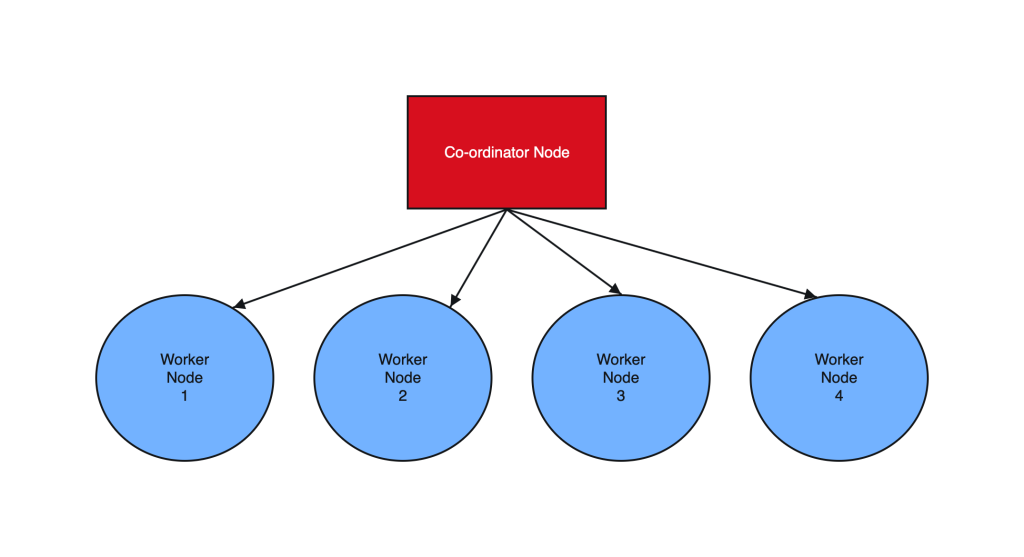
________________________ Step by Step Instructions to Setup Postgres Sharding ______________________________

  1. Create OL8 or RHEL8 Instance and Run the below commands on all Nodes :

a. SSH into all the Instances and configure it as below :

sudo dnf module list postgresql

sudo yum -y install gnupg2 wget vim tar zlib openssl

sudo dnf install https://download.postgresql.org/pub/repos/yum/reporpms/EL-8-x86_64/pgdg-redhat-repo-latest.noarch.rpm

sudo yum -qy module disable postgresql

sudo yum install postgresql14-server -y

sudo yum install postgresql14-contrib -y

## Due to policies for Red Hat family distributions, the PostgreSQL installation will not be enabled for automatic start or have the database initialized automatically

sudo systemctl enable postgresql-14

sudo postgresql-14-setup initdb

sudo systemctl start postgresql-14

sudo systemctl status postgresql-14 

b. Enable Postgres user and set Super user password

sudo -iu postgres

psql -c "ALTER USER postgres WITH PASSWORD 'RAbbithole1234#_';"

exit

c. Install Citus community edition binary and Create the Extension

# Add Citus repository for package manager

curl https://install.citusdata.com/community/rpm.sh | sudo bash

sudo yum install -y citus121_14
#Preload Citus and pg_stat_statements extensions on all Nodes

sudo -iu postgres

psql -U postgres -c 'SHOW config_file'

              config_file
----------------------------------------
 /var/lib/pgsql/14/data/postgresql.conf
(1 row)

vim /var/lib/pgsql/14/data/postgresql.conf

## Add below entry and uncomment 'shared_preload_libraries'

shared_preload_libraries = 'citus,pg_stat_statements'

## Note that “citus” has to be the first extension in the list. Otherwise, the server won’t start.

exit

sudo systemctl restart postgresql-14

sudo systemctl status postgresql-14


# Enable auto-start of Postgres 14 server when the server reboots

sudo chkconfig postgresql-14 on

sudo -i -u postgres psql -c "CREATE EXTENSION citus;"
sudo -i -u postgres psql -c "CREATE EXTENSION pg_stat_statements;"

d. Configure connection and authentication

sudo -iu postgres

vim /var/lib/pgsql/14/data/postgresql.conf

# Uncomment listen_addresses and set it as below
listen_addresses = '*'

# Uncomment and change wal_level = 'logical'
wal_level = 'logical'
vim /var/lib/pgsql/14/data/pg_hba.conf

# Change this line to allow all hosts 10.180.2.0/24 with trust
## Important Note : 10.180.2.0/24 is the subnet in which the instances reside. The subnet should have egress and ingress for the Postgres port. Alternately instead of doing a password-less setup, you can also use pgpass file to store the password on all nodes and use the normal authentication method. ##

# IPv4 local connections:
host    all             all             10.180.2.0/24           trust

exit

sudo systemctl restart postgresql-14

sudo systemctl status postgresql-14

## Whitelist Postgres Port##

sudo firewall-cmd --list-ports
sudo firewall-cmd --zone=public --permanent --add-port=5432/tcp
sudo firewall-cmd --reload
sudo firewall-cmd --list-ports

I’ve created a small automation script to perform the above steps. Save it as a .sh file, change the parameters according to your Postgres, citus version and simply execute on all the nodes:

#!/bin/bash

# Function to print commands and exit on failure
function run_command() {
    echo "$ $1"
    eval $1
    if [ $? -ne 0 ]; then
        echo "Error executing command. Exiting."
        exit 1
    fi
}

# Step 1: Install Postgres 14 Server on all Nodes
run_command "sudo dnf module list postgresql"
run_command "sudo yum -y install gnupg2 wget vim tar zlib openssl"
run_command "sudo dnf install -y https://download.postgresql.org/pub/repos/yum/reporpms/EL-8-x86_64/pgdg-redhat-repo-latest.noarch.rpm"
run_command "sudo yum -qy module disable postgresql"
run_command "sudo yum install postgresql14-server -y"
run_command "sudo yum install postgresql14-contrib -y"
run_command "sudo systemctl enable postgresql-14"

# Check if the data directory is empty
if [ -z "$(sudo -i -u postgres ls -A /var/lib/pgsql/14/data)" ]; then
    run_command "sudo postgresql-14-setup initdb"
else
    echo "Data directory is not empty. Skipping initialization."
fi

run_command "sudo systemctl start postgresql-14"
run_command "sudo chkconfig postgresql-14 on"

# Step 2: Enable Postgres user on all Nodes and set superuser password
run_command "sudo -i -u postgres psql -c \"ALTER USER postgres WITH PASSWORD 'YOurPassword1234#_';\""

# Step 3: Install Citus on all Nodes
run_command "curl https://install.citusdata.com/community/rpm.sh | sudo bash"
run_command "sudo yum install -y citus121_14"

# Step 4: Preload Citus and pg_stat_statements extensions on all Nodes
run_command "sudo -i -u postgres psql -U postgres -c 'SHOW config_file'"
run_command "sudo -i -u postgres sed -i -E 's/^#?(listen_addresses[ \t]*=[ \t]*).*/\1'\''*'\''/' /var/lib/pgsql/14/data/postgresql.conf"
run_command "sudo -i -u postgres sed -i -E 's/^#?(shared_preload_libraries[ \t]*=[ \t]*).*/\1'\''citus,pg_stat_statements'\''/' /var/lib/pgsql/14/data/postgresql.conf"
run_command "sudo -i -u postgres sed -i -E 's/^#?(wal_level[ \t]*=[ \t]*).*/\1'\''logical'\''/' /var/lib/pgsql/14/data/postgresql.conf"
run_command "sudo -i -u postgres sed -i -E '/^# IPv4 local connections:/ { n; s/^(host[ \t]*all[ \t]*all[ \t]*)127.0.0.1\/32[ \t]*scram-sha-256$/\10.0.0.0\/0           trust/ }' /var/lib/pgsql/14/data/pg_hba.conf"

# Step 5: Configure connection and authentication on all Nodes
run_command "sudo systemctl restart postgresql-14"
run_command "sudo firewall-cmd --list-ports"
run_command "sudo firewall-cmd --zone=public --permanent --add-port=5432/tcp"
run_command "sudo firewall-cmd --reload"
run_command "sudo firewall-cmd --list-ports"

# Step 6: Create Citus extension on all Nodes
run_command "sudo -i -u postgres psql -c \"CREATE EXTENSION citus;\""
run_command "sudo -i -u postgres psql -c \"CREATE EXTENSION pg_stat_statements;\""

echo "Script execution completed successfully."


2. Create Co-ordinator and Worker nodes

We have now prepared 3 instances for sharding in total. Step 1 should have been performed on all the below instances :

IP        HOSTNAME             ROLE
10.180.2.45     Postgres-Citus-Coordinator    Worker Node

10.180.2.198     Postgres-Citus-Worker-Node-1  Worker Node

10.180.2.86     Postgres-Citus-Worker-Node-2   Worker Node

Execute the below from the Co-ordinator node and run the below commands on the same node

ssh opc@10.180.2.222

# Add co-ordinator node
sudo -i -u postgres psql -c "SELECT citus_set_coordinator_host('10.180.2.45', 5432);"
 
# Add Worker Nodes
sudo -i -u postgres psql -c "SELECT * from citus_add_node('10.180.2.198', 5432);"
sudo -i -u postgres psql -c "SELECT * from citus_add_node('10.180.2.86', 5432);"


# Check Active Worker Nodes 
sudo -i -u postgres psql -c "SELECT * FROM citus_get_active_worker_nodes();"

  node_name   | node_port
--------------+-----------
 10.180.2.198 |      5432
 10.180.2.86  |      5432


3. Create a Distributed table

All steps below to be executed from Co-ordinator node :

CREATE TABLE orders (
order_id    bigserial, 
shard_key   int PRIMARY KEY, 
n           int, 
description char(100) DEFAULT 'x');

# Create Index to further optimize the SQL performance 
CREATE UNIQUE INDEX shard_key_idx on orders (shard_key);

# Add Distributed table
SELECT create_distributed_table('orders', 'shard_key');

\timing

# Generate 5 Million rows
INSERT INTO orders (shard_key, n, description)
SELECT 
    id AS shard_key,
    (random() * 1000000)::int AS n,
    'x' AS description
FROM generate_series(1, 5000000) AS id
ON CONFLICT DO NOTHING;


#Check the Size of the table using the Citus Table and not Standard Postgres comman
\x
SELECT * FROM citus_tables ;

# Check Explain plan of Query
\x
explain (analyze, buffers, timing) SELECT count(*) from orders;
explain (analyze, buffers, timing) SELECT count(*) from orders where shard_key=2 ;

4. Add another node by performing all commands in Step 1. and add it to the cluster

IP : 10.180.2.17

Run from the Co-ordinator node

sudo -i -u postgres psql -c "SELECT * from citus_add_node('10.180.2.17', 5432);"

sudo -i -u postgres psql -c "SELECT * FROM citus_get_active_worker_nodes();"

  node_name   | node_port
--------------+-----------
 10.180.2.198 |      5432
 10.180.2.86  |      5432
 10.180.2.17  |      5432
(3 rows)

# Add .pgpass file on co-ordinator node and add the DB details >> hostname:port:database:username:password
vim /var/lib/pgsql/.pgpass

localhost:5432:postgres:postgres:YOurPassword1234#_

chmod 600 .pgpass

# Re-balance the shards without downtime
psql -U postgres -h localhost

ALTER SYSTEM SET citus.max_background_task_executors_per_node = 2;
SELECT pg_reload_conf();
SELECT citus_rebalance_start();

NOTICE:  Scheduled 10 moves as job 1
DETAIL:  Rebalance scheduled as background job
HINT:  To monitor progress, run: SELECT * FROM citus_rebalance_status();
 citus_rebalance_start
-----------------------
                     1

#Check Status of rebalancing
SELECT * FROM citus_rebalance_status();

      1 | running | rebalance | Rebalance all colocation groups | 2023-12-24 09:44:16.813663+00 |             | {"t
asks": [{"LSN": {"lag": null, "source": "0/371A5128", "target": null}, "size": {"source": "29 MB", "target": "26 MB
"}, "hosts": {"source": "10.180.2.198:5432", "target": "10.180.2.17:5432"}, "phase": "Catching Up", "state": "runni
ng", "command": "SELECT pg_catalog.citus_move_shard_placement(102012,2,4,'auto')", "message": "", "retried": 0, "ta
sk_id": 4}], "task_state_counts": {"done": 3, "blocked": 6, "running": 1}}
(1 row)

#Once completed the output will be as below :

SELECT * FROM citus_rebalance_status();

 job_id |  state   | job_type  |           description           |          started_at           |          finishe
d_at          |                     details
--------+----------+-----------+---------------------------------+-------------------------------+-----------------
--------------+--------------------------------------------------
      1 | finished | rebalance | Rebalance all colocation groups | 2023-12-24 09:44:16.813663+00 | 2023-12-24 10:18
:24.886163+00 | {"tasks": [], "task_state_counts": {"done": 10}}

# Check the Shard views
SELECT * from pg_dist_shard;
SELECT * FROM citus_shards;

#Misc rebalancing SQL queries
select get_rebalance_table_shards_plan();
SELECT citus_set_default_rebalance_strategy('by_disk_size');
SELECT * from citus_remote_connection_stats();


Tracking Changes in Your PostgreSQL Tables: Implementing a Custom Change Data Capture (CDC)

Introduction:
Change Data Capture (CDC) is a technique used to track changes in a database, such as inserts, updates, and deletes. In this blog post, we will show you how to implement a custom CDC in PostgreSQL to track changes in your database. By using a custom CDC, you can keep a record of changes in your database and use that information in your applications, such as to provide a history of changes, track auditing information, or trigger updates in other systems

Implementing a Custom CDC in PostgreSQL:
To implement a custom CDC in PostgreSQL, you will need to create a new table to store the change information, create a trigger function that will be executed whenever a change is made in the target table, and create a trigger that will call the trigger function. The trigger function will insert a new row into the change table with the relevant information, such as the old and new values of the record, the time of the change, and any other relevant information.

To demonstrate this, we will show you an example of a custom CDC for a table called “employee”. The change table will be called “employee_cdc” and will contain columns for the timestamp, employee ID, old values, and new values of the employee record. The trigger function will be executed after an update on the “employee” table and will insert a new row into the “employee_cdc” table with the relevant information. Finally, we will show you how to query the “employee_cdc” table to retrieve a list of all changes that have occurred in the “employee” table since a certain timestamp.

  1. Create the Employee and CDC table

    To store the CDC information, you need to create a new table in your PostgreSQL database. In this example, we will create a table called “employee”, “employee_cdc”, “employee_audit” with the following columns:

CREATE TABLE employee (
id SERIAL PRIMARY KEY,
name VARCHAR(100) NOT NULL,
department VARCHAR(50) NOT NULL,
salary NUMERIC(10,2) NOT NULL,
hire_date DATE NOT NULL
);

CREATE TABLE employee_cdc (
timestamp TIMESTAMP DEFAULT now(),
employee_id INTEGER,
old_values JSONB,
new_values JSONB
);

In this table, “id” is an auto-incremented primary key, “timestamp” is a timestamp with time zone to store the time of the change, “employee_id” is the primary key of the employee record that was changed, and “old_values” and “new_values” are text columns to store the old and new values of the employee record, respectively.

2. Create the Audit table

CREATE TABLE employee_audit (
audit_timestamp TIMESTAMP DEFAULT now(),
employee_id INTEGER,
old_values JSONB,
new_values JSONB
);

3. Create the trigger function

To capture the changes in the employee table, you will need to create a trigger function that will be executed whenever a record is inserted, updated, or deleted in the table. The trigger function will insert a new row into the “employee_cdc” table with the relevant information. Here is an example trigger function:

CREATE OR REPLACE FUNCTION employee_cdc() RETURNS TRIGGER AS $$
BEGIN
IF (TG_OP = 'UPDATE') THEN
INSERT INTO employee_cdc (timestamp, employee_id, old_values, new_values)
VALUES (now(), NEW.id, row_to_json(OLD), row_to_json(NEW));
INSERT INTO employee_audit (employee_id, old_values, new_values)
VALUES (NEW.id, row_to_json(OLD), row_to_json(NEW));
END IF;
RETURN NULL;
END;
$$ LANGUAGE plpgsql;

This trigger function uses the “row_to_json” function to convert the old and new values of the employee record into JSON strings, which are then stored in the “old_values” and “new_values” columns of the “employee_cdc” table. The “NOW()” function is used to get the current timestamp.

4. Create the trigger

Now that the trigger function has been created, you need to create the trigger on the “employee” table that will call the function whenever a record is updated. You can create the trigger with the following command:

CREATE TRIGGER employee_cdc_trigger
AFTER UPDATE ON employee
FOR EACH ROW
EXECUTE FUNCTION employee_cdc();

4. Query the CDC table

In your application code, you can query the “employee_cdc” table to get a list of all changes that have occurred since a certain timestamp. For example, to get all changes since January 1st, 2023, you can use the following SQL query:

SELECT * FROM employee_cdc
WHERE timestamp >= '2023-01-01 00:00:00';

You can then process these changes as needed in your application code.

Conclusion:
In this blog post, we have shown you how to implement a custom Change Data Capture (CDC) in PostgreSQL to track changes in your database. By using a custom CDC, you can keep a record of changes in your database and use that information in your applications. Whether you are tracking changes for auditing purposes, providing a history of changes, or triggering updates in other systems, a custom CDC is a useful tool to have in your PostgreSQL toolkit.

Real-time Data Replication from Amazon RDS to Oracle Autonomous Database using OCI GoldenGate

Article first appeared here

Introduction

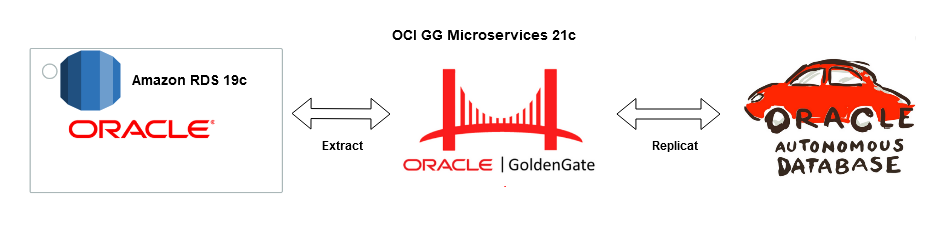
Goldengate Microservices 21c is the latest version of the microservices architecture which makes creating data mesh and data fabric across different public clouds as easy as a few clicks. Goldengate is available on OCI as a fully managed service with auto-scaling. It does not.require installation of Goldengate software at either the source or Target db instances. Goldengate uses a capture and apply mechanism for replication using trail files. Both the extract (capture) and replicat (apply) processes run on the Goldengate replication instance which acts as a hub.

Let us go ahead and create a data pipeline for replicating Data in real-time using Oracle Cloud Infrastructure (OCI) Goldengate 21c from Amazon RDS Oracle Instance to an Oracle Autonomous database in OCI. Below are some of the common use cases for this solution :

Use Cases

  1. Cross-cloud replication of Oracle Database from AWS RDS to OCI
  2. Migration of Oracle Database with Zero Downtime from AWS RDS to OCI
  3. Creating Multi-Cloud Microservices Application with Oracle database as the persistent data store
  4. Creating a Multi-cloud Data Mesh for Oracle Database

Architecture

Source : Amazon RDS Oracle 19c EE

Target : OCI Autonomous Transaction Processing 19c

Replication Hub : OCI Goldengate 21c Microservices

Network : Site-to Site IPsec VPN or Fastconnect (Direct Connect on AWS)

The solution is broadly divided into four phases :

  1. Setup of RDS Instance and Preparing Source for Goldengate replication
  2. Setup of OCI Autonomous Database and Preparing Target for Goldengate Replication
  3. Deployment of OCI Goldengate and Creation of Deployment and Register Source and Target Databases
  4. Create Extract (Capture) and Replicate (Apply) process on OCI Goldengate

Phase 1 — AWS Setup : RDS Source and Enable Goldengate Capture

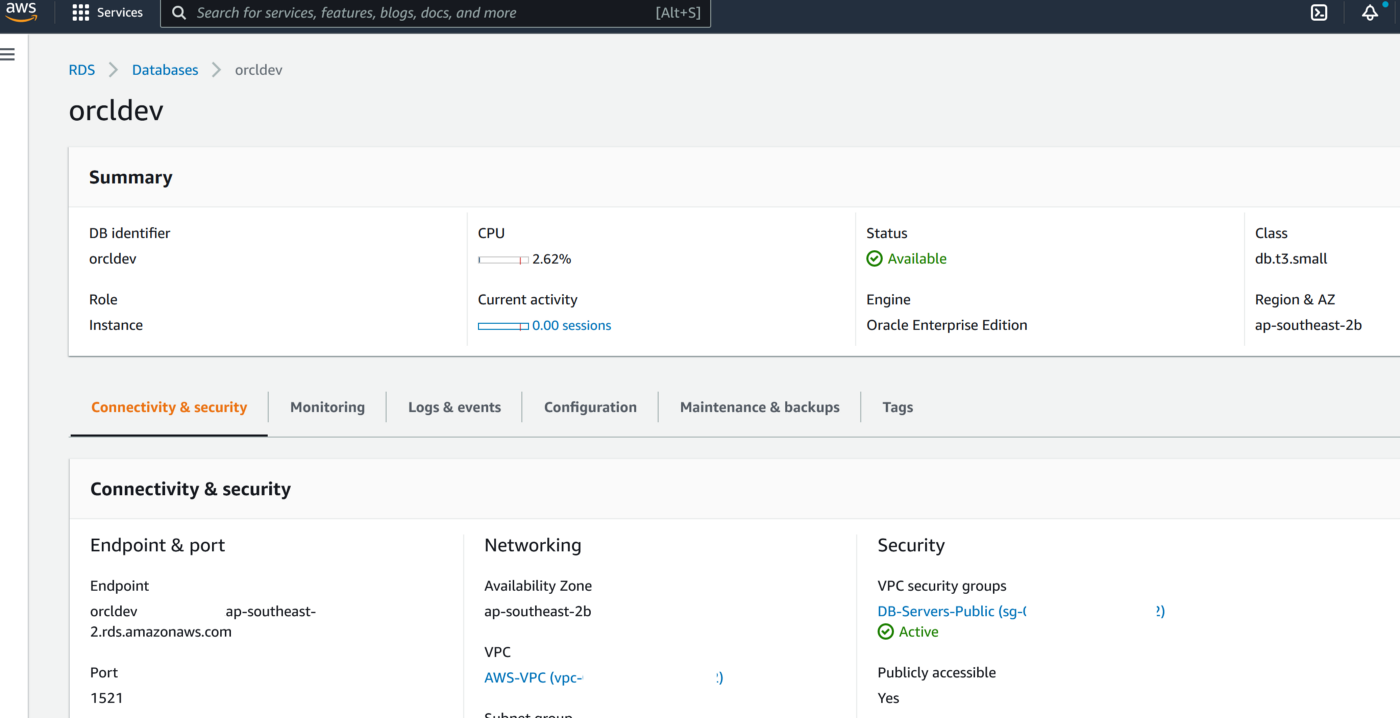
The first part of the setup requires us to provision a VPC, Subnet Group and Oracle 19c RDS Instance on AWS. Please ensure all the requistie Network constructs like security groups are in place for connectivity from OCI Goldengate to RDS. In a production scenario it would be betetr to have the RDS instance without a public endpoint and have a Fastconnect setup from AWS to OCI

  1. Create a VPC and RDS Subnet Group

2. Create RDS Oracle Instance 19.1 EE with super user as ‘admin’

3. Create a new DB Parameter Group for 19.1 EE with parameter ENABLE_GOLDENGATE_REPLICATION set to TRUE

4. Change the parameter group of the RDS instance and reboot the RDS Oracle instance once the parameter group has been applied. Double-check to confirm the parameter ENABLE_GOLDENGATE_REPLICATION is set to True and the correct parameter group is applied to the RDS isntance

5. Set the log retention period on the source DB with ‘admin’ user

exec rdsadmin.rdsadmin_util.set_configuration('archivelog retention hours',24);commit;


6. Create a new user account to be used for Goldengateon the RDS instance with ‘admin’ user

CREATE TABLESPACE administrator;

CREATE USER oggadm1 IDENTIFIED BY “*********” DEFAULT TABLESPACE ADMINISTRATOR TEMPORARY TABLESPACE TEMP;

commit;

7. Grant account privileges on the source RDS instance with ‘admin’ user

GRANT CREATE SESSION, ALTER SESSION TO oggadm1;

GRANT RESOURCE TO oggadm1;

GRANT SELECT ANY DICTIONARY TO oggadm1;

GRANT FLASHBACK ANY TABLE TO oggadm1;

GRANT SELECT ANY TABLE TO oggadm1;

GRANT SELECT_CATALOG_ROLE TO admin WITH ADMIN OPTION;

exec rdsadmin.rdsadmin_util.grant_sys_object (‘DBA_CLUSTERS’, ‘OGGADM1’);

exec rdsadmin.rdsadmin_util.grant_sys_object (‘DBA_CLUSTERS’, ‘ADMIN’);

GRANT EXECUTE ON DBMS_FLASHBACK TO oggadm1;

GRANT SELECT ON SYS.V_$DATABASE TO oggadm1;

GRANT ALTER ANY TABLE TO oggadm1;

grant unlimited tablespace TO oggadm1;

grant EXECUTE_CATALOG_ROLE to admin WITH ADMIN OPTION;

commit;

8. Finally, grant the privileges needed by a user account to be a GoldenGate administrator. The package that you use to perform the grant, dbms_goldengate_auth or rdsadmin_dbms_goldengate_auth, depends on the Oracle DB engine version.

— With admin user on RDS Oracle instance for Oracle Database version lower than 12.2 —

exec dbms_goldengate_auth.grant_admin_privilege (grantee=>’OGGADM1′,privilege_type=>’capture’,grant_select_privileges=>true, do_grants=>TRUE);

exec dbms_goldengate_auth.grant_admin_privilege(‘OGGADM1′,container=>’all’);

exec dbms_goldengate_auth.grant_admin_privilege(‘OGGADM1’);

commit;

— For Oracle DB versions that are later than or equal to Oracle Database 12c Release 2 (12.2), which requires patch level 12.2.0.1.ru-2019–04.rur-2019–04.r1 or later, run the following PL/SQL program.

exec rdsadmin.rdsadmin_dbms_goldengate_auth.grant_admin_privilege (grantee=>’OGGADM1′, privilege_type=>’capture’,grant_select_privileges=>true, do_grants=>TRUE);

commit;

To revoke privileges, use the procedure revoke_admin_privilege in the same package.

9. TNS entry for AWS RDS Instance

OGGTARGET=(DESCRIPTION=(ENABLE=BROKEN)(ADDRESS_LIST=(ADDRESS=(PROTOCOL=TCP)(HOST=orcl.*****.ap-southeast-2.rds.amazonaws.com)(PORT=1521)))(CONNECT_DATA=(SID=ORCL)))– To be added to Registered Database in OCI –(DESCRIPTION=(ENABLE=BROKEN)(ADDRESS_LIST=(ADDRESS=(PROTOCOL=TCP)(HOST=orcl.****.ap-southeast-2.rds.amazonaws.com)(PORT=1521)))(CONNECT_DATA=(SID=ORCL)))

Alias (to be used later in OCI GG configuration) : ORCLAWS

10. Create Test Table in RDS Oracle Instance

CREATE TABLE oggadm1.test (id number,name varchar2(100));

insert into oggadm1.test values (1,’Shadab’);

insert into oggadm1.test values (2,’Mohammad’);

commit;

11. Enable supplemental logging on with Admin user

Ref :https://docs.aws.amazon.com/AmazonRDS/latest/UserGuide/Appendix.Oracle.CommonDBATasks.Log.html#Appendix.Oracle.CommonDBATasks.SettingForceLogging

— Enable Force logging —

EXEC rdsadmin.rdsadmin_util.force_logging(p_enable => true);

— Enable Supplemental logging —

begin rdsadmin.rdsadmin_util.alter_supplemental_logging(p_action => ‘ADD’);

end;

— Enable Force logging —

EXEC rdsadmin.rdsadmin_util.force_logging(p_enable => true);

— Enable Supplemental logging —

begin rdsadmin.rdsadmin_util.alter_supplemental_logging(p_action => ‘ADD’);

end;

— Enable Force logging —

EXEC rdsadmin.rdsadmin_util.force_logging(p_enable => true);

— Enable Supplemental logging —

begin rdsadmin.rdsadmin_util.alter_supplemental_logging(p_action => ‘ADD’);

end;

/

Phase 2 — OCI Setup : Autonomous Database

We will provision the VCN, Autonomous Database on OCI and enable the goldengate replication user

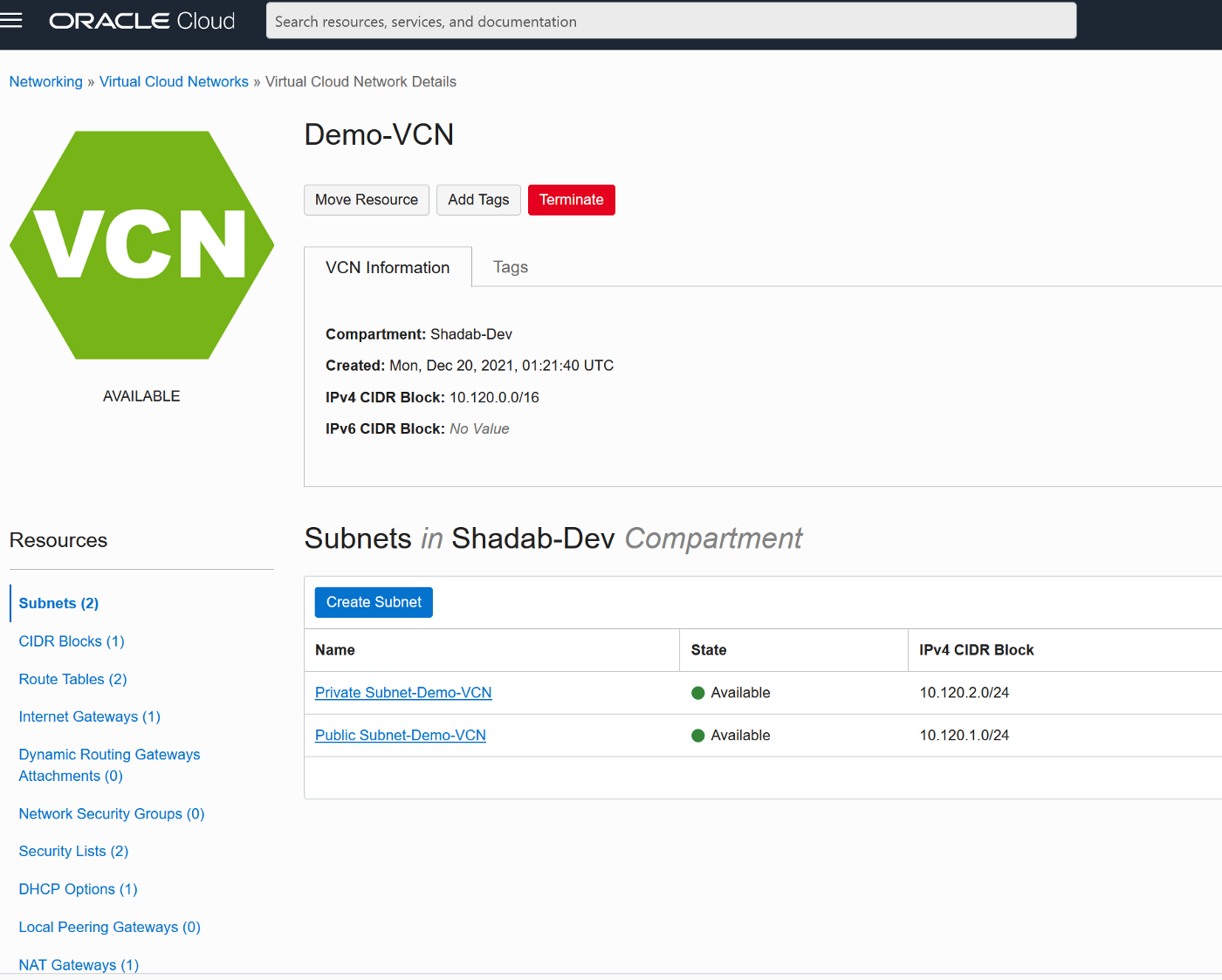
  1. Create VCN

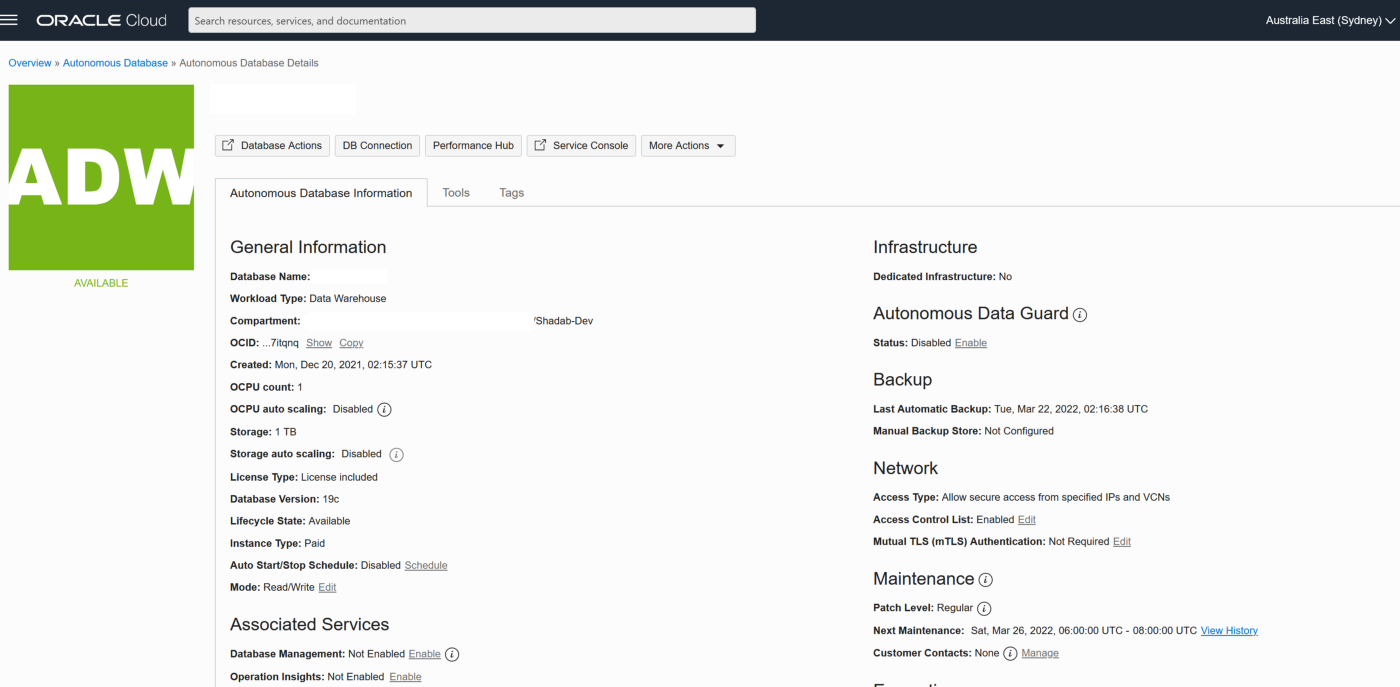
2. Create Autonomous Transaction Processing Database with Network Options and mTLS not required

3. Unlock ggadmin user in the ATP

                           alter user ggadmin identified by ****** account unlock;

4. Create Table ‘test’ in admin schema and do initial load (Normally this has to be done using data pump but it is beyond the scope of this article)

CREATE TABLE test (id number,name varchar2(100));

insert into test values (1,’Shadab’);

insert into test values (2,’Mohammad’);

commit;

select * from test;

Phase 3 — OCI Setup : Goldengate

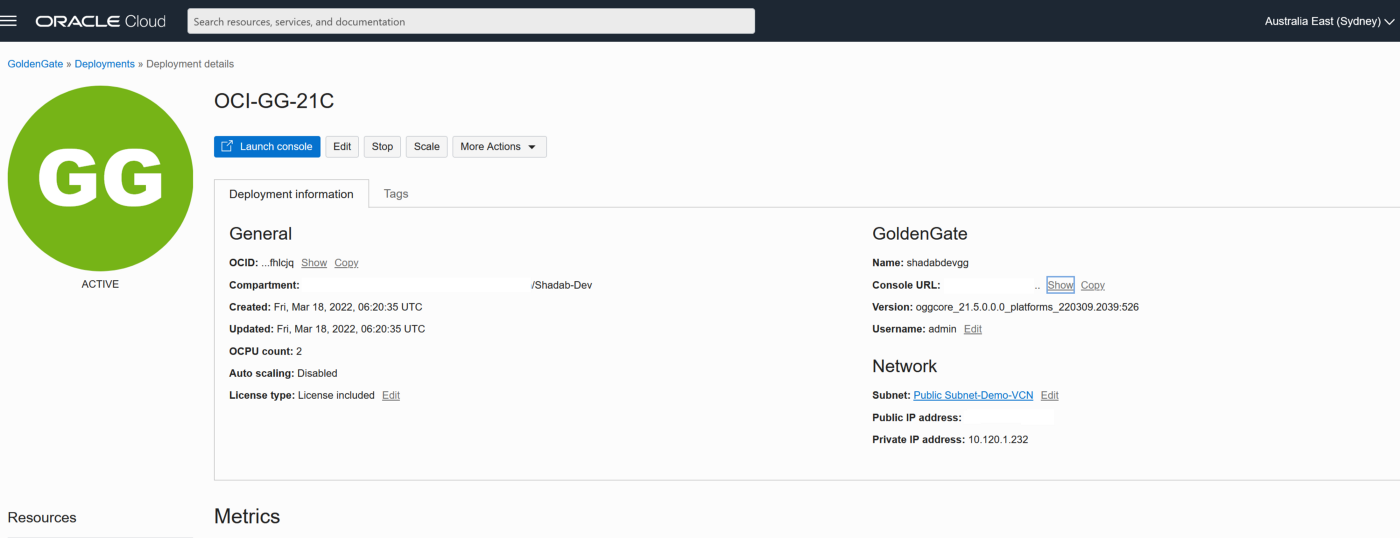
  1. Go to OCI Console Go to Oracle Database > Goldengate > Deployments > Create Deployment

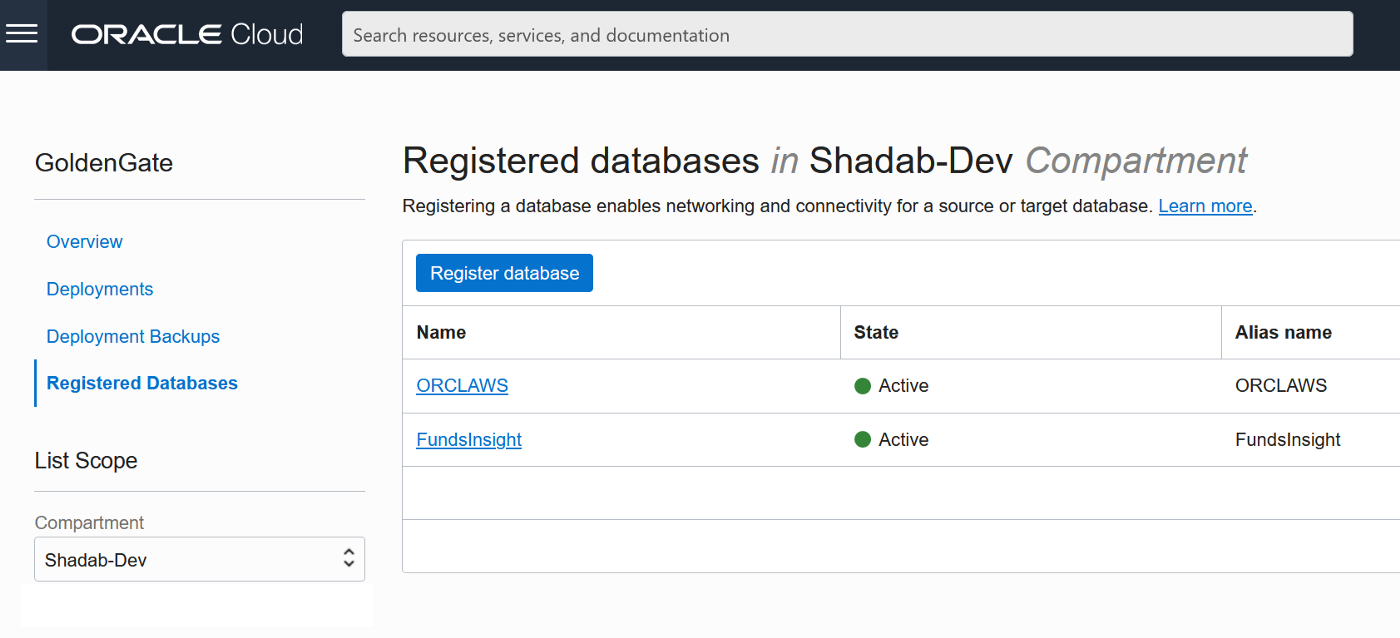
2. Go to Oracle Database > Goldengate > Registered Databases

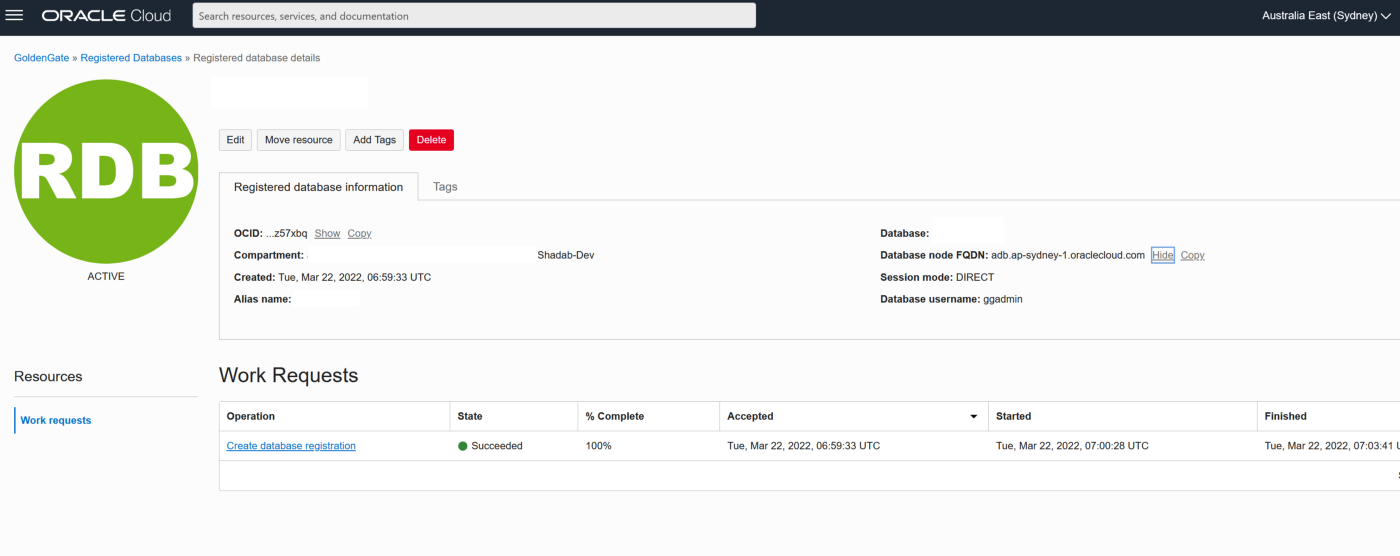
a. Add the ATP database created above with the ggadmin user

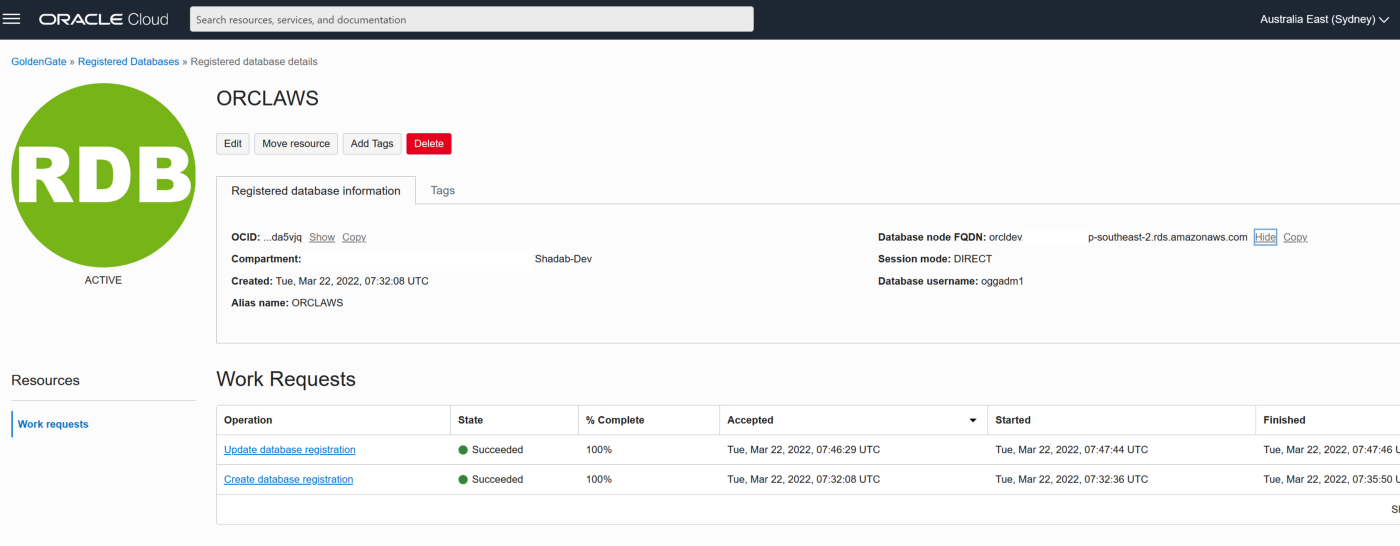
b. Add the RDS instance database using oggadm1 user

3. Test the connectivity to both databases , it should in console as Active

4. Go the launch URL for the Goldengate deployment username and password as per step 1.

                         eg : https://e*******q.deployment.goldengate.ap-sydney-1.oci.oraclecloud.com/

Phase 4 — Create , Extract (Capture) and Replicat (Apply) and Start the Replication

1. Create an Integrated Extract from Administration Service, click on the plus symbol next to the extract section

Go to Main Page > Configuration > Login to AWS RDS instance

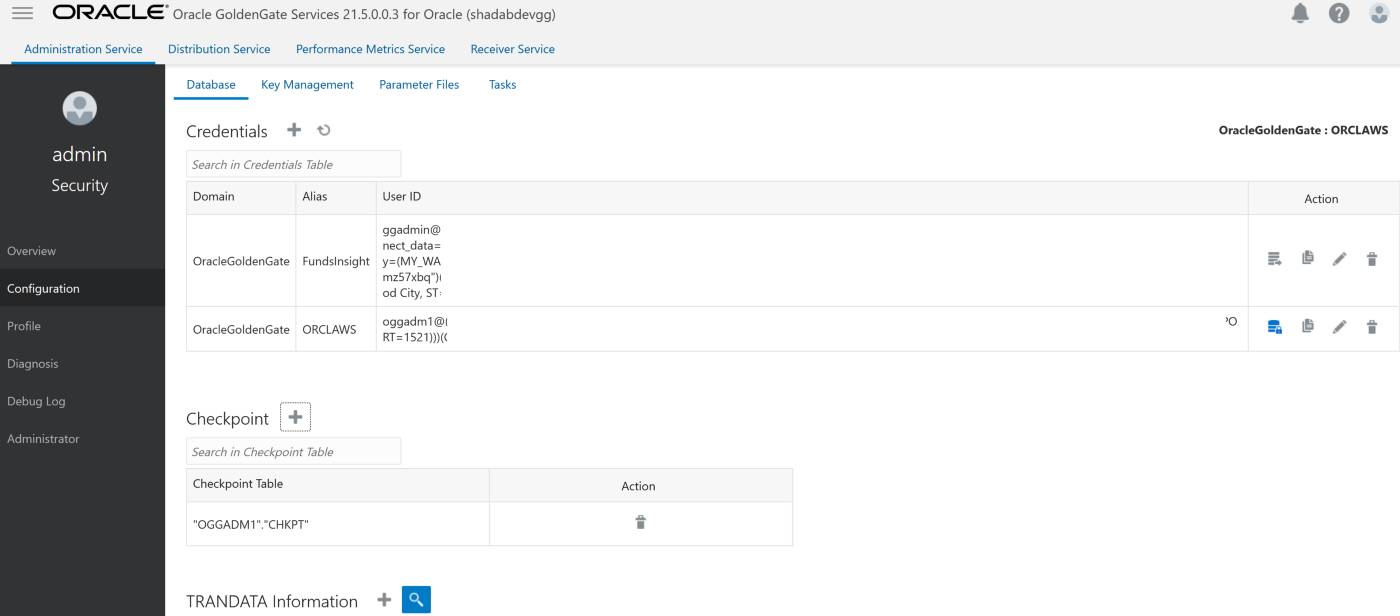
a. Create Checkpoint table oggadm1.ckpt

b. Add Tran Data for Schema oggadm1

EXTRACT AWSEXT

USERIDALIAS ORCLAWS DOMAIN OracleGoldenGate

EXTTRAIL AW

TABLE OGGADM1.*;

2. Create Non-integrated replicat for ADB on trail file ‘aw’. click on the plus symbol next to the Replicat section

Go to Main Page > Configuration > Login to ATP instance

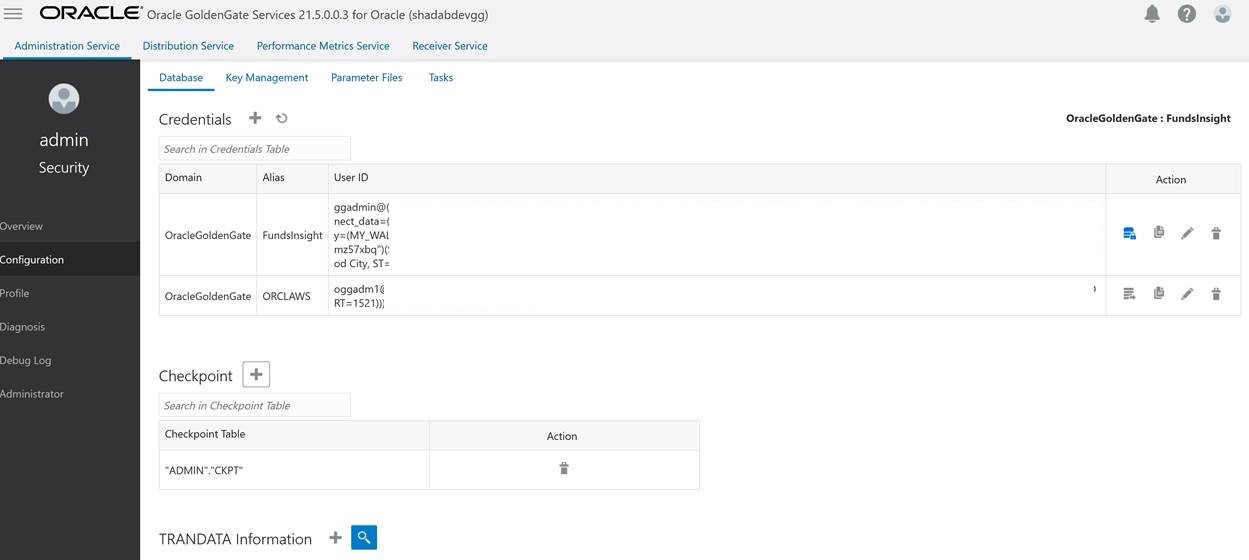
a. Create Checkpoint table admin.ckpt

b. Add Tran Data for Schema admin

c. Add heartbeat table

REPLICAT adbrep

USERIDALIAS FundsInsight DOMAIN OracleGoldenGate

MAP OGGADM1.TEST, TARGET ADMIN.TEST;

The status should be green on the OCI Goldengate Administration Dashboard

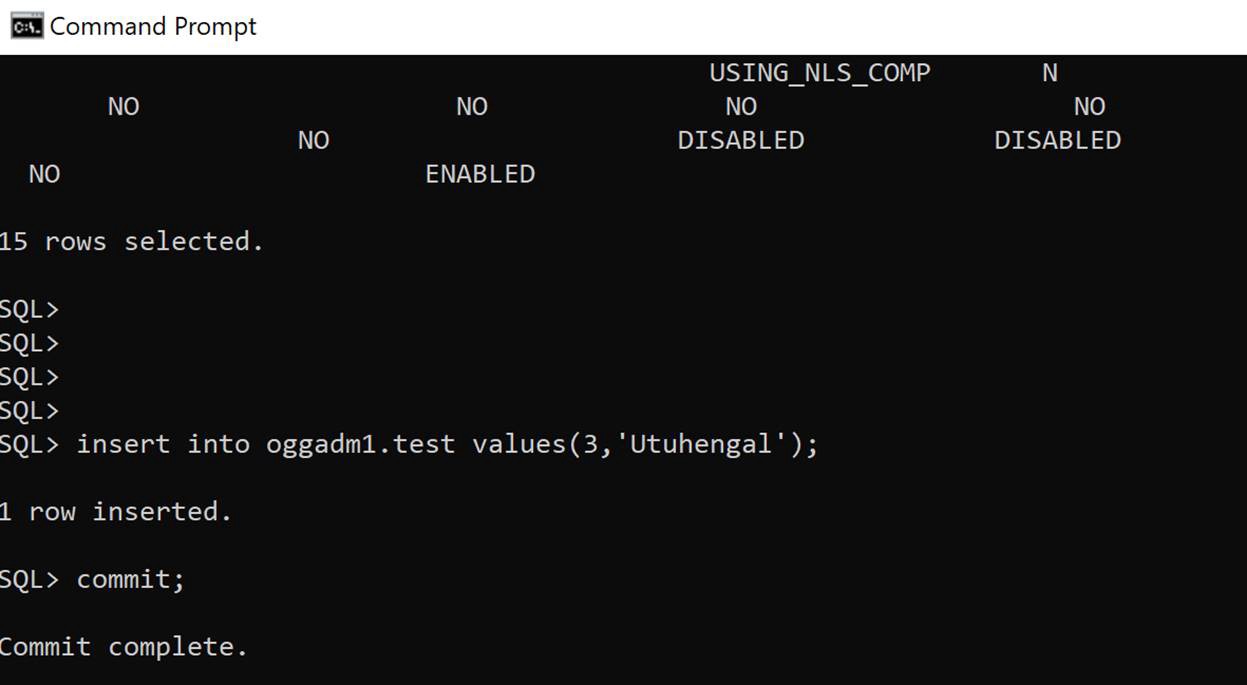
3. Insert transaction at RDS source

                            insert into oggadm1.test values(3,'Utuhengal');commit;

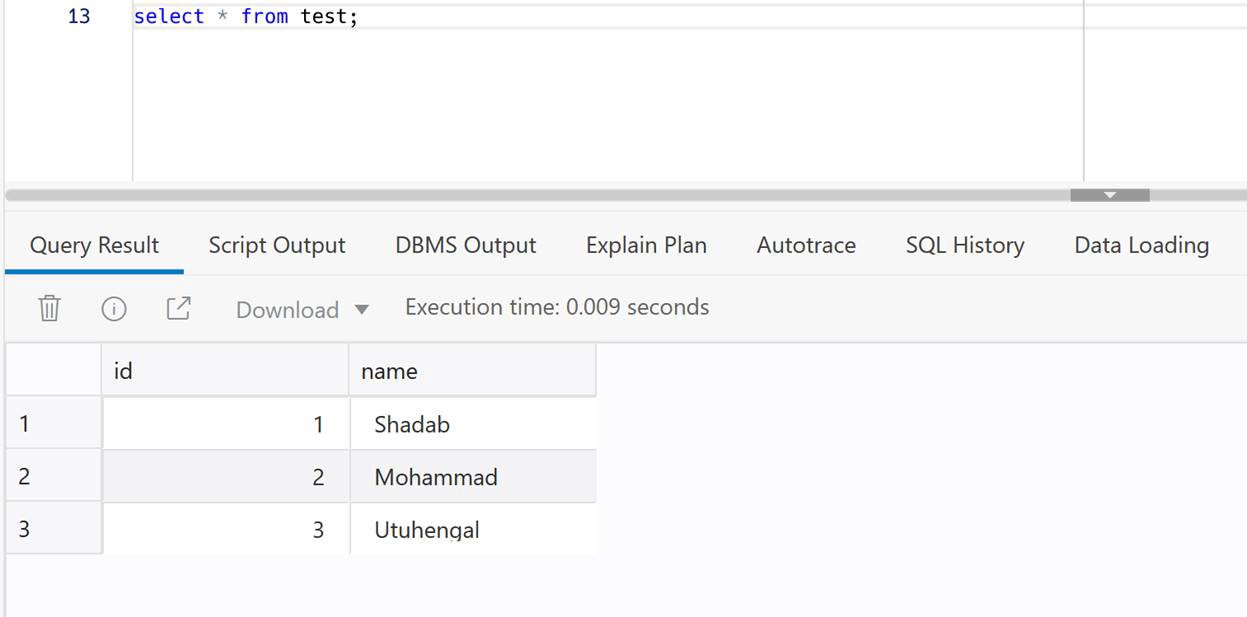
4. Check at ADB Target

                            select * from test;

Conclusion:

We have created cross-cloud replication from an Oracle Database sitting inside AWS to an Oracle Autonomous Database running on OCI. The idea was to demonstrate the capability and ease of Goldengate Microservices to run a a replication hub on OCI and let you create real-time change data capture across two different public clouds. Every component used in this architecture is a fully managed service without the need of managing any servers or installing any agents on either source or target as they are fully managed cloud services without access to under-lying host.

References:

  1. Setup of Goldengate for RDS : https://jinyuwang.weebly.com/cloud-service/how-to-capture-data-from-oracle-database-on-aws-rds-with-oracle-goldengate
  2. Goldengate Setup for RDS Source :https://docs.aws.amazon.com/AmazonRDS/latest/UserGuide/Appendix.OracleGoldenGate.html#Appendix.OracleGoldenGate.rds-source-ec2-hub
  3. RDS Common Tasks :https://docs.aws.amazon.com/AmazonRDS/latest/UserGuide/Appendix.Oracle.CommonDBATasks.Log.html
  4. OCI Goldengate Database Registration : https://docs.oracle.com/en/cloud/paas/goldengate-service/using/database-registrations.html#GUID-899B90FF-DF9A-481D-A531-BB9D25005EB9
  5. Apex Livelab for OCI Goldengate Microservices 21c :https://apexapps.oracle.com/pls/apex/dbpm/r/livelabs/workshop-attendee-2?p210_workshop_id=797&p210_type=3&session=113817274271778
  6. OCI Goldengate Blog : https://blogs.oracle.com/dataintegration/post/new-oci-goldengate-service-is-first-of-any-major-cloud-provider-to-deliver-operational-and-analytic-integration-into-a-single-data-fabric
  7. Getting Started with Goldengate : https://docs.oracle.com/goldengate/c1230/gg-winux/GGCON/getting-started-oracle-goldengate.htm#GGCON-GUID-61088509-F951-4737-AE06-29DAEAD01C0C

Backup and Restore PostgreSQL with Few Easy Shell Scripts

PostgreSQL is the most popular Open source database and there is a lot of information available when it comes to backing up and restoring PgSQL I have used these scripts to backup production databases and restored them to new Postgres Servers. So here it goes

Backup PostgreSQL Database – Backup_Pgsql.sh

#!/bin/bash
hostname=`hostname`
# Dump DBs
  date=`date +"%Y%m%d_%H%M%N"`
  backupdir='/home/opc'
  dbname='demo'
  filename="$backupdir/${hostname}_${dbname}_${date}"
 pg_dump -U postgres --encoding utf8 -F c -f $filename.dump $dbname

Restore PostgreSQL Database – Restore_Pgsql.sh

#!/bin/bash
# Restore DB
filename='/home/opc/pgimportmaster-demo-20211129_1013.dump'
  pg_restore -U postgres -d demo -c < ./$1
exit 0

Usage for Restore

$ ./Restore_Pgsql.sh pgimportmaster-demo-20211129_1013.dump