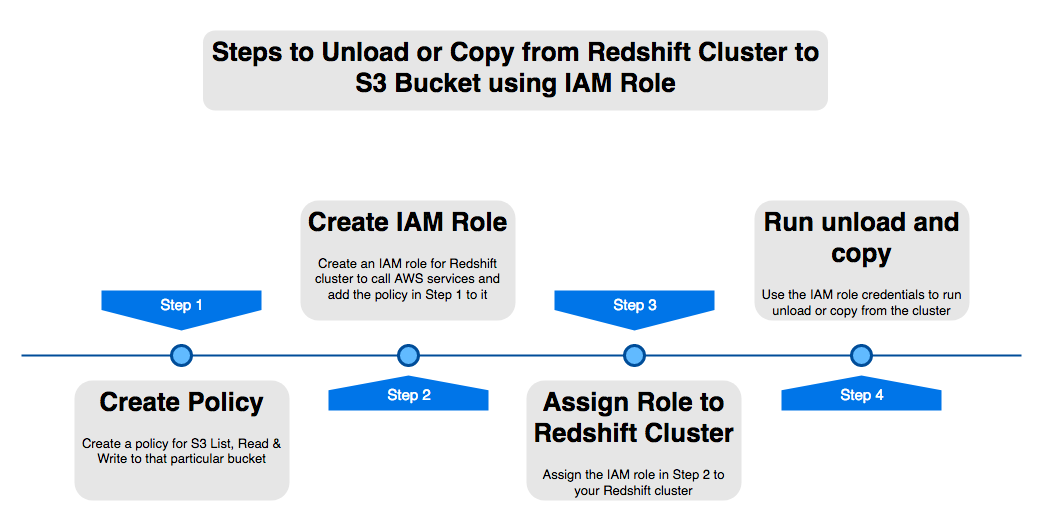
Creating IAM Policies and Roles & Associating the Role to the Redshift Cluster
———————————————————————————————————
In order to perform operations such as “COPY” and “UNLOAD” to/from a Redshift cluster, the user must provide security credentials that authorize the Amazon Redshift cluster to read data from or write data to your target destination, in this case an Amazon S3 bucket.
Step 1: Creating the policy to allow access on S3
- Login to the AWS console at https://console.aws.amazon.com/
- On the Services menu, chose IAM (Under security, Identity & Compliance)
- On the left side of the IAM Console, go to “Policies”
- Select “Create Policy” on the top of the page
- Select JSON tab, and paste below in JSON. Replace ‘redshift-testing-bucket-shadmha’ with your bucket name which you are using for unload and copy
{
“Version”:”2012-10-17″,
“Statement”:[
{
“Effect”:”Allow”,
“Action”:[
“s3:PutObject”,
“s3:DeleteObject”
],
“Resource”:[
“arn:aws:s3:::redshift-testing-bucket-shadmha*”
]
},
{
“Effect”:”Allow”,
“Action”:[
“s3:ListBucket”
],
“Resource”:[
“arn:aws:s3:::redshift-testing-bucket-shadmha*”
]
}
]
}
- Click on “Review Policy” and provide “Name” and “Description” for the policy
- Click “Create Policy” and keep this name handy we will need the name of this policy to add to the IAM role in next step
Step 2: Creating the IAM Role such that the Redshift Service can request it
- On the left menu of your IAM Console, select “Roles”
- Select “Create Role” on the top of the page
- Select type of trusted entity as “AWS Service” > Select the service which will be used for this role as “Amazon Redshift”
- Select your use case as “Redshift – Customizable Allows Redshift clusters to call AWS services on your behalf.” and click “Permissions”
- Search the policy that was previously created, select it and click on “Next”
- Specify a “Role name”
- Select “Create Role”
Step 3: Associating the created Role to a Redshift Cluster
- On your AWS Console, on the Services menu, choose “Redshift”
- On the AWS Redshift console, select the cluster in question and click on “Manage IAM roles”
- On the pop-up screen, click on the drop box “Available roles” and select the Role created in the previous step
- Select “Apply changes”
Considerations
——————–
As soon as the “Status” for the IAM role on the “Manage IAM roles” shows as “in-sync”, you can try “COPY” or “UNLOAD” using as CREDENTIALS the created role ARN.
Example:
Note: Modify the details such as schema and table_name, the bucket_name, and “<arn>” to the role ARN (example: “arn:aws:iam::586945000000:role/role_name”), to suit your case scenario.
Below is the example from my test cluster, Role name ‘REDSHIFTNEWROLE’ is one created in Step 2 and S3 bucket ‘redshift-testing-bucket-shadmha’ is the one we assigned policy to in Step 1.
eg:
unload (‘select * from test_char’)
to ‘s3://redshift-testing-bucket-shadmha/test_char.csv’
credentials ‘aws_iam_role=arn:aws:iam::775867435088:role/REDSHIFTNEWROLE’
delimiter ‘|’ region ‘ap-southeast-2’
parallel off:
Most common error associated when trying to copy or unload data from Redshift:
ERROR: S3ServiceException:Access Denied,Status 403,Error AccessDenied
 AWS CLOUD DBA