Migrating On-Premise PostgreSQL to Aurora using a Hybrid Replication Architecture

Most migrations from on-prem PostgreSQL to Aurora rely on logical replication or AWS DMS directly from the source. But what if you want to reduce load on your production system, add a control layer, or deal with network constraints?

I recently explored an approach using an intermediary PostgreSQL instance on EC2.

Architecture in brief:

On-prem PostgreSQL (A) → Physical replication → EC2 PostgreSQL (B) → Logical replication (AWS DMS) → Aurora PostgreSQL (C)

This architecture is valid and commonly used in complex migrations, especially when you want to decouple source load, add transformation control, or work around network/security constraints.

we’re essentially proposing a hybrid replication chain:
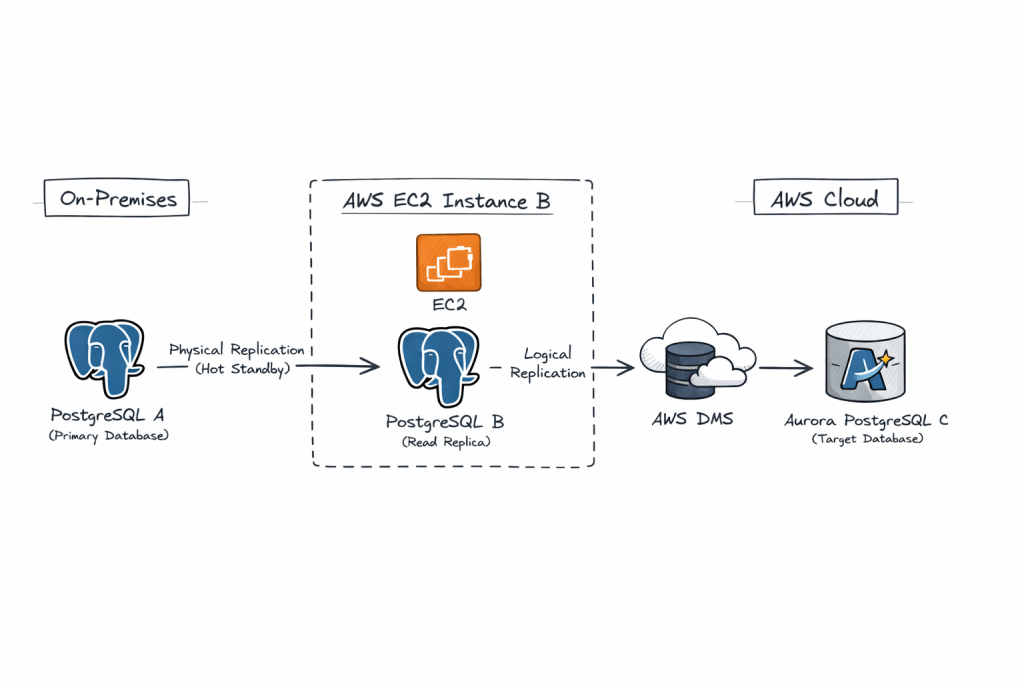
  • A (on-prem PostgreSQL)B (EC2 PostgreSQL) via physical replication
  • B (EC2 PostgreSQL)C (Aurora PostgreSQL) via logical replication / AWS DMS

Why this is interesting:

• Physical replication ensures a low-impact, byte-level copy from the source
• Logical replication from the intermediary allows selective migration and transformation
• The EC2 layer acts as a buffer, isolating production from migration tooling

Key benefits:

• Zero logical decoding overhead on production
• Better control over migration scope
• Improved fault isolation
• Flexible transformation using DMS

Trade-offs:

• Increased replication lag due to chaining
• More operational complexity
• WAL retention needs careful monitoring
• Logical decoding on standby requires newer PostgreSQL versions

This pattern is especially useful in regulated environments or where direct connectivity to AWS is restricted.

It is not the simplest design, but it is a powerful one when used in the right context.


Pre-Requisities on Both A and B

1. Ensure Port 5432 is added to Firewall whitelist on both hosts for ingress and also on the Security Group of the instance

sudo firewall-cmd --zone=public --permanent --add-port=5432/tcp
sudo firewall-cmd --reload

2. listen_address in postgresql.conf is set to ‘*’

3. pg_hba.conf is set to allow all hosts

host all all 0.0.0.0/0 scram-sha-256

⚙️ Step-by-Step Implementation

🔹 Phase 1: Setup Physical Replication (A → B)

1. Prepare On-Premise Source (A)

Update postgresql.conf:

wal_level = replica
max_wal_senders = 10
wal_keep_size = 2048 #2GB
hot_standby = on

Update pg_hba.conf:

host replication replicator <Server-B-IP>/32 scram-sha-256

Create replication user:

CREATE ROLE replicator WITH REPLICATION LOGIN PASSWORD 'password';

2. Take Base Backup to EC2 Postgres Instance B

On EC2 instance (B) Install a fresh PostgreSQL engine or disable the previous Postgresql database for a fresh restore :

sudo systemctl stop postgresql-17
mv /var/lib/pgsql/17/data/ /var/lib/pgsql/17/data_old

Take backup on EC2 instance (B) :

pg_basebackup -h <Server-A-IP> -D /var/lib/pgsql/17/data/ -U replicator -P -R -X stream

This:

  • Copies data
  • Creates standby.signal
  • Configures replication automatically

Start B as Standby

sudo systemctl start postgresql-17

Verify:

SELECT * FROM pg_stat_wal_receiver;
15436 | streaming | 0/7000000 | 1 | 0/7384628 | 0/7384628 | 1 | 2026-04-11
12:08:24.757316+00 | 2026-04-11 12:08:24.75985+00 | 0/7384628 | 2026-04-11 12:08:24.75581+00 | | 1
0.140.1.41 | 5432 | user=replicator password=******** channel_binding=prefer dbname=replication host=10.140
.1.41 port=5432 fallback_application_name=walreceiver sslmode=prefer sslnegotiation=postgres sslcompression=0 sslc
ertmode=allow sslsni=1 ssl_min_protocol_version=TLSv1.2 gssencmode=prefer krbsrvname=postgres gssdelegation=0 targ
et_session_attrs=any load_balance_hosts=disable

🔹 Phase 2: Prepare B for Logical Replication / DMS

This is the critical step 👇

By default, a physical replica cannot act as a logical replication source unless configured properly.

1. Enable Logical Decoding on B

Update on B:

wal_level = logical
max_replication_slots = 10
max_wal_senders = 10

⚠️ Important:
–> Requires restart
–> In PostgreSQL 14+, logical decoding on standby is supported

Create Logical Replication Slot (if using native)

SELECT * FROM pg_create_logical_replication_slot('dms_slot', 'pgoutput');

🔹 Phase 3: Setup AWS DMS (B → C)

1. Create DMS Components

In Amazon Web Services:

  • DMS Replication Instance
  • Source Endpoint → B
  • Target Endpoint → Aurora (C)

2. Configure Source Endpoint (B)

  • Enable CDC
  • Provide replication slot name (dms_slot)
  • Plugin: pgoutput

3. Configure Target Endpoint (C)

Aurora PostgreSQL:

  • Ensure parameter group has:
rds.logical_replication = 1

4. Create DMS Task

  • Migration type: Full load + CDC
  • Table mapping: select schemas/tables
  • Enable:
    • Ongoing replication
    • LOB handling if needed

5. Start Task

DMS will:

  1. Do initial full load
  2. Stream ongoing changes from B

Why This Works

  • Physical replication ensures exact byte-level copy
  • Logical replication enables selective, flexible migration
  • B acts as:
    • Load buffer
    • Isolation layer
    • Transformation point

Advantages

1. Offload Source (A)

  • No logical decoding overhead on A
  • Reduces production risk

2. Network Isolation

  • B can sit inside AWS VPC
  • Avoids direct on-prem → Aurora connectivity

3. Migration Flexibility

  • Filter tables
  • Transform data via DMS

4. Reduced Blast Radius

  • Issues in DMS don’t impact A

5. Replay Capability

  • You can restart DMS without touching A

Disadvantages / Risks

1. Replication Lag Compounding

  • A → B lag
  • B → C lag
    👉 Total lag increases

2. Logical Decoding on Standby Limitations

  • Requires newer PostgreSQL versions (≥14)
  • Some edge cases with WAL replay

3. Operational Complexity

  • Two replication mechanisms
  • More monitoring required

4. Failover Complications

If A fails:

  • B becomes primary?
  • Logical slots may break

5. WAL Retention Pressure

  • Logical slots prevent WAL cleanup
  • Risk of disk bloat

6. DMS Limitations

  • Doesn’t replicate:
    • Sequences perfectly
    • Some DDL changes
    • Extensions

When This Architecture Makes Sense

Use it when:

✔ Direct A → Aurora is not feasible
✔ You want zero impact on source DB
✔ You need data transformation/filtering
✔ You want controlled cutover with buffer layer

Avoid it when:

✖ Simplicity is priority
✖ Low-latency replication required
✖ PostgreSQL version < 14

AWS Lambda Function to Load Data from ‘Requestor Pays’ S3 bucket in One Account to Redshift Cluster in Another Account

Part A : Create Redshift Spectrum Cross-Account Access for S3 


Company Account A: Redshift Cluster Account: 24xxxxxx16
Role: RoleA

Company Account B: S3 Bucket Account: 8xxxxxxxx11
Role: RoleB
Bucket Name (Create with Option “Requestor Pays”): s3://shadmha-us-east-2

Use Case:  1. Read Data from S3 Bucket in different account into Spectrum Table
                   2. Unload Data from Redshift Cluster to S3 bucket in different account

======================================================

Step 1: In Redshift Cluster Account 24xxxxxx16, do this

a)    Go to IAM > Roles > Create Role
b)    Create Role > Redshift > Redshift – Customizable.
c)    No need to add policies or tags, go ahead and save this role as “RoleA”
d)    Add this role to your Redshift cluster. Goto Redshift Console > Select Cluster > Manage IAM > Add “RoleA” to Cluster

Step 2: In account which has the S3 Bucket Account 8xxxxxxxx11, do this: 

a)    Go to IAM > Policies > Create policy
b)    Select the JSON tab and add below IAM policy, replace my bucket name ‘shadmha-us-east-2’ with your bucket name

{
    “Version”: “2012-10-17”,
    “Statement”: [
        {
            “Effect”: “Allow”,
            “Action”: [
                “s3:GetBucketLocation”,
                “s3:GetObject”,
                “s3:PutObject”,
                “s3:ListMultipartUploadParts”,
                “s3:ListBucket”,
                “s3:ListBucketMultipartUploads”
            ],
            “Resource”: [
                “arn:aws:s3:::shadmha-us-east-2”,
                “arn:aws:s3:::shadmha-us-east-2/*”
            ]
        },
        {
            “Effect”: “Allow”,
            “Action”: [
                “glue:CreateDatabase”,
                “glue:DeleteDatabase”,
                “glue:GetDatabase”,
                “glue:GetDatabases”,
                “glue:UpdateDatabase”,
                “glue:CreateTable”,
                “glue:DeleteTable”,
                “glue:BatchDeleteTable”,
                “glue:UpdateTable”,
                “glue:GetTable”,
                “glue:GetTables”,
                “glue:BatchCreatePartition”,
                “glue:CreatePartition”,
                “glue:DeletePartition”,
                “glue:BatchDeletePartition”,
                “glue:UpdatePartition”,
                “glue:GetPartition”,
                “glue:GetPartitions”,
                “glue:BatchGetPartition”
            ],
            “Resource”: “*”
        }
    ]
}

Chose Review Policy & Save the policy as let’s say ‘s3-cross-account-policy’

c)    Go to Roles > Create Role > Select type of trusted entity as ‘Another AWS Account’ tab
d)    Enter Account ID of Redshift Cluster Account ‘24xxxxxx16’ > Permissions > Search policy created in a)  “s3-cross-account-policy’
e)    Go next > create role > save it as “RoleB”
f)    Go to Roles > Select “RoleB” > “Trust Relationships” tab > Edit trust telationships. Add the below policy:

{
  “Version”: “2012-10-17”,
  “Statement”: [
    {
      “Effect”: “Allow”,
      “Principal”: {
        “AWS”: “arn:aws:iam::24xxxxxx16:root”
      },
      “Action”: “sts:AssumeRole”,
      “Condition”: {}
    }
  ]
}

Update the trust policy

Step 3: Go back to Account under which Redshift Cluster is created

a)    Go to IAM > Roles > Select role which you created earlier “RoleA”
b)    Add inline policy to this role and add the below policy and save it

{
    “Version”: “2012-10-17”,
    “Statement”: [
        {
            “Sid”: “Stmt1487639602000”,
            “Effect”: “Allow”,
            “Action”: [
                “sts:AssumeRole”
            ],
            “Resource”: “arn:aws:iam::80xxxxx11:role/RoleB”
        }
    ]
}
c)    Create policy and Save it to role

Part B: Deploy a Lambda Function Using Attached Code(S3-to-Redshift.zip). And Change Your Cluster and Bucket Details Accordingly

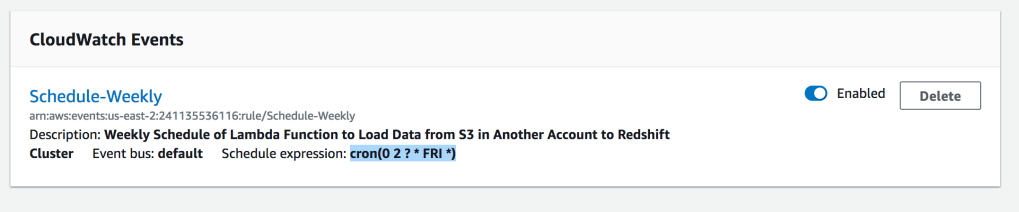
Add a Cloud Watch Event Trigger with Cron Expression : cron(0 2 ? * FRI *)

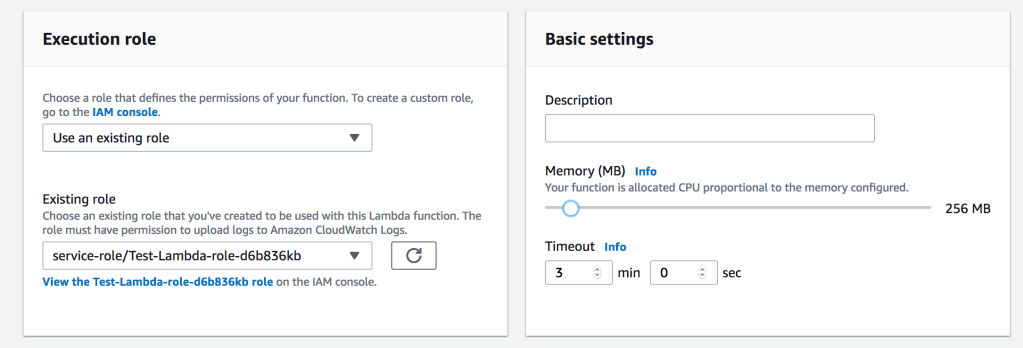
Increase Timeout & Memory of Lambda Function

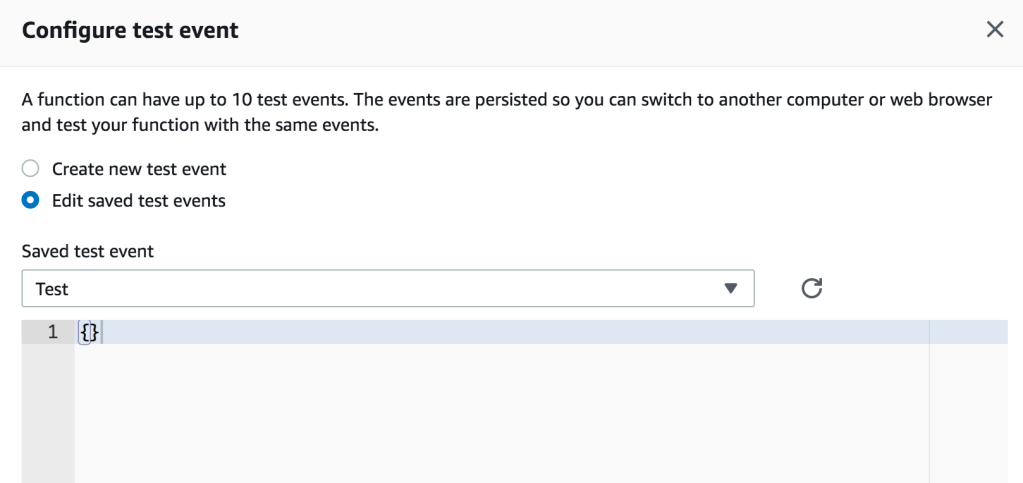
Configure Test Event

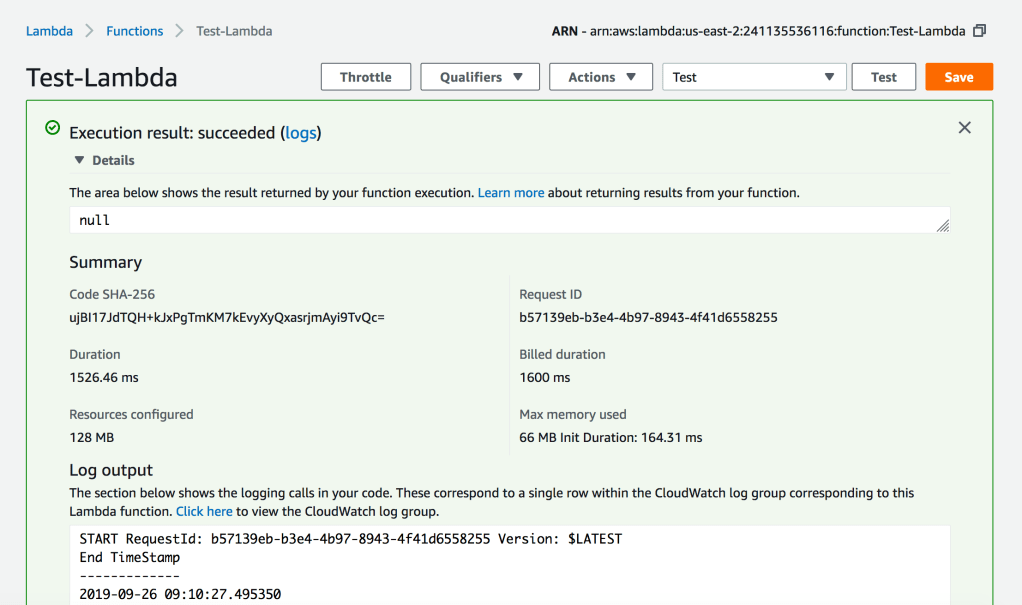
Execute the Lambda Function to Test

Python Code for Lambda Function

#######################################################################################
# Author         :      Shadab Mohammad
# Create Date    :      13-05-2019
# Modified Date  :      26-09-2019
# Name           :      Load Dataset from AWS S3 bucket to your Redshift Cluster
# Dependencies   :      Requires Python 3.6+. Python Libraries required ‘psycopg2’
#######################################################################################
import psycopg2
import csv
import time
import sys
import os
import datetime
from datetime import date
datetime_object = datetime.datetime.now()


print (“###### Load Data From S3 to Redshift ######”)
print (“”)
print (“Start TimeStamp”)
print (“—————“)
print(datetime_object)
print (“”)

def lambda_handler(event, context):
        #Obtaining the connection to RedShift
    con=psycopg2.connect(dbname= ‘testdb’, host=’shadmha-us-east-2.crhzd8dtwytq.us-east-2.redshift.amazonaws.com’, port= ‘5439’, user= ‘awsuser’, password= ‘SomeP@ssword’)

    copy_command_1=”copy connection_log from ‘s3://shadmha-us-east-2/cross-acct-test/connection_events.csv’ delimiter ‘,’ csv iam_role ‘arn:aws:iam::241135536116:role/RoleA,arn:aws:iam::804739925711:role/RoleB’ ignoreheader 1;”

    #Opening a cursor and run truncate query
    cur = con.cursor()
    query= f”’
    DROP TABLE IF EXISTS connection_log CASCADE;

    CREATE TABLE connection_log(
    username varchar(50),
    event varchar(50),
    count int8);
    COMMIT;”’
    cur.execute(query)
    con.commit()

    #Opening a cursor and run copy query
    cur.execute(copy_command_1)
    con.commit()
    #Close the cursor and the connection
    cur.close()
    con.close()

    # Progress Bar Code Ends here

    datetime_object_2 = datetime.datetime.now()
    print (“End TimeStamp”)
    print (“————-“)
    print (datetime_object_2)
    print (“”)

Lambda Function Code : https://github.com/shadabshaukat/serverless/blob/98f42c7867d6eb4d9e602d2b703764ad891fdfed/S3-to-Redshift.zip

Python Script to Create a Data Pipeline Loading Data From RDS Aurora MySQL To Redshift

In this tutorial we will create a Python script which will build a data pipeline to load data from Aurora MySQL RDS to an S3 bucket and copy that data to a Redshift cluster.

One of the assumptions is you have basic understanding of AWS, RDS, MySQL, S3, Python and Redshift. Even if you don’t it’s alright I will explain briefly about each of them to the non-cloud DBA’s

AWS- Amazon Web Services. It is the cloud infrastructure platform from Amazon which can be used to build and host anything from a static website to a globally scalable service like Netflix

RDS – Relational Database Service or RDS or short is Amazons managed relational database service for databases like it’s own Aurora, MySQL, Postgres, Oracle and SQL Server

S3- Simple Storage Service is AWS’s distributed storage which can scale almost infinitely. Data in S3 is stored in Buckets. Think of buckets as Directories but DNS name compliant and cloud hosted

Python – A programming language which is now the defacto standard for data science and engineering

Redshift- AWS’s Petabyte scale Data warehouse which is binary compatible to PostgreSQL but uses a columnar storage engine

The source in this tutorial is a RDS Aurora MySQL database and target is a Redshift cluster. The data is staged in an S3 bucket. With Aurora MySQL you can unload data directly to a S3 bucket but in my script I will offload the table to a local filesystem and then copy it to the S3 bucket. This will give you flexibility in-case you are not using Aurora but a standard MySQL or Maria DB

Environment:

  1. Python 3.7.2 with pip
  2. Ec2 instance with the Python 3.7 installed along with all the Python packages
  3. Source DB- RDS Aurora MySQL 5.6 compatible
  4. Destination DB – Redshift Cluster
  5. Database : Dev , Table : employee in both databases which will be used for the data transfer
  6. S3 bucket for staging the data
  7. AWS Python SDK Boto3

Make sure both the RDS Aurora MySQL and Redshift cluster has security groups which have have IP of the Ec2 instance for inbound connections (Host and Port)

  1. Create the table ’employee’ in both the Aurora and Redshift Clusters

Aurora MySQL 5.6

CREATE TABLE `employee` (
  `id` int(11) NOT NULL,
  `first_name` varchar(45) DEFAULT NULL,
  `last_name` varchar(45) DEFAULT NULL,
  `phone_number` varchar(45) DEFAULT NULL,
  `address` varchar(200) DEFAULT NULL,
  PRIMARY KEY (`id`)
) ENGINE=InnoDB DEFAULT CHARSET=latin1;

Redshift

DROP TABLE IF EXISTS employee CASCADE;

CREATE TABLE employee
(
   id            bigint         NOT NULL,
   first_name    varchar(45),
   last_name     varchar(45),
   phone_number  bigint,
   address       varchar(200)
);

ALTER TABLE employee
   ADD CONSTRAINT employee_pkey
   PRIMARY KEY (id);

COMMIT;

2. Install Python 3.7.2 and install all the packages needed by the script

sudo /usr/local/bin/python3.7 -m pip install boto3
sudo /usr/local/bin/python3.7 -m pip install psycopg2-binary
sudo /usr/local/bin/python3.7 -m pip install pymysql
sudo /usr/local/bin/python3.7 -m pip install json
sudo /usr/local/bin/python3.7 -m pip install pymongo

3. Insert sample data into the source RDS Aurora DB

$ mysql -u awsuser -h shadmha-cls-aurora.ap-southeast-2.rds.amazonaws.com -p dev

INSERT INTO `employee` VALUES (1,'shadab','mohammad','04447910733','Randwick'),(2,'kris','joy','07761288888','Liverpool'),(3,'trish','harris','07766166166','Freshwater'),(4,'john','doe','08282828282','Newtown'),(5,'mary','jane','02535533737','St. Leonards'),(6,'sam','rockwell','06625255252','Manchester');

SELECT * FROM employee;

4. Download and Configure AWS command line interface

The AWS Python SDK boto3 requires AWS CLI for the credentials to connect to your AWS account. Also for uploading the file to S3 we need boto3 functions. Install AWS CLI on Linux and configure it.

$ aws configure
AWS Access Key ID [****************YGDA]:
AWS Secret Access Key [****************hgma]:
Default region name [ap-southeast-2]:
Default output format [json]:

5. Python Script to execute the Data Pipeline (datapipeline.py)

import boto3
import psycopg2
import pymysql
import csv
import time
import sys
import os
import datetime
from datetime import date
datetime_object = datetime.datetime.now()
print ("###### Data Pipeline from Aurora MySQL to S3 to Redshift ######")
print ("")
print ("Start TimeStamp")
print ("---------------")
print(datetime_object)
print ("")


# Connect to MySQL Aurora and Download Table as CSV File
db_opts = {
    'user': 'awsuser',
    'password': '******',
    'host': 'shadmha-cls-aurora.ap-southeast-2.rds.amazonaws.com',
    'database': 'dev'
}

db = pymysql.connect(**db_opts)
cur = db.cursor()

sql = 'SELECT * from employee'
csv_file_path = '/home/centos/my_csv_file.csv'

try:
    cur.execute(sql)
    rows = cur.fetchall()
finally:
    db.close()

# Continue only if there are rows returned.
if rows:
    # New empty list called 'result'. This will be written to a file.
    result = list()

    # The row name is the first entry for each entity in the description tuple.
    column_names = list()
    for i in cur.description:
        column_names.append(i[0])

    result.append(column_names)
    for row in rows:
        result.append(row)

    # Write result to file.
    with open(csv_file_path, 'w', newline='') as csvfile:
        csvwriter = csv.writer(csvfile, delimiter='|', quotechar='"', quoting=csv.QUOTE_MINIMAL)
        for row in result:
            csvwriter.writerow(row)
else:
    sys.exit("No rows found for query: {}".format(sql))


# Upload Generated CSV File to S3 Bucket
s3 = boto3.resource('s3')
bucket = s3.Bucket('mybucket-shadmha')
s3.Object('mybucket-shadmha', 'my_csv_file.csv').put(Body=open('/home/centos/my_csv_file.csv', 'rb'))


#Obtaining the connection to RedShift
con=psycopg2.connect(dbname= 'dev', host='redshift-cluster-1.ap-southeast-2.redshift.amazonaws.com',
port= '5439', user= 'awsuser', password= '*********')

#Copy Command as Variable
copy_command="copy employee from 's3://mybucket-shadmha/my_csv_file.csv' credentials 'aws_iam_role=arn:aws:iam::775888:role/REDSHIFT' delimiter '|' region 'ap-southeast-2' ignoreheader 1 removequotes ;"

#Opening a cursor and run copy query
cur = con.cursor()
cur.execute("truncate table employee;")
cur.execute(copy_command)
con.commit()

#Close the cursor and the connection
cur.close()
con.close()

# Remove the S3 bucket file and also the local file
DelLocalFile = 'aws s3 rm s3://mybucket-shadmha/my_csv_file.csv --quiet'
DelS3File = 'rm /home/centos/my_csv_file.csv'
os.system(DelLocalFile)
os.system(DelS3File)


datetime_object_2 = datetime.datetime.now()
print ("End TimeStamp")
print ("-------------")
print (datetime_object_2)
print ("")

6. Run the Script or Schedule in Crontab as a Job

$ python3.7 datapipeline.py

Crontab to execute Job daily at 10:30 am

30 10 * * * /usr/local/bin/python3.7 /home/centos/datapipeline.py &>> /tmp/datapipeline.log

7. Check the table in destination Redshift Cluster and all the records should be visible their

SELECT * FROM employee;


This tutorial was done using a small table and very minimum data. But with S3’s distributed nature and massive scale and Redshift as a Data warehouse you can build data pipelines for very large datasets. Redhsift being an OLAP database and Aurora OLTP, many real-life scenarios requires offloading data from your OLTP apps to data warehouses or data marts to perform Analytics on it.

AWS also has an excellent managed solution called Data Pipelines which can automate the movement and transform of Data. But many a times for developing customized solutions Python is the best tool for the job.

Enjoy this script and please let me know in your comments or on Twitter (@easyoradba) if you have any issues or what else would you like me to post for data engineering.

Python Script to Copy-Unload Data to Redshift from S3

import psycopg2
import time
import sys
import datetime
from datetime import date
datetime_object = datetime.datetime.now()
print ("Start TimeStamp")
print ("---------------")
print(datetime_object)
print("")

#Progress Bar Function
def progressbar(it, prefix="", size=60, file=sys.stdout):
    count = len(it)
    def show(j):
        x = int(size*j/count)
        file.write("%s[%s%s] %i/%i\r" % (prefix, "#"*x, "."*(size-x), j, count))
        file.flush()
    show(0)
    for i, item in enumerate(it):
        yield item
        show(i+1)
    file.write("\n")
    file.flush()

#Obtaining the connection to RedShift
con=psycopg2.connect(dbname= 'dev', host='redshift.amazonaws.com',
port= '5439', user= 'awsuser', password= '*****')

#Copy Command as Variable
copy_command="copy users from 's3://redshift-test-bucket/allusers_pipe.txt' credentials 'aws_iam_role=arn:aws:iam::775088:role/REDSHIFTROLE' delimiter '|' region 'ap-southeast-2';"

#Unload Command as Variable
unload_command="unload ('select * from users') to 's3://redshift-test-bucket/users_"+str(datetime.datetime.now())+".csv' credentials 'aws_iam_role=arn:aws:iam::7755088:role/REDSHIFTROLE' delimiter '|' region 'ap-southeast-2';"

#Opening a cursor and run copy query
cur = con.cursor()
cur.execute("truncate table users;")
cur.execute(copy_command)
con.commit()

#Display Progress Bar and Put a sleep condition in seconds to make the program wait
for i in progressbar(range(100), "Copying Data into Redshift: ", 10):
    time.sleep(0.1) # any calculation you need

print("")

#Display Progress Bar and Put a sleep condition in seconds to make the program wait
for i in progressbar(range(600), "Unloading Data from Redshift to S3: ", 60):
    time.sleep(0.1) # any calculation you need

print("")

#Opening a cursor and run unload query
cur.execute(unload_command)

#Close the cursor and the connection
cur.close()
con.close()

datetime_object_2 = datetime.datetime.now()
print ("End TimeStamp")
print ("-------------")
print(datetime_object_2)
print("")

AWS Reshift Insert into Table without S3

To generate random data into a table without using S3 for doing some quick tests

drop table if exists seed;

create table seed ( n int8 );

insert into seed (
SELECT
p0.n
+ p1.n*2
+ p2.n * POWER(2,2)
+ p3.n * POWER(2,3)
+ p4.n * POWER(2,4)
+ p5.n * POWER(2,5)
+ p6.n * POWER(2,6)
+ p7.n * POWER(2,7)
as number
FROM
(SELECT 0 as n UNION SELECT 1) p0,
(SELECT 0 as n UNION SELECT 1) p1,
(SELECT 0 as n UNION SELECT 1) p2,
(SELECT 0 as n UNION SELECT 1) p3,
(SELECT 0 as n UNION SELECT 1) p4,
(SELECT 0 as n UNION SELECT 1) p5,
(SELECT 0 as n UNION SELECT 1) p6,
(SELECT 0 as n UNION SELECT 1) p7
Order by 1
);

commit;

drop table if exists test_table;

create table test_table(
ingest_time timestamp encode zstd,
doi date encode zstd,
id int encode bytedict,
value float encode zstd,
data_sig varchar(32) encode zstd
) DISTKEY(id) SORTKEY(ingest_time);

commit;

insert into test_table (
select dateadd(‘msec’, – 10n , getdate() ) as ingest_time, trunc(dateadd(‘msec’, – 10n , getdate() )) as doi,id,
n::float / 1000000 as value, ‘sig-‘ || to_hex(n % 16) as data_sig
FROM (select (a.n + b.n + c.n + d.n) as n, (random() * 1000)::int as id from seed a cross join (select n256 as n from seed) b cross join (select n65536 as n from seed) c
cross join (select n*16777216 as n from ( select distinct (n/16)::int as n from seed ) ) d)
) order by ingest_time;

commit;

analyze test_table;

select count(*) from test_table;

–Consecutive run on of above insert query will 268 million rows for each execution–

You can create a table with about 1 billion rows in 8 minutes on a ds2.xlarge cluster