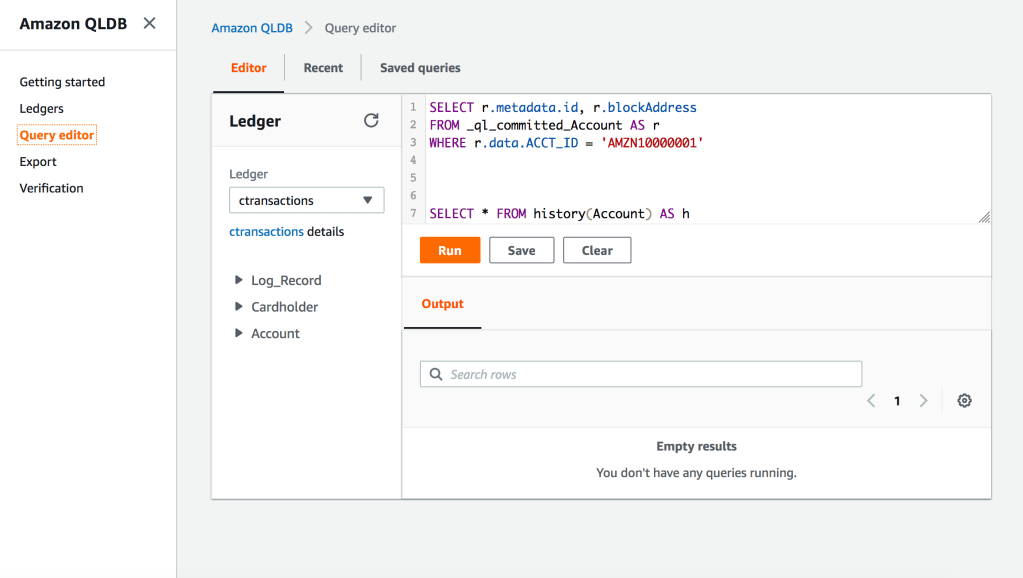
Amazon Aurora DSQL First Preview – Create Multi-Region Cluster

Amazon just launched the new Distributed SQ> Aurora Database today.

Aurora DSQL is already available as Public Preview in the US Regions. In this article I want to give you the first preview on creating a cluster and connecting to it with psql client.

Go to this link to get started : https://console.aws.amazon.com/dsql/

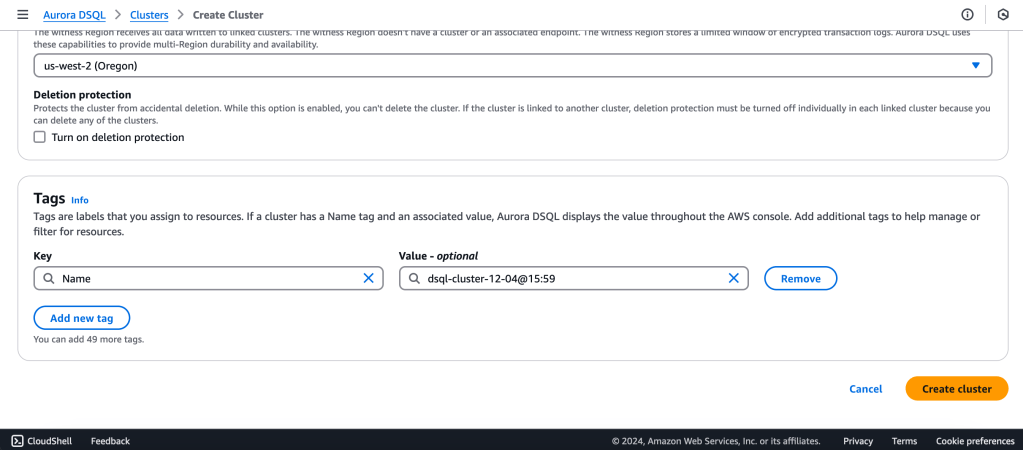
1.Create the DSQL Cluster

We will create a Multi-Region with a Linked region and a Witness region.
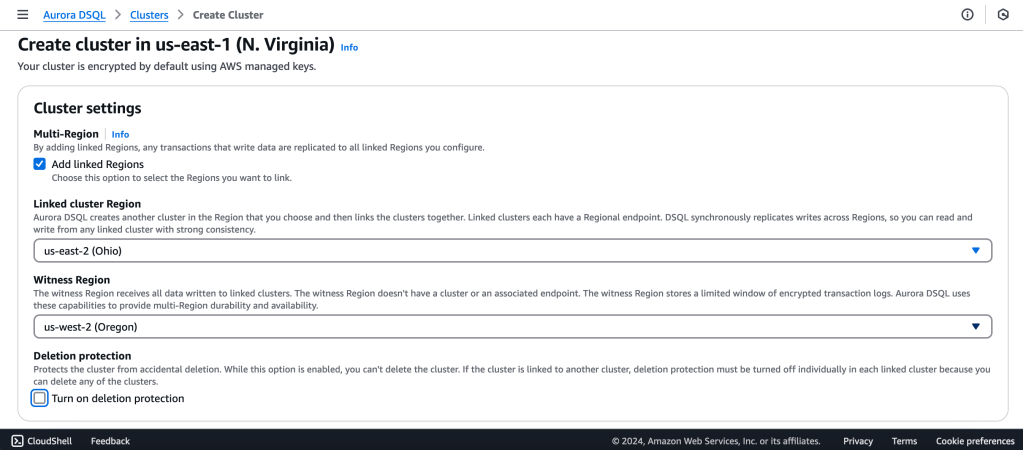
us-east-1 (N Virginia) -> Writer
us-east-2 (Ohio)  -> Writer

us-west-2 (Oregon)  -> Quorum

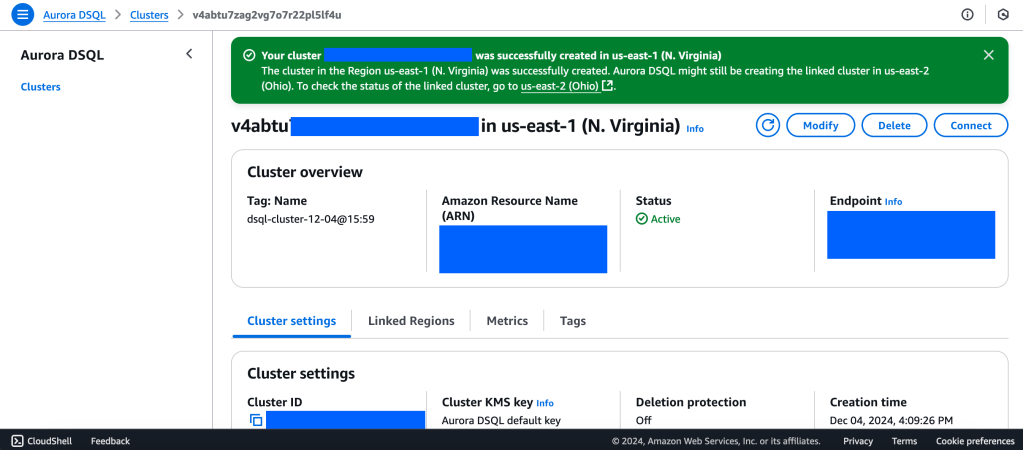
2. Wait for Cluster Creation to complete to get the Endpoint
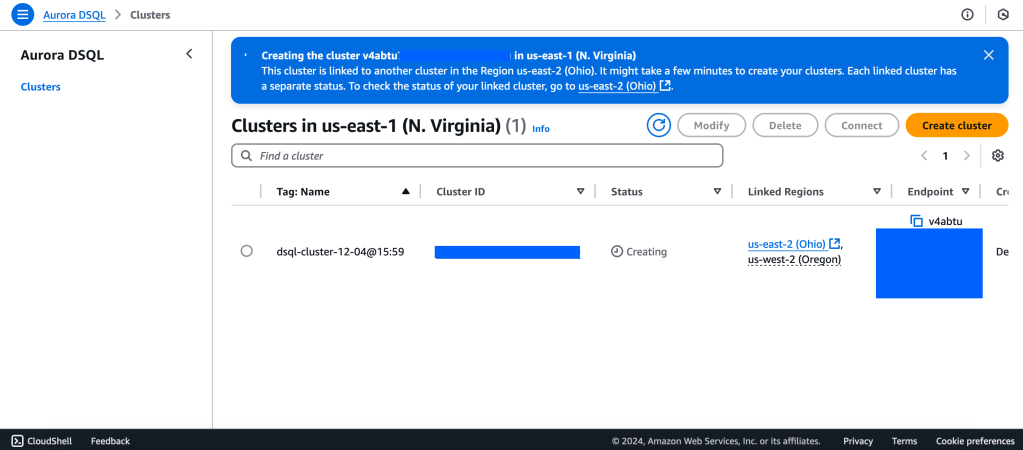
3. Generate Auth token to login into Aurora DSQL

https://docs.aws.amazon.com/aurora-dsql/latest/userguide/authentication-token-cli.html

aws dsql generate-db-connect-admin-auth-token \
–expires-in 3600 \
–region us-east-1 \
–hostname <dsql-cluster-endpoint>

The full output will be the password, like below :

v4********4u.dsql.us-east-1.on.aws/?Action=DbConnectAdmin&X-Amz-Algorithm=AWS4-HMAC-SHA256&X-Amz-Credential=AK*****04%2Fus-east-1%2Fdsql%2Faws4_request&X-Amz-Date=202**X-Amz-Expires=3600&X-Amz-SignedHeaders=host&X-Amz-Signature=41e15*****ddfc49

4. Connect with PSQL

https://docs.aws.amazon.com/aurora-dsql/latest/userguide/getting-started.html#getting-started-create-cluster

PGSSLMODE=require \
psql –dbname postgres \
–username admin \
–host v4*******u.dsql.us-east-1.on.aws

Password for user admin: <paste-full-string-of-auth-token-output>
psql (17.2, server 16.5)
SSL connection (protocol: TLSv1.3, cipher: TLS_AES_128_GCM_SHA256, compression: off, ALPN: none)
Type “help” for help.

postgres=>
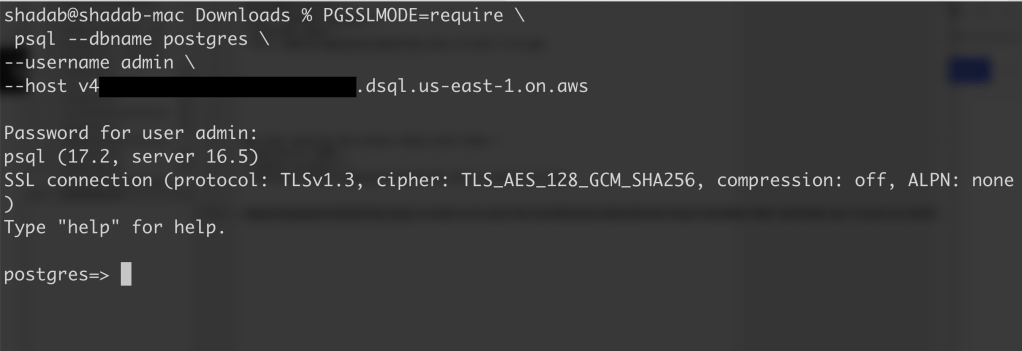

We can connect with a Standard PSQL client!!

5. Create some test objects

https://docs.aws.amazon.com/aurora-dsql/latest/userguide/getting-started.html#getting-started-create-cluster

CREATE SCHEMA app;

CREATE TABLE app.orders (
order_id UUID PRIMARY KEY DEFAULT gen_random_uuid(),
customer_id INTEGER,
product_id INTEGER,
product_description VARCHAR(500),
order_delivery_address VARCHAR(500),
order_date_taken DATE,
order_misc_notes VARCHAR(500)
);

Sample CSV File to Load Data to Orders Table :

\COPY app.orders (order_id,customer_id,product_id,product_description,order_delivery_address,order_date_taken,order_misc_notes) FROM ‘/Users/shadab/Downloads/sample_orders.csv’ DELIMITER ‘,’ CSV HEADER;

/* Try to wrap the command in a single-line */

6. Run SQL Query

[a] Query to Find the Top 5 Customers by Total Orders Within the Last 6 Months

WITH recent_orders AS (
SELECT
customer_id,
product_id,
COUNT(*) AS order_count
FROM
app.orders
WHERE
order_date_taken >= CURRENT_DATE – INTERVAL ‘6 months’
GROUP BY
customer_id, product_id
)
SELECT
customer_id,
SUM(order_count) AS total_orders,
STRING_AGG(DISTINCT product_id::TEXT, ‘, ‘) AS ordered_products
FROM
recent_orders
GROUP BY
customer_id
ORDER BY
total_orders DESC
LIMIT 5;

[b] Query to Find the Most Common Delivery Address Patterns

SELECT
LEFT(order_delivery_address, POSITION(‘,’ IN order_delivery_address) – 1) AS address_prefix,
COUNT(*) AS order_count
FROM
app.orders
GROUP BY
address_prefix
ORDER BY
order_count DESC
LIMIT 10;

[c] Query to Calculate Monthly Order Trends by Product

SELECT
TO_CHAR(order_date_taken, ‘YYYY-MM’) AS order_month,
product_id,
COUNT(*) AS total_orders,
AVG(LENGTH(order_misc_notes)) AS avg_note_length — Example of additional insight
FROM
app.orders
GROUP BY
order_month, product_id
ORDER BY
order_month DESC, total_orders DESC;

7. Check Latency

You can check latency from AWS Cloud Shell using traceroute to your Aurora DSQL endpoints from different regions

us-east-1 (N Virginia)

$ traceroute v*****u.dsql.us-east-1.on.aws

traceroute to v****u.dsql.us-east-1.on.aws (44.223.172.242), 30 hops max, 60 byte packets
1 * * 216.182.237.241 (216.182.237.241) 1.566 ms

ap-southeast-2 (Sydney)

$ traceroute v*****u.dsql.us-east-1.on.aws


traceroute to v********u.dsql.us-east-1.on.aws (44.223.172.242), 30 hops max, 60 byte packets
1 244.5.0.119 (244.5.0.119) 1.224 ms * 244.5.0.115 (244.5.0.115) 5.922 ms
2 100.65.22.0 (100.65.22.0) 4.048 ms 100.65.23.112 (100.65.23.112) 5.203 ms 100.65.22.224 (100.65.22.224) 3.309 ms
3 100.66.9.110 (100.66.9.110) 25.430 ms 100.66.9.176 (100.66.9.176) 7.950 ms 100.66.9.178 (100.66.9.178) 3.966 ms
4 100.66.10.32 (100.66.10.32) 0.842 ms 100.66.11.36 (100.66.11.36) 2.745 ms 100.66.11.96 (100.66.11.96) 3.638 ms
5 240.1.192.3 (240.1.192.3) 0.263 ms 240.1.192.1 (240.1.192.1) 0.278 ms 240.1.192.3 (240.1.192.3) 0.244 ms
6 240.0.236.32 (240.0.236.32) 197.174 ms 240.0.184.33 (240.0.184.33) 197.206 ms 240.0.236.13 (240.0.236.13) 199.076 ms
7 242.3.84.161 (242.3.84.161) 200.891 ms 242.2.212.161 (242.2.212.161) 202.113 ms 242.2.212.33 (242.2.212.33) 197.571 ms
8 240.0.32.47 (240.0.32.47) 196.768 ms 240.0.52.96 (240.0.52.96) 196.935 ms 240.3.16.65 (240.3.16.65) 197.235 ms
9 242.7.128.1 (242.7.128.1) 234.734 ms 242.2.168.185 (242.2.168.185) 203.477 ms 242.0.208.5 (242.0.208.5) 204.263 ms
10 * 100.66.10.209 (100.66.10.209) 292.168 ms *


References:

[1] Aurora DSQL : https://aws.amazon.com/rds/aurora/dsql/features/

[2] Aurora DSQL User Guide : https://docs.aws.amazon.com/aurora-dsql/latest/userguide/getting-started.html#getting-started-create-cluster

[3] Use the AWS CLI to generate a token in Aurora DSQL : https://docs.aws.amazon.com/aurora-dsql/latest/userguide/authentication-token-cli.html

[4] DSQL Vignette: Aurora DSQL, and A Personal Story : https://brooker.co.za/blog/2024/12/03/aurora-dsql.html

——————————————————————————————–
Postgres 14 Sharding with Citus

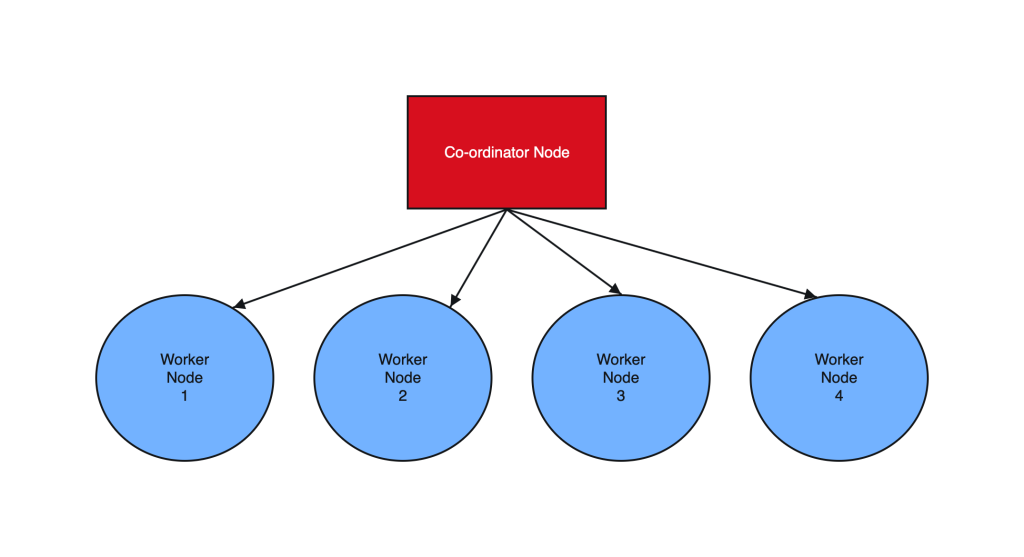
Postgres sharding with Citus is designed to horizontally scale PostgreSQL across multiple nodes. Citus extends PostgreSQL by adding the ability to distribute tables and queries across a cluster of servers.

Tables are horizontally partitioned into smaller, manageable shards that reside on different nodes. Each node contains a subset of the data and Citus intelligently routes queries to the appropriate nodes.

Sharding architecture enhances both read and write scalability, makes it well-suited for applications with growing data volumes and demanding workloads.

________________________ Step by Step Instructions to Setup Postgres Sharding ______________________________

  1. Create OL8 or RHEL8 Instance and Run the below commands on all Nodes :

a. SSH into all the Instances and configure it as below :

sudo dnf module list postgresql

sudo yum -y install gnupg2 wget vim tar zlib openssl

sudo dnf install https://download.postgresql.org/pub/repos/yum/reporpms/EL-8-x86_64/pgdg-redhat-repo-latest.noarch.rpm

sudo yum -qy module disable postgresql

sudo yum install postgresql14-server -y

sudo yum install postgresql14-contrib -y

## Due to policies for Red Hat family distributions, the PostgreSQL installation will not be enabled for automatic start or have the database initialized automatically

sudo systemctl enable postgresql-14

sudo postgresql-14-setup initdb

sudo systemctl start postgresql-14

sudo systemctl status postgresql-14 

b. Enable Postgres user and set Super user password

sudo -iu postgres

psql -c "ALTER USER postgres WITH PASSWORD 'RAbbithole1234#_';"

exit

c. Install Citus community edition binary and Create the Extension

# Add Citus repository for package manager

curl https://install.citusdata.com/community/rpm.sh | sudo bash

sudo yum install -y citus121_14
#Preload Citus and pg_stat_statements extensions on all Nodes

sudo -iu postgres

psql -U postgres -c 'SHOW config_file'

              config_file
----------------------------------------
 /var/lib/pgsql/14/data/postgresql.conf
(1 row)

vim /var/lib/pgsql/14/data/postgresql.conf

## Add below entry and uncomment 'shared_preload_libraries'

shared_preload_libraries = 'citus,pg_stat_statements'

## Note that “citus” has to be the first extension in the list. Otherwise, the server won’t start.

exit

sudo systemctl restart postgresql-14

sudo systemctl status postgresql-14


# Enable auto-start of Postgres 14 server when the server reboots

sudo chkconfig postgresql-14 on

sudo -i -u postgres psql -c "CREATE EXTENSION citus;"
sudo -i -u postgres psql -c "CREATE EXTENSION pg_stat_statements;"

d. Configure connection and authentication

sudo -iu postgres

vim /var/lib/pgsql/14/data/postgresql.conf

# Uncomment listen_addresses and set it as below
listen_addresses = '*'

# Uncomment and change wal_level = 'logical'
wal_level = 'logical'
vim /var/lib/pgsql/14/data/pg_hba.conf

# Change this line to allow all hosts 10.180.2.0/24 with trust
## Important Note : 10.180.2.0/24 is the subnet in which the instances reside. The subnet should have egress and ingress for the Postgres port. Alternately instead of doing a password-less setup, you can also use pgpass file to store the password on all nodes and use the normal authentication method. ##

# IPv4 local connections:
host    all             all             10.180.2.0/24           trust

exit

sudo systemctl restart postgresql-14

sudo systemctl status postgresql-14

## Whitelist Postgres Port##

sudo firewall-cmd --list-ports
sudo firewall-cmd --zone=public --permanent --add-port=5432/tcp
sudo firewall-cmd --reload
sudo firewall-cmd --list-ports

I’ve created a small automation script to perform the above steps. Save it as a .sh file, change the parameters according to your Postgres, citus version and simply execute on all the nodes:

#!/bin/bash

# Function to print commands and exit on failure
function run_command() {
    echo "$ $1"
    eval $1
    if [ $? -ne 0 ]; then
        echo "Error executing command. Exiting."
        exit 1
    fi
}

# Step 1: Install Postgres 14 Server on all Nodes
run_command "sudo dnf module list postgresql"
run_command "sudo yum -y install gnupg2 wget vim tar zlib openssl"
run_command "sudo dnf install -y https://download.postgresql.org/pub/repos/yum/reporpms/EL-8-x86_64/pgdg-redhat-repo-latest.noarch.rpm"
run_command "sudo yum -qy module disable postgresql"
run_command "sudo yum install postgresql14-server -y"
run_command "sudo yum install postgresql14-contrib -y"
run_command "sudo systemctl enable postgresql-14"

# Check if the data directory is empty
if [ -z "$(sudo -i -u postgres ls -A /var/lib/pgsql/14/data)" ]; then
    run_command "sudo postgresql-14-setup initdb"
else
    echo "Data directory is not empty. Skipping initialization."
fi

run_command "sudo systemctl start postgresql-14"
run_command "sudo chkconfig postgresql-14 on"

# Step 2: Enable Postgres user on all Nodes and set superuser password
run_command "sudo -i -u postgres psql -c \"ALTER USER postgres WITH PASSWORD 'YOurPassword1234#_';\""

# Step 3: Install Citus on all Nodes
run_command "curl https://install.citusdata.com/community/rpm.sh | sudo bash"
run_command "sudo yum install -y citus121_14"

# Step 4: Preload Citus and pg_stat_statements extensions on all Nodes
run_command "sudo -i -u postgres psql -U postgres -c 'SHOW config_file'"
run_command "sudo -i -u postgres sed -i -E 's/^#?(listen_addresses[ \t]*=[ \t]*).*/\1'\''*'\''/' /var/lib/pgsql/14/data/postgresql.conf"
run_command "sudo -i -u postgres sed -i -E 's/^#?(shared_preload_libraries[ \t]*=[ \t]*).*/\1'\''citus,pg_stat_statements'\''/' /var/lib/pgsql/14/data/postgresql.conf"
run_command "sudo -i -u postgres sed -i -E 's/^#?(wal_level[ \t]*=[ \t]*).*/\1'\''logical'\''/' /var/lib/pgsql/14/data/postgresql.conf"
run_command "sudo -i -u postgres sed -i -E '/^# IPv4 local connections:/ { n; s/^(host[ \t]*all[ \t]*all[ \t]*)127.0.0.1\/32[ \t]*scram-sha-256$/\10.0.0.0\/0           trust/ }' /var/lib/pgsql/14/data/pg_hba.conf"

# Step 5: Configure connection and authentication on all Nodes
run_command "sudo systemctl restart postgresql-14"
run_command "sudo firewall-cmd --list-ports"
run_command "sudo firewall-cmd --zone=public --permanent --add-port=5432/tcp"
run_command "sudo firewall-cmd --reload"
run_command "sudo firewall-cmd --list-ports"

# Step 6: Create Citus extension on all Nodes
run_command "sudo -i -u postgres psql -c \"CREATE EXTENSION citus;\""
run_command "sudo -i -u postgres psql -c \"CREATE EXTENSION pg_stat_statements;\""

echo "Script execution completed successfully."


2. Create Co-ordinator and Worker nodes

We have now prepared 3 instances for sharding in total. Step 1 should have been performed on all the below instances :

IP        HOSTNAME             ROLE
10.180.2.45     Postgres-Citus-Coordinator    Worker Node

10.180.2.198     Postgres-Citus-Worker-Node-1  Worker Node

10.180.2.86     Postgres-Citus-Worker-Node-2   Worker Node

Execute the below from the Co-ordinator node and run the below commands on the same node

ssh opc@10.180.2.222

# Add co-ordinator node
sudo -i -u postgres psql -c "SELECT citus_set_coordinator_host('10.180.2.45', 5432);"
 
# Add Worker Nodes
sudo -i -u postgres psql -c "SELECT * from citus_add_node('10.180.2.198', 5432);"
sudo -i -u postgres psql -c "SELECT * from citus_add_node('10.180.2.86', 5432);"


# Check Active Worker Nodes 
sudo -i -u postgres psql -c "SELECT * FROM citus_get_active_worker_nodes();"

  node_name   | node_port
--------------+-----------
 10.180.2.198 |      5432
 10.180.2.86  |      5432


3. Create a Distributed table

All steps below to be executed from Co-ordinator node :

CREATE TABLE orders (
order_id    bigserial, 
shard_key   int PRIMARY KEY, 
n           int, 
description char(100) DEFAULT 'x');

# Create Index to further optimize the SQL performance 
CREATE UNIQUE INDEX shard_key_idx on orders (shard_key);

# Add Distributed table
SELECT create_distributed_table('orders', 'shard_key');

\timing

# Generate 5 Million rows
INSERT INTO orders (shard_key, n, description)
SELECT 
    id AS shard_key,
    (random() * 1000000)::int AS n,
    'x' AS description
FROM generate_series(1, 5000000) AS id
ON CONFLICT DO NOTHING;


#Check the Size of the table using the Citus Table and not Standard Postgres comman
\x
SELECT * FROM citus_tables ;

# Check Explain plan of Query
\x
explain (analyze, buffers, timing) SELECT count(*) from orders;
explain (analyze, buffers, timing) SELECT count(*) from orders where shard_key=2 ;

4. Add another node by performing all commands in Step 1. and add it to the cluster

IP : 10.180.2.17

Run from the Co-ordinator node

sudo -i -u postgres psql -c "SELECT * from citus_add_node('10.180.2.17', 5432);"

sudo -i -u postgres psql -c "SELECT * FROM citus_get_active_worker_nodes();"

  node_name   | node_port
--------------+-----------
 10.180.2.198 |      5432
 10.180.2.86  |      5432
 10.180.2.17  |      5432
(3 rows)

# Add .pgpass file on co-ordinator node and add the DB details >> hostname:port:database:username:password
vim /var/lib/pgsql/.pgpass

localhost:5432:postgres:postgres:YOurPassword1234#_

chmod 600 .pgpass

# Re-balance the shards without downtime
psql -U postgres -h localhost

ALTER SYSTEM SET citus.max_background_task_executors_per_node = 2;
SELECT pg_reload_conf();
SELECT citus_rebalance_start();

NOTICE:  Scheduled 10 moves as job 1
DETAIL:  Rebalance scheduled as background job
HINT:  To monitor progress, run: SELECT * FROM citus_rebalance_status();
 citus_rebalance_start
-----------------------
                     1

#Check Status of rebalancing
SELECT * FROM citus_rebalance_status();

      1 | running | rebalance | Rebalance all colocation groups | 2023-12-24 09:44:16.813663+00 |             | {"t
asks": [{"LSN": {"lag": null, "source": "0/371A5128", "target": null}, "size": {"source": "29 MB", "target": "26 MB
"}, "hosts": {"source": "10.180.2.198:5432", "target": "10.180.2.17:5432"}, "phase": "Catching Up", "state": "runni
ng", "command": "SELECT pg_catalog.citus_move_shard_placement(102012,2,4,'auto')", "message": "", "retried": 0, "ta
sk_id": 4}], "task_state_counts": {"done": 3, "blocked": 6, "running": 1}}
(1 row)

#Once completed the output will be as below :

SELECT * FROM citus_rebalance_status();

 job_id |  state   | job_type  |           description           |          started_at           |          finishe
d_at          |                     details
--------+----------+-----------+---------------------------------+-------------------------------+-----------------
--------------+--------------------------------------------------
      1 | finished | rebalance | Rebalance all colocation groups | 2023-12-24 09:44:16.813663+00 | 2023-12-24 10:18
:24.886163+00 | {"tasks": [], "task_state_counts": {"done": 10}}

# Check the Shard views
SELECT * from pg_dist_shard;
SELECT * FROM citus_shards;

#Misc rebalancing SQL queries
select get_rebalance_table_shards_plan();
SELECT citus_set_default_rebalance_strategy('by_disk_size');
SELECT * from citus_remote_connection_stats();


Tracking Changes in Your PostgreSQL Tables: Implementing a Custom Change Data Capture (CDC)

Introduction:
Change Data Capture (CDC) is a technique used to track changes in a database, such as inserts, updates, and deletes. In this blog post, we will show you how to implement a custom CDC in PostgreSQL to track changes in your database. By using a custom CDC, you can keep a record of changes in your database and use that information in your applications, such as to provide a history of changes, track auditing information, or trigger updates in other systems

Implementing a Custom CDC in PostgreSQL:
To implement a custom CDC in PostgreSQL, you will need to create a new table to store the change information, create a trigger function that will be executed whenever a change is made in the target table, and create a trigger that will call the trigger function. The trigger function will insert a new row into the change table with the relevant information, such as the old and new values of the record, the time of the change, and any other relevant information.

To demonstrate this, we will show you an example of a custom CDC for a table called “employee”. The change table will be called “employee_cdc” and will contain columns for the timestamp, employee ID, old values, and new values of the employee record. The trigger function will be executed after an update on the “employee” table and will insert a new row into the “employee_cdc” table with the relevant information. Finally, we will show you how to query the “employee_cdc” table to retrieve a list of all changes that have occurred in the “employee” table since a certain timestamp.

  1. Create the Employee and CDC table

    To store the CDC information, you need to create a new table in your PostgreSQL database. In this example, we will create a table called “employee”, “employee_cdc”, “employee_audit” with the following columns:

CREATE TABLE employee (
id SERIAL PRIMARY KEY,
name VARCHAR(100) NOT NULL,
department VARCHAR(50) NOT NULL,
salary NUMERIC(10,2) NOT NULL,
hire_date DATE NOT NULL
);

CREATE TABLE employee_cdc (
timestamp TIMESTAMP DEFAULT now(),
employee_id INTEGER,
old_values JSONB,
new_values JSONB
);

In this table, “id” is an auto-incremented primary key, “timestamp” is a timestamp with time zone to store the time of the change, “employee_id” is the primary key of the employee record that was changed, and “old_values” and “new_values” are text columns to store the old and new values of the employee record, respectively.

2. Create the Audit table

CREATE TABLE employee_audit (
audit_timestamp TIMESTAMP DEFAULT now(),
employee_id INTEGER,
old_values JSONB,
new_values JSONB
);

3. Create the trigger function

To capture the changes in the employee table, you will need to create a trigger function that will be executed whenever a record is inserted, updated, or deleted in the table. The trigger function will insert a new row into the “employee_cdc” table with the relevant information. Here is an example trigger function:

CREATE OR REPLACE FUNCTION employee_cdc() RETURNS TRIGGER AS $$
BEGIN
IF (TG_OP = 'UPDATE') THEN
INSERT INTO employee_cdc (timestamp, employee_id, old_values, new_values)
VALUES (now(), NEW.id, row_to_json(OLD), row_to_json(NEW));
INSERT INTO employee_audit (employee_id, old_values, new_values)
VALUES (NEW.id, row_to_json(OLD), row_to_json(NEW));
END IF;
RETURN NULL;
END;
$$ LANGUAGE plpgsql;

This trigger function uses the “row_to_json” function to convert the old and new values of the employee record into JSON strings, which are then stored in the “old_values” and “new_values” columns of the “employee_cdc” table. The “NOW()” function is used to get the current timestamp.

4. Create the trigger

Now that the trigger function has been created, you need to create the trigger on the “employee” table that will call the function whenever a record is updated. You can create the trigger with the following command:

CREATE TRIGGER employee_cdc_trigger
AFTER UPDATE ON employee
FOR EACH ROW
EXECUTE FUNCTION employee_cdc();

4. Query the CDC table

In your application code, you can query the “employee_cdc” table to get a list of all changes that have occurred since a certain timestamp. For example, to get all changes since January 1st, 2023, you can use the following SQL query:

SELECT * FROM employee_cdc
WHERE timestamp >= '2023-01-01 00:00:00';

You can then process these changes as needed in your application code.

Conclusion:
In this blog post, we have shown you how to implement a custom Change Data Capture (CDC) in PostgreSQL to track changes in your database. By using a custom CDC, you can keep a record of changes in your database and use that information in your applications. Whether you are tracking changes for auditing purposes, providing a history of changes, or triggering updates in other systems, a custom CDC is a useful tool to have in your PostgreSQL toolkit.

Backup and Restore PostgreSQL with Few Easy Shell Scripts

PostgreSQL is the most popular Open source database and there is a lot of information available when it comes to backing up and restoring PgSQL I have used these scripts to backup production databases and restored them to new Postgres Servers. So here it goes

Backup PostgreSQL Database – Backup_Pgsql.sh

#!/bin/bash
hostname=`hostname`
# Dump DBs
  date=`date +"%Y%m%d_%H%M%N"`
  backupdir='/home/opc'
  dbname='demo'
  filename="$backupdir/${hostname}_${dbname}_${date}"
 pg_dump -U postgres --encoding utf8 -F c -f $filename.dump $dbname

Restore PostgreSQL Database – Restore_Pgsql.sh

#!/bin/bash
# Restore DB
filename='/home/opc/pgimportmaster-demo-20211129_1013.dump'
  pg_restore -U postgres -d demo -c < ./$1
exit 0

Usage for Restore

$ ./Restore_Pgsql.sh pgimportmaster-demo-20211129_1013.dump

How to Create an Immutable Account Ledger on Amazon QLDB

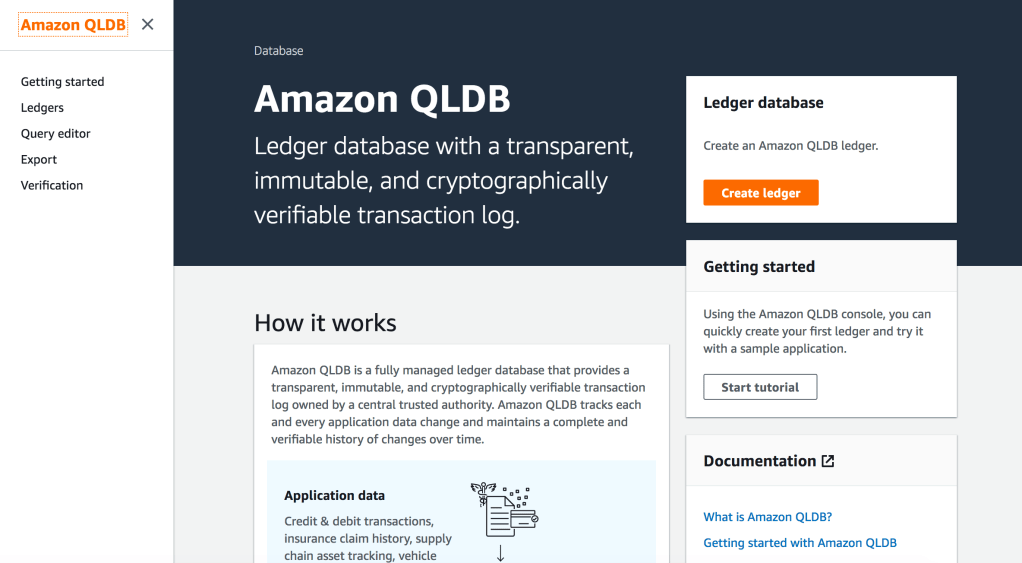
Amazon QLDB is a new specialist database technology which uses the concept of blockchain for database which maintains a history of every transaction using an immutable & cryptographically verifiable block hash for each record. QLDB uses an immutable transactional log, known as a journal, for data storage. The journal tracks every change to your data and maintains a complete and verifiable history of changes over time.

Sourcing data from the journal, QLDB uses a cryptographic hash function (SHA-256) with a Merkle tree–based model to generate a secure output file of your ledger’s full hash chain. This output file is known as a digest and acts as a fingerprint of your data’s entire change history as of a point in time. It enables you to look back and validate the integrity of your data revisions relative to that fingerprint.

Each ledge in QLDB has exactly one journal. A journal can have multiple strands, which are partitions of the journal.

QLDB is not a de-centralized blockchain network like Bitcoin or Ethereum, if you are looking for a managed block chain network then this is what you must be after –> Amazon Managed Blockchain

/* QLDB is now Generally Available in many regions. Ensure you update your awscli to the latest version to have access to QLDB from awscli. */

$ aws –version
aws-cli/1.16.240 Python/3.7.4 Darwin/17.7.0 botocore/1.12.230

$aws qldb help
NAME
       qldb –

DESCRIPTION
       The control plane for Amazon QLDB

AVAILABLE COMMANDS
       o create-ledger

       o delete-ledger

       o describe-journal-s3-export

       o describe-ledger

       o export-journal-to-s3

       o get-block

       o get-digest

       o get-revision

       o help

Head over to your AWS Console > Amazon QLDB

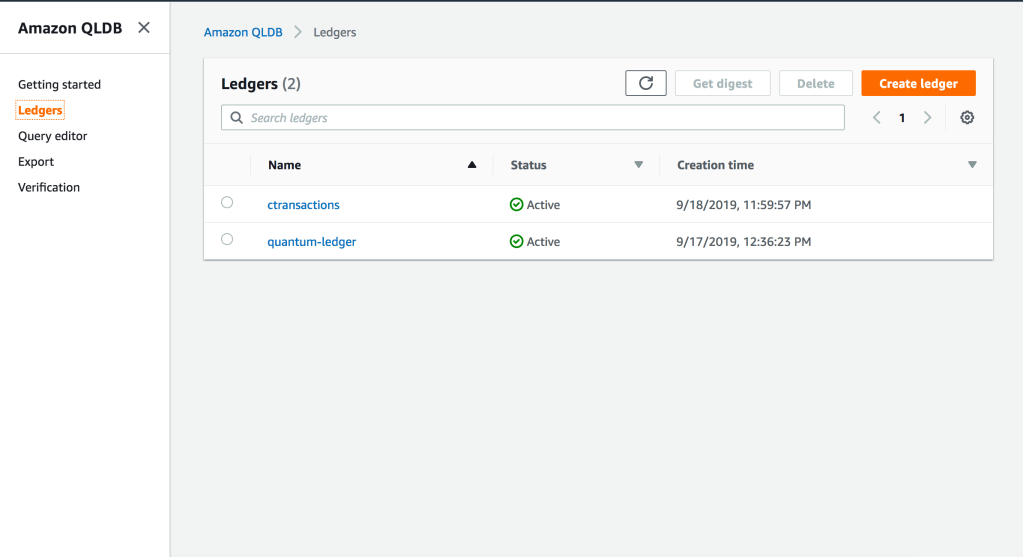
  1. Create New Ledger called ‘ctransactions’


2. Go to Query Editor > Create Tables for the Account Ledger

CREATE TABLE Cardholder

CREATE TABLE Log_Record

CREATE TABLE Account


3. Create Indexes to help speed up queries against each table

CREATE INDEX ON Cardholder (CARD_NO)

CREATE INDEX ON Log_Record (TRXN_ID)

CREATE INDEX ON Account (ACCT_ID)


4. Insert 1 Record into the Ledger table ‘Account’. QLDB documents are stored in Amazon Ion format which is a Superset of JSON


INSERT INTO Account
 {
‘FirstName’ : ‘Shadab’,
‘LastName’ : ‘Mohammad’,
‘ACCT_ID’ : ‘AMZN10000001’,
‘ACCTYPE’ : ‘Current’,
‘Address’ : ‘2000, 2 Park Street, CBD’
}

documentId
   “7oOLmXPyHjXBSBCio76rJo”

This is the document ID for this transaction
   

5. Create more records and change the first record from ‘Current’ to ‘Saving’ account

Important :
Because QLDB does not enforce schema, you can insert the same document into a table
multiple times. Each insert statement commits a separate document entry to the journal, and
QLDB assigns each document a unique ID.

INSERT INTO Account
 << {
‘FirstName’ : ‘Shadab’,
‘LastName’ : ‘Mohammad’,
‘ACCT_ID’ : ‘AMZN10000001’,
‘ACCTYPE’ : ‘Saving’,
‘Address’ : ‘2000, 2 Park Street, CBD’
},
 {
‘FirstName’ : ‘William’,
‘LastName’ : ‘Tell’,
‘ACCT_ID’ : ‘AMZN10000002’,
‘ACCTYPE’ : ‘Saving’,
‘Address’ : ‘2013, 29 Campbell PDE, Bondi’
},
 {
‘FirstName’ : ‘Chris’,
‘LastName’ : ‘Wall’,
‘ACCT_ID’ : ‘AMZN10000003’,
‘ACCTYPE’ : ‘Current’,
‘Address’ : ‘2142, 15 Lane Cove, Marickville’
} >>

documentId
    “L7S9f2cONhz1JQhj8Gj8bk”
    “0007IXW5xSNDvq9gj3CZN8”
    “JELcBIyjv8uKRHBfhbCvHp”


6. Now let us check for all the changes done to this account using below query. We can check for all modifications made to the Account ID. Each modification or inser generated a unique hash we can be traced back to what that modification was

SELECT
    ACCT_ID FROM Account AS a BY ACCT_ID WHERE a.ACCT_ID = 'AMZN10000001'


ACCT_ID
    “7oOLmXPyHjXBSBCio76rJo”
    “L7S9f2cONhz1JQhj8Gj8bk”
    
As you can see there are 2 modifications to this record and we can verify what each of those modifications are
    

7. Check for the history for each new documentID for the Account
    

SELECT * FROM history(Account) AS h WHERE h.metadata.id
    = '7oOLmXPyHjXBSBCio76rJo'


{
  blockAddress: {
    strandId: “KQrxUDo7jDX4scpbKkhEVZ”,
    sequenceNo: 26
  },
  hash: {{6HVuwag6GMEki+ZRFaMdqidROpKZmsTsYcmWiAMZdmw=}},
  data: {
    FirstName: “Shadab”,
    LastName: “Mohammad”,
    ACCT_ID: “AMZN10000001”,
    ACCTYPE: “Current”,
    Address: “2000, 2 Park Street, CBD”
  },
  metadata: {
    id: “7oOLmXPyHjXBSBCio76rJo”,
    version: 0,
    txTime: 2019-09-19T05:56:20.874Z,
    txId: “2EOkrgLG2Xa7qBwEwnKzDJ”
  }
}

SELECT * FROM
    history(Account) AS h WHERE h.metadata.id = 'L7S9f2cONhz1JQhj8Gj8bk'


{
  blockAddress: {
    strandId: “KQrxUDo7jDX4scpbKkhEVZ”,
    sequenceNo: 41
  },
  hash: {{+qFvFfRx1pi9QOkotc9MAuAWs6Tw7jn3sZqlPpEjSDA=}},
  data: {
    FirstName: “Shadab”,
    LastName: “Mohammad”,
    ACCT_ID: “AMZN10000001”,
    ACCTYPE: “Saving”,
    Address: “2000, 2 Park Street, CBD”
  },
  metadata: {
    id: “L7S9f2cONhz1JQhj8Gj8bk”,
    version: 0,
    txTime: 2019-09-19T06:14:04.214Z,
    txId: “2EOkrgMRCo4CBTUdJWSjmT”
  }
}

Using the first hash we can see the account type was “Current”, and after we modified the document and checked it with the 2nd hash it now shows “Saving”. And we have a history of all modifications applied to that account to traverse back and check all modifications made to that Account ID.

8. To Verify a Document Revision

SELECT r.metadata.id, r.blockAddress FROM _ql_committed_Account AS r WHERE r.data.ACCT_ID = 'AMZN10000001'

id                                                   blockAddress
“7oOLmXPyHjXBSBCio76rJo”    {strandId:”KQrxUDo7jDX4scpbKkhEVZ”,sequenceNo:95}

“L7S9f2cONhz1JQhj8Gj8bk”        {strandId:”KQrxUDo7jDX4scpbKkhEVZ”,sequenceNo:95}


This is just the beginning of what can be possible to create in the FinTech world. No more complex audit reports and expensive 3rd part tools which are an additional overhead to manage, but your database itself keeps a history of any changes made to a transaction or account or debit/credit card.

References:

[1] Accessing Amazon QLDB Using the AWS CLI – https://docs.aws.amazon.com/qldb/latest/developerguide/Tools.CLI.html
[2] botocore – https://github.com/boto/botocore/commit/f646b7ea334c9dcf94af6ad201a45886c48c2648
[3] aws-cli – https://github.com/aws/aws-cli/commit/b3c7bd5a1b93d42ab1b75d99c33fc2b62b0dd6a4
[4] Installing the AWS CLI – Installing the AWS CLI Using pip – https://docs.aws.amazon.com/cli/latest/userguide/cli-chap-install.html#install-tool-pip