Blue-Green deployment for a Database service uses a Blue environment (Production) and creating a Green environment with it (Staging) and creating ongoing replication from the Production Blue environment to the staging environment.
A blue/green deployment works by creating a fully synchronized copy of your production database and running it as a separate staging environment.
In this article I will show how you can build a Blue-Green deployment for your OCI PostgreSQL for doing apps related testing.
High-level steps to Orchestrate a Blue-Green deployment strategy with OCI PostgreSQL
Via Logical Replication for Major Version Upgrades or App Performance/Regression Testing
Most DBAs & DevOps people are already familiar with the Blue-Green deployment methodology when deploying a new version of a service. OCI PostgreSQL does not natively support Blue-Green deployment as of when this article was written. But it is quite easy to setup using a few OCI native components and logical replication with pglogical (or OCI Goldengate)
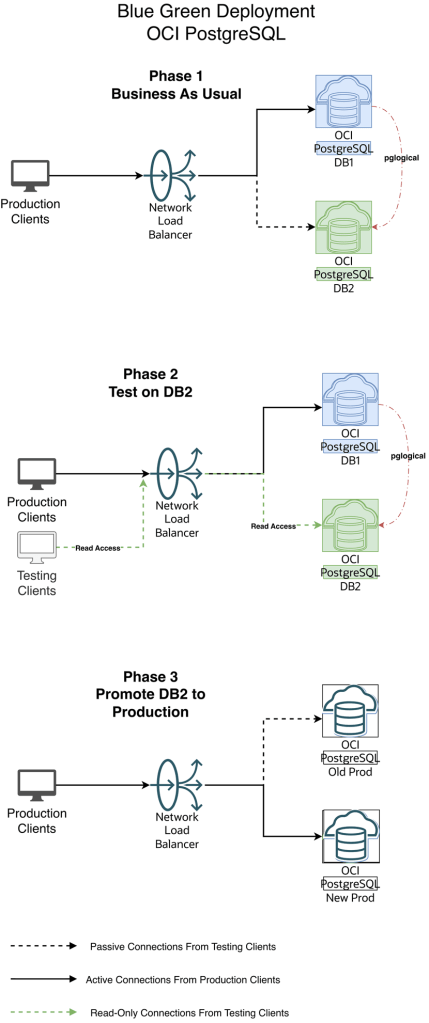
Diagram 1 — Blue-Green Workflow
1.Initial and One time setup:
a. Create an additional new version DB2 OCI PostgreSQL cluster
b. Create OCI DNS Private Zone for the Application for your VCN’s DNS resolver. This Zone will be used by the local applications to connect to OCI PostgreSQL via the OCI Load balancer. If you have an on-premise DNS and need to extend your on-premise DNS to resolve this private zone then refer this documentation : https://docs.oracle.com/en/solutions/oci-best-practices-networking/private-dns-oci-and-premises-or-third-party-cloud.html
c. Create an OCI Network load balancer for their applications to connect to. This LB will act as a proxy to the actual database system.
d. Have the load balancer backend point to the primary endpoint ip address of the database system(say DB1)
2. When we have new changes, do initial load for OCI Postgres between DB1 to DB2 using any of the logical data migration utilities like pg_dump, pg_restore
3. Create publication and subscription from DB1 to DB2 using pglogical (or OCI Goldengate)
4. Have the app tests hit DB2 endpoint to perform read queries, validate and certify the changes
5. When DB2 appears ready for production consumption, orchestrate:
a. Pause any app activity and pause pglogical replication (optional) since pglogical is logical replication tool, the DB2 is always available in Read-Write mode. Just for App testing we are using read-only mode to avoid conflicts and complex scenario of reverse replication from DB2 to DB1
b. Update load balancer backend to the primary endpoint ip address of DB2
c. Stop the replication setup between DB1 and DB2 by stopping the publisher and subscribers
6. Production Client Apps are now connecting to the new Production environment (Green)
Step-By-Step Orchestration of Blue Green Deployment :
A. Setup
- OCI PostgreSQL Database v15 which is the Blue environment aka Current Production

IP : 10.150.2.105
2. OCI PostgreSQL Database v16 which is the Green environment aka Staging

IP : 10.150.2.62
3. OCI Network Load Balancer with the 2 DB endpoints added as backend set fronted with a listener on tcp/5432

Listener

Backends

Make sure the Blue (Production) environment is active and the Green environment backend set is offline and drained.

4. Create an OCI DNS Private zone in your VCN’s DNS resolver
In my case i call my private zone postgres.local
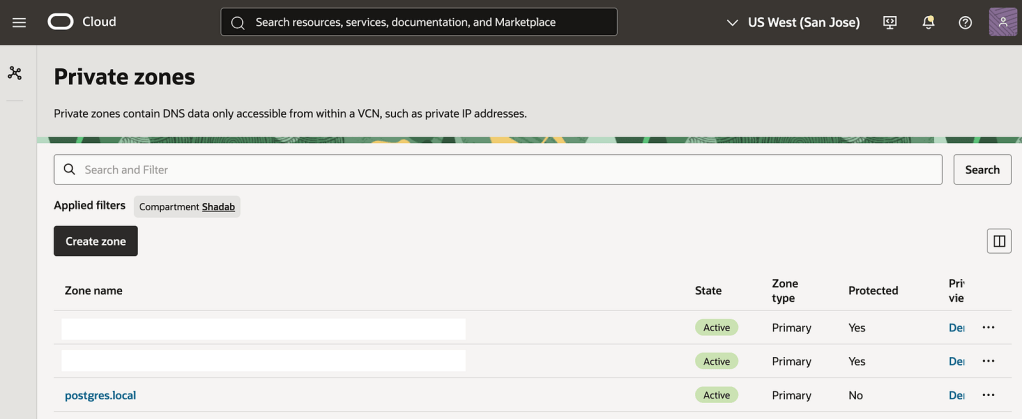

nlb-app.postgres.local is the main FQDN all apps will use to connect the backend database
nlb-app-blue.postgres.local is the FQDN for Blue Database and this is not used by App connections
nlb-app-green.postgres.local is the FQDN for the Green Database and this is used by the App stack which will perform the Read-only queries for validating the application performance.
We will use the OCI Network Load Balancers backend set to make the blue backend IP offline and activate green IP, This incurs a small outage (in seconds depending on TTL of the DNS resolver) where the App moves from connecting to Blue Database to the Final Green Database which is promoted as production.
B. Create pglogical Replication from DB1 to DB2
In this example we are demonstrating using a simple table : https://github.com/shadabshaukat/STAND/blob/main/postgres.sql
################# — Source Blue v15 — #################
Hostname : primary.umiokgnhd4hlpov7xncfwymgxv4pgq.postgresql.us-sanjose-1.oci.oraclecloud.com
Version : 15.12
— Run the following query to grant permissions on the source database to enable logical replication. —
CREATE EXTENSION pglogical;

show oci.admin_enabled_extensions ;
alter role postgres with replication;

grant EXECUTE on FUNCTION pg_catalog.pg_replication_origin_session_reset() to postgres ;

grant EXECUTE on FUNCTION pg_catalog.pg_replication_origin_session_setup to postgres ;

grant all on FUNCTION pg_catalog.pg_replication_origin_session_setup to postgres;
Note : postgres is the admin user created during the database setup process.
— Create the publisher node on the source database. —
SELECT pglogical.create_node(node_name := 'provider1',dsn :='host=primary.umiokgnhd4hlpov7xncfwymgxv4pgq.postgresql.us-sanjose-1.oci.oraclecloud.com port=5432 user=postgres password=RAbbithole1234## dbname=postgres');
node_name: Specify the name of the publisher to be created on the source database.

host: Enter the fully qualified domain name (FQDN) of the source database.

port_number: Provide the port on which the source database is running.

database_name: Specify the database where the publication will be created.
— Include all tables in the public schema to the default replication set. —
SELECT pglogical.replication_set_add_all_tables('default', ARRAY['public']);
replication_set_add_all_tables

 - - - - - - - - - - - - - - - -

 t

(1 row)
################# — Target Green v16 — #################
Hostname : primary.46mtfkxsj6337nqvx2de6gq3a57m4a.postgresql.us-sanjose-1.oci.oraclecloud.com
Version : 16.8
— Run the following query to grant permissions on the target database to enable logical replication. —
CREATE EXTENSION pglogical;

show oci.admin_enabled_extensions ;
alter role postgres with replication;

grant EXECUTE on FUNCTION pg_catalog.pg_replication_origin_session_reset() to postgres ;

grant EXECUTE on FUNCTION pg_catalog.pg_replication_origin_session_setup to postgres ;

grant all on FUNCTION pg_catalog.pg_replication_origin_session_setup to postgres;
Note : postgres is the admin user created during the database setup process.
— Create the subscriber node on target database. —
SELECT pglogical.create_node(node_name := 'subscriber1',dsn :='host=primary.46mtfkxsj6337nqvx2de6gq3a57m4a.postgresql.us-sanjose-1.oci.oraclecloud.com port=5432 user=postgres password=RAbbithole1234## dbname=postgres');
node_name: Define the name of the subscriber on the target database.

host: Enter the fully qualified domain name (FQDN) of the target database.

port_number: Enter the port on which the target database is running.

database_name: Provide the name of the database where the subscription will be created.
— Create the Schema-only on Target Database. This can also be done with pg_dump and pg_restore or psql —
CREATE TABLE orders (

 order_id SERIAL PRIMARY KEY,

 customer_id INTEGER,

 product_id INTEGER,

 product_description VARCHAR(500),

 order_delivery_address VARCHAR(500),

 order_date_taken DATE,

 order_misc_notes VARCHAR(500)

);
CREATE OR REPLACE FUNCTION add_random_orders(n INTEGER) RETURNS TEXT AS $$

DECLARE

 i INTEGER := 1;

 v_customer_id INTEGER;

 v_product_id INTEGER;

 v_product_description VARCHAR(500);

 v_order_delivery_address VARCHAR(500);

 v_order_date_taken DATE;

 v_order_misc_notes VARCHAR(500);

BEGIN

 WHILE i <= n LOOP

 v_customer_id := floor(random() * 100) + 1;

 v_product_id := floor(random() * 50) + 1;

 v_product_description := CONCAT('Product ', floor(random() * 10) + 1);

 v_order_delivery_address := CONCAT('Address ', floor(random() * 10) + 1);

 v_order_date_taken := CURRENT_DATE - (floor(random() * 30) || ' days')::INTERVAL;

 v_order_misc_notes := CONCAT('Note ', floor(random() * 10) + 1);

INSERT INTO orders (customer_id, product_id, product_description, order_delivery_address, order_date_taken, order_misc_notes)

 VALUES (v_customer_id, v_product_id, v_product_description, v_order_delivery_address, v_order_date_taken, v_order_misc_notes);

i := i + 1;

 END LOOP;

RETURN n || ' random orders added.';

EXCEPTION

 WHEN OTHERS THEN

 RAISE EXCEPTION 'Error: %', SQLERRM;

END;

$$ LANGUAGE plpgsql;
— Create the subscription on the subscriber node, which will initiate the background synchronization and replication processes. —
SELECT pglogical.create_subscription(subscription_name := 'subscription1',provider_dsn := 'host=primary.umiokgnhd4hlpov7xncfwymgxv4pgq.postgresql.us-sanjose-1.oci.oraclecloud.com port=5432 user=postgres password=RAbbithole1234## dbname=postgres sslmode=verify-full sslrootcert=/etc/opt/postgresql/ca-bundle.pem');
subscription_name: Provide the name of the subscription.

host: Provide the FQDN of the source database.

port_number: Provide the port on which the target database is running.

database_name: Provide the name of the source database.
Note: Be sure to use sslmode=verify-full and sslrootcert = /etc/opt/postgresql/ca-bundle.pem in subscription creation string to prevent any connection failures.
SELECT pglogical.wait_for_subscription_sync_complete('subscription1');
################# — Target Green v16 — #################
— Run the following statement to check the status of your subscription on your target database. —
select * from pglogical.show_subscription_status();


subscription_name | status | provider_node |

 provider_dsn |

 slot_name | replication_sets | forward_origins

 - - - - - - - - - -+ - - - - - - -+ - - - - - - - -+ - - - - - - - - - - - - - - - - - - - - - - - - - - - - - - - - - - - - - - - - - - -

 - - - - - - - - - - - - - - - - - - - - - - - - - - - - - - - - - - - - - - - - - - - - - - - - - - - - - - - - - - - - - - - - - - - -+

 - - - - - - - - - - - - - - - - - - - + - - - - - - - - - - - - - - - - - - - -+ - - - - - - - - -

 subscription1 | replicating | provider1 | host=primary.umiokgnhd4hlpov7xncfwymgxv4pgq.postgresql.us-sanjose-1.oci.oraclecloud.c

om port=5432 user=postgres password=RAbbithole1234## dbname=postgres sslmode=verify-full sslrootcert=/etc/opt/postgresql/ca-bundle.pem |

 pgl_postgres_provider1_subscription1 | {default,default_insert_only,ddl_sql} | {all}

(1 row)
################# — Source Blue v15 — #################
— Run the following statement to check the status of your replication on your source database. —
SELECT * FROM pg_stat_replication;


pid | usesysid | usename | application_name | client_addr | client_hostname | client_port | backend_start | backend

_xmin | state | sent_lsn | write_lsn | flush_lsn | replay_lsn | write_lag | flush_lag | replay_lag | sync_priority | sync_state |

 reply_time

 - - - -+ - - - - - + - - - - - + - - - - - - - - - + - - - - - - - + - - - - - - - - -+ - - - - - - -+ - - - - - - - - - - - - - - - -+ - - - -

 - - - + - - - - - -+ - - - - - -+ - - - - - -+ - - - - - -+ - - - - - - + - - - - - -+ - - - - - -+ - - - - - - + - - - - - - - -+ - - - - - - + -

 - - - - - - - - - - - - - - -

 18569 | 16387 | postgres | subscription1 | 10.150.2.196 | | 1247 | 2025–12–02 04:50:07.242335+00 |

 | streaming | 0/16BAB50 | 0/16BAB50 | 0/16BAB50 | 0/16BAB50 | | | | 0 | async | 2

025–12–02 05:09:09.626248+00

(1 row)
################# — Target Green v16 — #################
A. Stop or Start the Replication
You can disable the subscription using the following command on your target database.
select pglogical.alter_subscription_disable('subscription_name');
-- Target --

select pglogical.alter_subscription_disable('subscription1');
You can enable the subscription using the following command on your target database.
select pglogical.alter_subscription_enable('subscription_name');
-- Target --

select pglogical.alter_subscription_enable('subscription1');
Note: In subscription_name, enter the name of the subscription created at target.
B. Drop the Subscription
select pglogical.drop_subscription('subscription_name');
-- Target --

select pglogical.drop_subscription('subscription1');
Note: In subscription_name, enter the name of the subscription created at target.
C. Drop the Nodes
To drop the node from your Source or Target database, execute the following command :
select pglogical.drop_node('node_name');

Note: In node_name, enter the node name created in source/target database.
-- Source --

select pglogical.drop_node('provider1');
-- Target --

select pglogical.drop_node('subscriber1');
C. Orchestration of Blue-Green Deployment by Updating OCI Network Load Balancer Backend
Scenario 1 — Everything is business as usual (Refer Diagram 1 — Blue-Green Workflow above)
All the production clients are connected to Blue (Production) DB environment.
NLB has the Blue Environment Active in the Backend Set

We will use psql for the testing. So lets add alias to the App host to make the testing a bit simple.
alias pgblue='PGPASSWORD=YourPasswor@123# psql -h nlb-app-blue.postgres.local -U postgres -d postgres'
alias pggreen='PGPASSWORD=YourPasswor@123# psql -h nlb-app-green.postgres.local -U postgres -d postgres'
alias pgnlb='PGPASSWORD=YourPasswor@123# psql -h nlb-app.postgres.local -U postgres -d postgres'
If we do nslookup on the OCI Network Load Balancer FQDN we can see it resolve to the OCI Network Load Balancer’s IP
$ nslookup nlb-app.postgres.local


Server:  169.254.169.254

Address: 169.254.169.254#53


Non-authoritative answer:

Name: nlb-app.postgres.local

Address: 10.150.2.35
Your Apps are now connecting to the v15 Blue Database via this Endpoint

$ alias | grep pgnlb

alias pgnlb='PGPASSWORD=YourPasswor@123# psql -h nlb-app.postgres.local -U postgres -d postgres'
$ pgnlb


psql (17.7, server 15.12)

SSL connection (protocol: TLSv1.2, cipher: ECDHE-RSA-AES256-GCM-SHA384, compression: off, ALPN: none)

Type "help" for help.
## The Server we're connecting to is the v15.12 which is Blue
Scenario 2 — The replication is ongoing to DB2 and Your Testing Clients connect to DB2

Your Testing Apps are now connecting to the v16 Green Database via this Endpoint
$ alias | grep pggreen

alias pggreen='PGPASSWORD=YourPasswor@123# psql -h nlb-app-green.postgres.local -U postgres -d postgres'
$ pggreen

psql (17.7, server 16.8)

SSL connection (protocol: TLSv1.2, cipher: ECDHE-RSA-AES256-GCM-SHA384, compression: off, ALPN: none)

Type "help" for help.
Scenario 3 — The replication is stopped to Green (DB2), Green is promoted as Production and Your Production Clients connect to Green environment
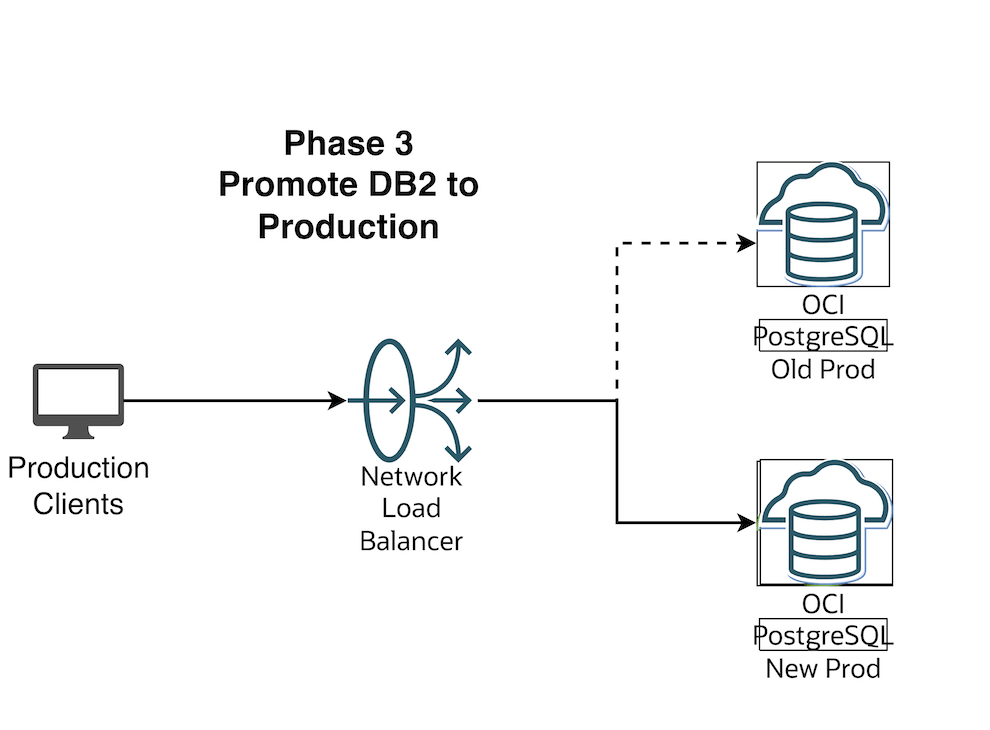
Flip the OCI Network Load Balancer Backend Set (Make sure TTL is as low as possible)
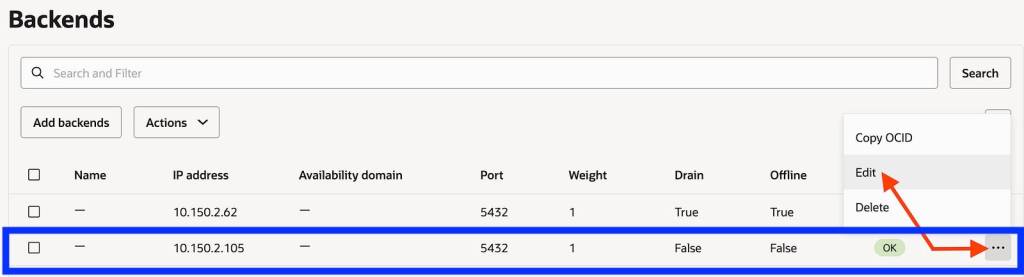
Make the current blue IP backend offline and drain it

Save the changes. In this brief moment there is no connectivity from App to DB and your business users should be notified that there will be a brief outage

If you run pgnlb it will hang as there is no backend IP to connect to
[opc@linux-bastion ~]$ pgnlb
Now let us make the Green environment as online from the backend set and Connect the Apps back.
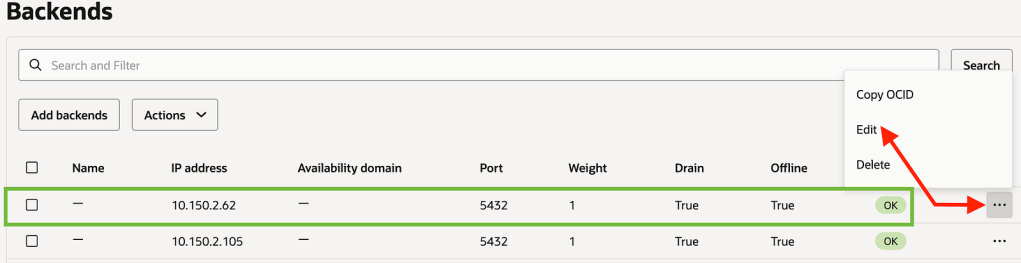

Save Changes

Now connect with pgnlb
[opc@linux-bastion ~]$ pgnlb

psql (17.7, server 16.8)

SSL connection (protocol: TLSv1.2, cipher: ECDHE-RSA-AES256-GCM-SHA384, compression: off, ALPN: none)

Type "help" for help.
You can see that pgnlb is now connecting to the new upgraded v16 version which is the Green environment
Some Advantages of Blue-Green testing:
- Perform testing of major version upgrades (e.g. pgsql 13 -> 15)
- Major patching/testing with a production-like copy
- Validate application behavior against new database versions/configs
- Support phased testing (read-only validation, performance testing)
- Decouple app endpoint from database endpoint using a Load Balancer
Conclusion
We’ve successfully created a end-to-end Blue-Green Testing Methodolgy for OCI PostgreSQL




 AWS CLOUD DBA