Blue-Green Deployment for OCI PostgreSQL


Blue-Green deployment for a Database service uses a Blue environment (Production) and creating a Green environment with it (Staging) and creating ongoing replication from the Production Blue environment to the staging environment.

A blue/green deployment works by creating a fully synchronized copy of your production database and running it as a separate staging environment.

In this article I will show how you can build a Blue-Green deployment for your OCI PostgreSQL for doing apps related testing.


High-level steps to Orchestrate a Blue-Green deployment strategy with OCI PostgreSQL

Via Logical Replication for Major Version Upgrades or App Performance/Regression Testing

Most DBAs & DevOps people are already familiar with the Blue-Green deployment methodology when deploying a new version of a service. OCI PostgreSQL does not natively support Blue-Green deployment as of when this article was written. But it is quite easy to setup using a few OCI native components and logical replication with pglogical (or OCI Goldengate)
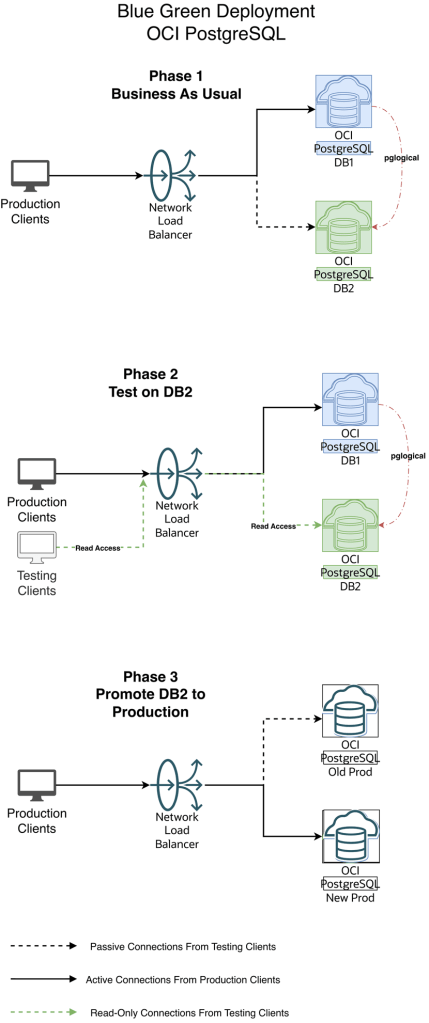
Diagram 1 — Blue-Green Workflow

1.Initial and One time setup:

a. Create an additional new version DB2 OCI PostgreSQL cluster

b. Create OCI DNS Private Zone for the Application for your VCN’s DNS resolver. This Zone will be used by the local applications to connect to OCI PostgreSQL via the OCI Load balancer. If you have an on-premise DNS and need to extend your on-premise DNS to resolve this private zone then refer this documentation : https://docs.oracle.com/en/solutions/oci-best-practices-networking/private-dns-oci-and-premises-or-third-party-cloud.html

c. Create an OCI Network load balancer for their applications to connect to. This LB will act as a proxy to the actual database system.

d. Have the load balancer backend point to the primary endpoint ip address of the database system(say DB1)

2. When we have new changes, do initial load for OCI Postgres between DB1 to DB2 using any of the logical data migration utilities like pg_dump, pg_restore

3. Create publication and subscription from DB1 to DB2 using pglogical (or OCI Goldengate)

4. Have the app tests hit DB2 endpoint to perform read queries, validate and certify the changes

5. When DB2 appears ready for production consumption, orchestrate:

a. Pause any app activity and pause pglogical replication (optional) since pglogical is logical replication tool, the DB2 is always available in Read-Write mode. Just for App testing we are using read-only mode to avoid conflicts and complex scenario of reverse replication from DB2 to DB1

b. Update load balancer backend to the primary endpoint ip address of DB2

c. Stop the replication setup between DB1 and DB2 by stopping the publisher and subscribers

6. Production Client Apps are now connecting to the new Production environment (Green)


Step-By-Step Orchestration of Blue Green Deployment :

A. Setup

  1. OCI PostgreSQL Database v15 which is the Blue environment aka Current Production

IP : 10.150.2.105

2. OCI PostgreSQL Database v16 which is the Green environment aka Staging

IP : 10.150.2.62

3. OCI Network Load Balancer with the 2 DB endpoints added as backend set fronted with a listener on tcp/5432

Listener

Backends

Make sure the Blue (Production) environment is active and the Green environment backend set is offline and drained.

4. Create an OCI DNS Private zone in your VCN’s DNS resolver

In my case i call my private zone postgres.local
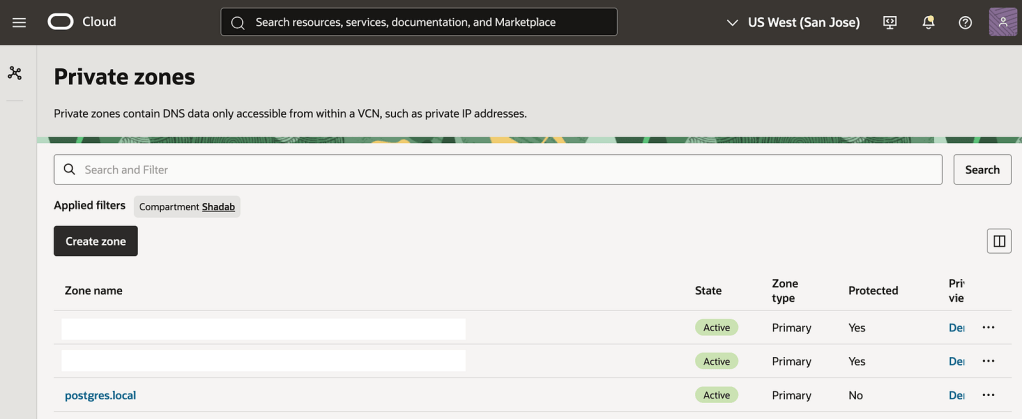
nlb-app.postgres.local is the main FQDN all apps will use to connect the backend database

nlb-app-blue.postgres.local is the FQDN for Blue Database and this is not used by App connections

nlb-app-green.postgres.local is the FQDN for the Green Database and this is used by the App stack which will perform the Read-only queries for validating the application performance.

We will use the OCI Network Load Balancers backend set to make the blue backend IP offline and activate green IP, This incurs a small outage (in seconds depending on TTL of the DNS resolver) where the App moves from connecting to Blue Database to the Final Green Database which is promoted as production.


B. Create pglogical Replication from DB1 to DB2

Ref : https://docs.oracle.com/en/learn/oci-pglogical-extension/index.html#task-5-configure-the-source-database

In this example we are demonstrating using a simple table : https://github.com/shadabshaukat/STAND/blob/main/postgres.sql

################# — Source Blue v15 — #################

Hostname : primary.umiokgnhd4hlpov7xncfwymgxv4pgq.postgresql.us-sanjose-1.oci.oraclecloud.com
Version : 15.12

— Run the following query to grant permissions on the source database to enable logical replication. — 

CREATE EXTENSION pglogical;
show oci.admin_enabled_extensions ;
alter role postgres with replication;
grant EXECUTE on FUNCTION pg_catalog.pg_replication_origin_session_reset() to postgres ;
grant EXECUTE on FUNCTION pg_catalog.pg_replication_origin_session_setup to postgres ;
grant all on FUNCTION pg_catalog.pg_replication_origin_session_setup to postgres;

Note : postgres is the admin user created during the database setup process.

— Create the publisher node on the source database. — 

SELECT pglogical.create_node(node_name := 'provider1',dsn :='host=primary.umiokgnhd4hlpov7xncfwymgxv4pgq.postgresql.us-sanjose-1.oci.oraclecloud.com port=5432 user=postgres password=RAbbithole1234## dbname=postgres');
node_name: Specify the name of the publisher to be created on the source database.
host: Enter the fully qualified domain name (FQDN) of the source database.
port_number: Provide the port on which the source database is running.
database_name: Specify the database where the publication will be created.

— Include all tables in the public schema to the default replication set. — 

SELECT pglogical.replication_set_add_all_tables('default', ARRAY['public']);
replication_set_add_all_tables
 - - - - - - - - - - - - - - - -
 t
(1 row)

################# — Target Green v16 — #################

Hostname : primary.46mtfkxsj6337nqvx2de6gq3a57m4a.postgresql.us-sanjose-1.oci.oraclecloud.com
Version : 16.8

— Run the following query to grant permissions on the target database to enable logical replication. — 

CREATE EXTENSION pglogical;
show oci.admin_enabled_extensions ;
alter role postgres with replication;
grant EXECUTE on FUNCTION pg_catalog.pg_replication_origin_session_reset() to postgres ;
grant EXECUTE on FUNCTION pg_catalog.pg_replication_origin_session_setup to postgres ;
grant all on FUNCTION pg_catalog.pg_replication_origin_session_setup to postgres;

Note : postgres is the admin user created during the database setup process.

— Create the subscriber node on target database. — 

SELECT pglogical.create_node(node_name := 'subscriber1',dsn :='host=primary.46mtfkxsj6337nqvx2de6gq3a57m4a.postgresql.us-sanjose-1.oci.oraclecloud.com port=5432 user=postgres password=RAbbithole1234## dbname=postgres');
node_name: Define the name of the subscriber on the target database.
host: Enter the fully qualified domain name (FQDN) of the target database.
port_number: Enter the port on which the target database is running.
database_name: Provide the name of the database where the subscription will be created.

— Create the Schema-only on Target Database. This can also be done with pg_dump and pg_restore or psql — 

CREATE TABLE orders (
 order_id SERIAL PRIMARY KEY,
 customer_id INTEGER,
 product_id INTEGER,
 product_description VARCHAR(500),
 order_delivery_address VARCHAR(500),
 order_date_taken DATE,
 order_misc_notes VARCHAR(500)
);
CREATE OR REPLACE FUNCTION add_random_orders(n INTEGER) RETURNS TEXT AS $$
DECLARE
 i INTEGER := 1;
 v_customer_id INTEGER;
 v_product_id INTEGER;
 v_product_description VARCHAR(500);
 v_order_delivery_address VARCHAR(500);
 v_order_date_taken DATE;
 v_order_misc_notes VARCHAR(500);
BEGIN
 WHILE i <= n LOOP
 v_customer_id := floor(random() * 100) + 1;
 v_product_id := floor(random() * 50) + 1;
 v_product_description := CONCAT('Product ', floor(random() * 10) + 1);
 v_order_delivery_address := CONCAT('Address ', floor(random() * 10) + 1);
 v_order_date_taken := CURRENT_DATE - (floor(random() * 30) || ' days')::INTERVAL;
 v_order_misc_notes := CONCAT('Note ', floor(random() * 10) + 1);
INSERT INTO orders (customer_id, product_id, product_description, order_delivery_address, order_date_taken, order_misc_notes)
 VALUES (v_customer_id, v_product_id, v_product_description, v_order_delivery_address, v_order_date_taken, v_order_misc_notes);
i := i + 1;
 END LOOP;
RETURN n || ' random orders added.';
EXCEPTION
 WHEN OTHERS THEN
 RAISE EXCEPTION 'Error: %', SQLERRM;
END;
$$ LANGUAGE plpgsql;

— Create the subscription on the subscriber node, which will initiate the background synchronization and replication processes. — 

SELECT pglogical.create_subscription(subscription_name := 'subscription1',provider_dsn := 'host=primary.umiokgnhd4hlpov7xncfwymgxv4pgq.postgresql.us-sanjose-1.oci.oraclecloud.com port=5432 user=postgres password=RAbbithole1234## dbname=postgres sslmode=verify-full sslrootcert=/etc/opt/postgresql/ca-bundle.pem');
subscription_name: Provide the name of the subscription.
host: Provide the FQDN of the source database.
port_number: Provide the port on which the target database is running.
database_name: Provide the name of the source database.

Note: Be sure to use sslmode=verify-full and sslrootcert = /etc/opt/postgresql/ca-bundle.pem in subscription creation string to prevent any connection failures.

SELECT pglogical.wait_for_subscription_sync_complete('subscription1');

################# — Target Green v16 — #################
 — Run the following statement to check the status of your subscription on your target database. — 

select * from pglogical.show_subscription_status();

subscription_name | status | provider_node |
 provider_dsn |
 slot_name | replication_sets | forward_origins
 - - - - - - - - - -+ - - - - - - -+ - - - - - - - -+ - - - - - - - - - - - - - - - - - - - - - - - - - - - - - - - - - - - - - - - - - - -
 - - - - - - - - - - - - - - - - - - - - - - - - - - - - - - - - - - - - - - - - - - - - - - - - - - - - - - - - - - - - - - - - - - - -+
 - - - - - - - - - - - - - - - - - - - + - - - - - - - - - - - - - - - - - - - -+ - - - - - - - - -
 subscription1 | replicating | provider1 | host=primary.umiokgnhd4hlpov7xncfwymgxv4pgq.postgresql.us-sanjose-1.oci.oraclecloud.c
om port=5432 user=postgres password=RAbbithole1234## dbname=postgres sslmode=verify-full sslrootcert=/etc/opt/postgresql/ca-bundle.pem |
 pgl_postgres_provider1_subscription1 | {default,default_insert_only,ddl_sql} | {all}
(1 row)

################# — Source Blue v15 — #################
 — Run the following statement to check the status of your replication on your source database. — 

SELECT * FROM pg_stat_replication;

pid | usesysid | usename | application_name | client_addr | client_hostname | client_port | backend_start | backend
_xmin | state | sent_lsn | write_lsn | flush_lsn | replay_lsn | write_lag | flush_lag | replay_lag | sync_priority | sync_state |
 reply_time
 - - - -+ - - - - - + - - - - - + - - - - - - - - - + - - - - - - - + - - - - - - - - -+ - - - - - - -+ - - - - - - - - - - - - - - - -+ - - - -
 - - - + - - - - - -+ - - - - - -+ - - - - - -+ - - - - - -+ - - - - - - + - - - - - -+ - - - - - -+ - - - - - - + - - - - - - - -+ - - - - - - + -
 - - - - - - - - - - - - - - -
 18569 | 16387 | postgres | subscription1 | 10.150.2.196 | | 1247 | 2025–12–02 04:50:07.242335+00 |
 | streaming | 0/16BAB50 | 0/16BAB50 | 0/16BAB50 | 0/16BAB50 | | | | 0 | async | 2
025–12–02 05:09:09.626248+00
(1 row)

################# — Target Green v16 — #################
A. Stop or Start the Replication

You can disable the subscription using the following command on your target database.

select pglogical.alter_subscription_disable('subscription_name');
-- Target --
select pglogical.alter_subscription_disable('subscription1');

You can enable the subscription using the following command on your target database.

select pglogical.alter_subscription_enable('subscription_name');
-- Target --
select pglogical.alter_subscription_enable('subscription1');

Note: In subscription_name, enter the name of the subscription created at target.

B. Drop the Subscription

select pglogical.drop_subscription('subscription_name');
-- Target --
select pglogical.drop_subscription('subscription1');

Note: In subscription_name, enter the name of the subscription created at target.

C. Drop the Nodes
To drop the node from your Source or Target database, execute the following command :

select pglogical.drop_node('node_name');
Note: In node_name, enter the node name created in source/target database.
-- Source --
select pglogical.drop_node('provider1');
-- Target --
select pglogical.drop_node('subscriber1');

C. Orchestration of Blue-Green Deployment by Updating OCI Network Load Balancer Backend

Scenario 1 — Everything is business as usual (Refer Diagram 1 — Blue-Green Workflow above)

All the production clients are connected to Blue (Production) DB environment.

NLB has the Blue Environment Active in the Backend Set

We will use psql for the testing. So lets add alias to the App host to make the testing a bit simple.

alias pgblue='PGPASSWORD=YourPasswor@123# psql -h nlb-app-blue.postgres.local -U postgres -d postgres'
alias pggreen='PGPASSWORD=YourPasswor@123# psql -h nlb-app-green.postgres.local -U postgres -d postgres'
alias pgnlb='PGPASSWORD=YourPasswor@123# psql -h nlb-app.postgres.local -U postgres -d postgres'

If we do nslookup on the OCI Network Load Balancer FQDN we can see it resolve to the OCI Network Load Balancer’s IP

$ nslookup nlb-app.postgres.local

Server:  169.254.169.254
Address: 169.254.169.254#53

Non-authoritative answer:
Name: nlb-app.postgres.local
Address: 10.150.2.35

Your Apps are now connecting to the v15 Blue Database via this Endpoint

$ alias | grep pgnlb
alias pgnlb='PGPASSWORD=YourPasswor@123# psql -h nlb-app.postgres.local -U postgres -d postgres'
$ pgnlb

psql (17.7, server 15.12)
SSL connection (protocol: TLSv1.2, cipher: ECDHE-RSA-AES256-GCM-SHA384, compression: off, ALPN: none)
Type "help" for help.
## The Server we're connecting to is the v15.12 which is Blue

Scenario 2 — The replication is ongoing to DB2 and Your Testing Clients connect to DB2

Your Testing Apps are now connecting to the v16 Green Database via this Endpoint

$ alias | grep pggreen
alias pggreen='PGPASSWORD=YourPasswor@123# psql -h nlb-app-green.postgres.local -U postgres -d postgres'
$ pggreen
psql (17.7, server 16.8)
SSL connection (protocol: TLSv1.2, cipher: ECDHE-RSA-AES256-GCM-SHA384, compression: off, ALPN: none)
Type "help" for help.

Scenario 3 — The replication is stopped to Green (DB2), Green is promoted as Production and Your Production Clients connect to Green environment
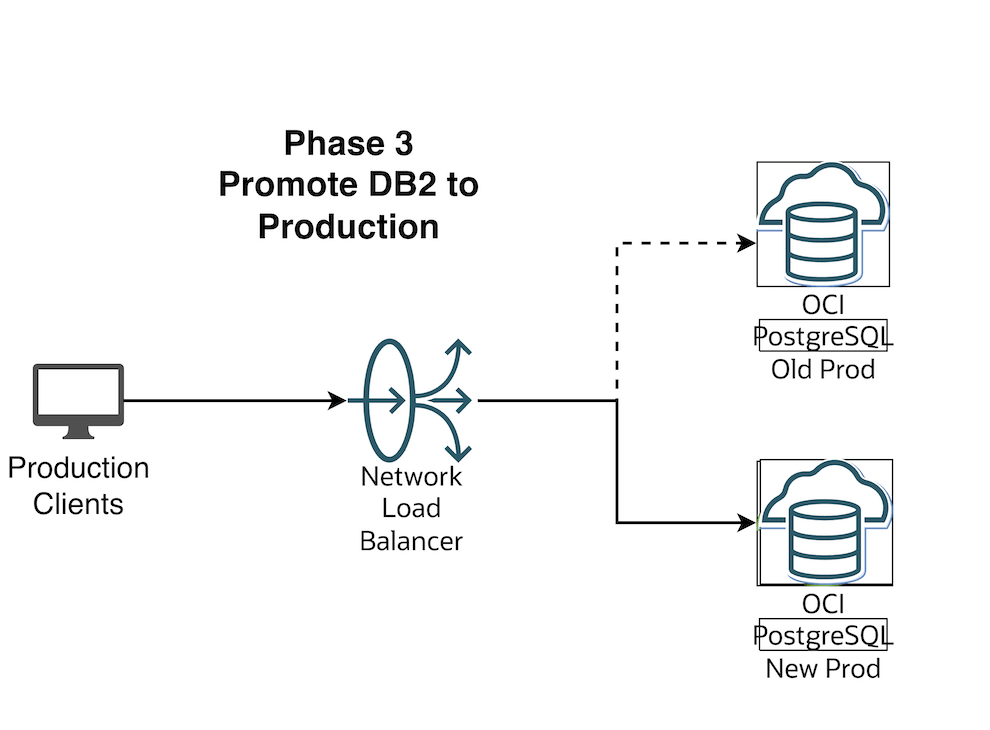

Flip the OCI Network Load Balancer Backend Set (Make sure TTL is as low as possible)
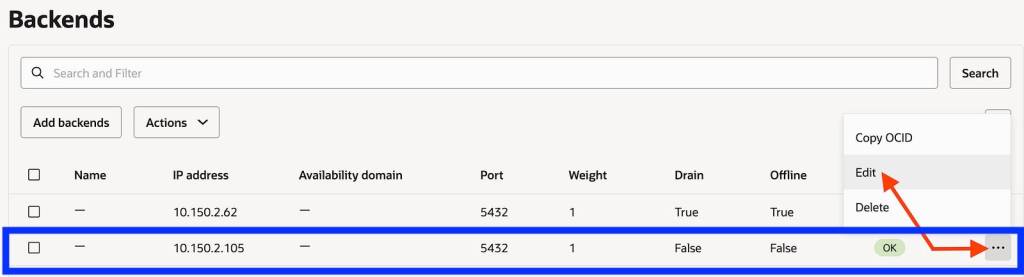
Make the current blue IP backend offline and drain it 

Save the changes. In this brief moment there is no connectivity from App to DB and your business users should be notified that there will be a brief outage

If you run pgnlb it will hang as there is no backend IP to connect to

[opc@linux-bastion ~]$ pgnlb

Now let us make the Green environment as online from the backend set and Connect the Apps back.
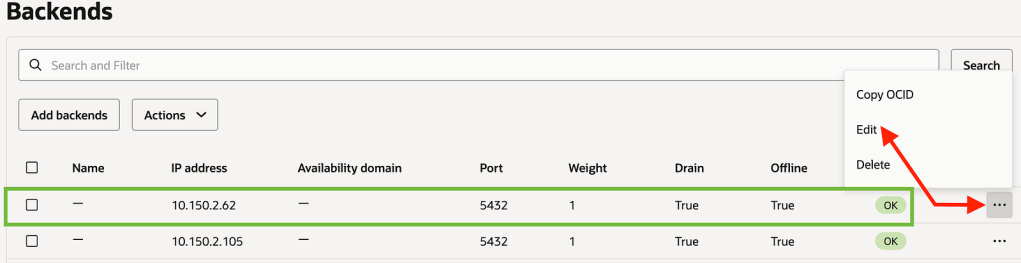
Save Changes

Now connect with pgnlb

[opc@linux-bastion ~]$ pgnlb
psql (17.7, server 16.8)
SSL connection (protocol: TLSv1.2, cipher: ECDHE-RSA-AES256-GCM-SHA384, compression: off, ALPN: none)
Type "help" for help.

You can see that pgnlb is now connecting to the new upgraded v16 version which is the Green environment


Some Advantages of Blue-Green testing:

  • Perform testing of major version upgrades (e.g. pgsql 13 -> 15)
  • Major patching/testing with a production-like copy
  • Validate application behavior against new database versions/configs
  • Support phased testing (read-only validation, performance testing)
  • Decouple app endpoint from database endpoint using a Load Balancer

Conclusion

We’ve successfully created a end-to-end Blue-Green Testing Methodolgy for OCI PostgreSQL 

Amazon Aurora DSQL First Preview – Create Multi-Region Cluster

Amazon just launched the new Distributed SQ> Aurora Database today.

Aurora DSQL is already available as Public Preview in the US Regions. In this article I want to give you the first preview on creating a cluster and connecting to it with psql client.

Go to this link to get started : https://console.aws.amazon.com/dsql/

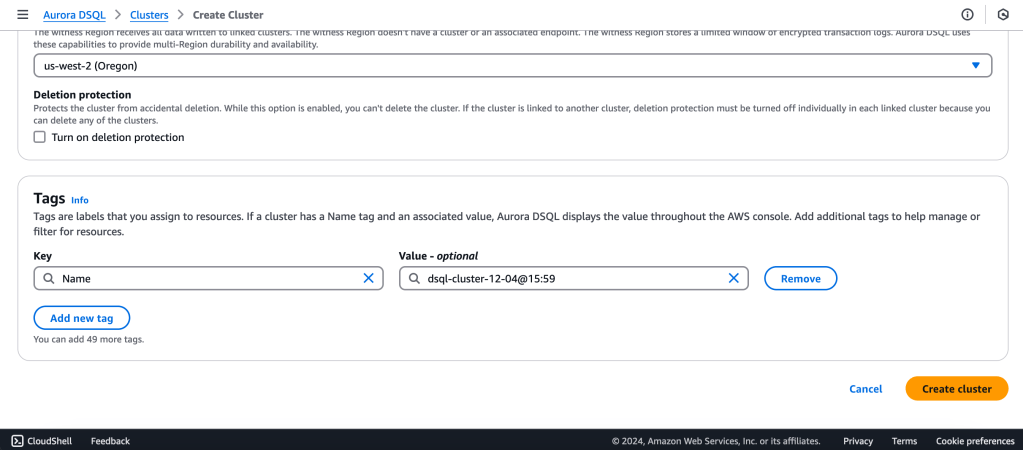
1.Create the DSQL Cluster

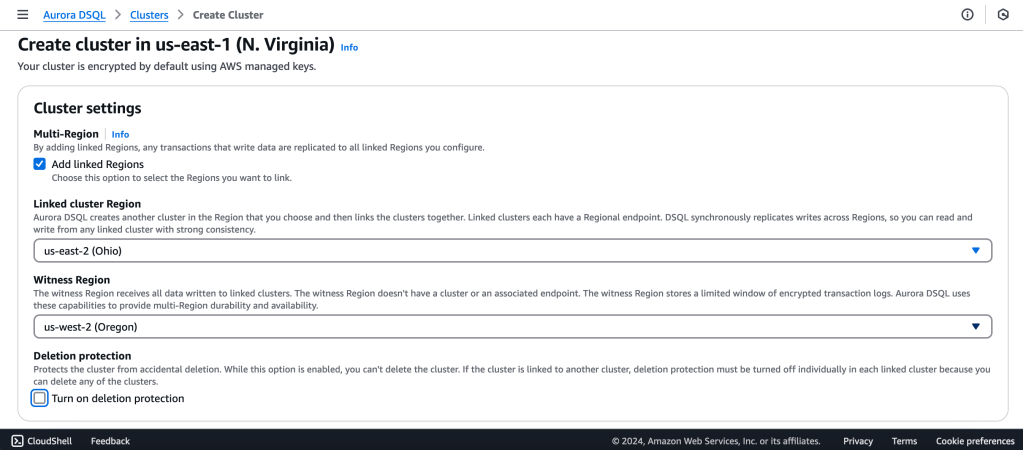
We will create a Multi-Region with a Linked region and a Witness region.

us-east-1 (N Virginia) -> Writer
us-east-2 (Ohio)  -> Writer

us-west-2 (Oregon)  -> Quorum

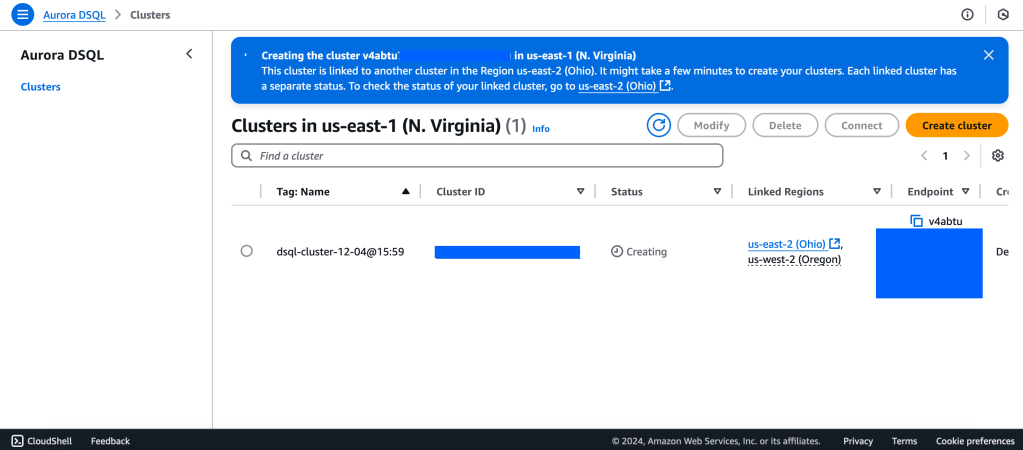
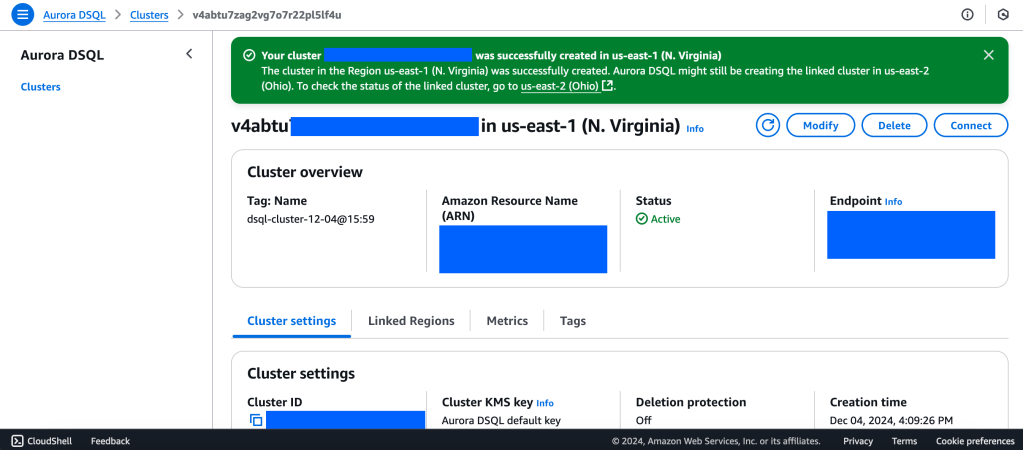
2. Wait for Cluster Creation to complete to get the Endpoint

3. Generate Auth token to login into Aurora DSQL

https://docs.aws.amazon.com/aurora-dsql/latest/userguide/authentication-token-cli.html

aws dsql generate-db-connect-admin-auth-token \
–expires-in 3600 \
–region us-east-1 \
–hostname <dsql-cluster-endpoint>

The full output will be the password, like below :

v4********4u.dsql.us-east-1.on.aws/?Action=DbConnectAdmin&X-Amz-Algorithm=AWS4-HMAC-SHA256&X-Amz-Credential=AK*****04%2Fus-east-1%2Fdsql%2Faws4_request&X-Amz-Date=202**X-Amz-Expires=3600&X-Amz-SignedHeaders=host&X-Amz-Signature=41e15*****ddfc49

4. Connect with PSQL

https://docs.aws.amazon.com/aurora-dsql/latest/userguide/getting-started.html#getting-started-create-cluster

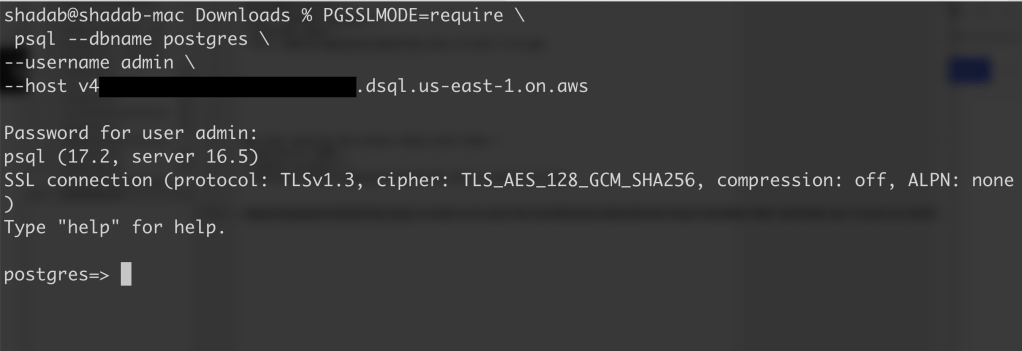
PGSSLMODE=require \
psql –dbname postgres \
–username admin \
–host v4*******u.dsql.us-east-1.on.aws

Password for user admin: <paste-full-string-of-auth-token-output>
psql (17.2, server 16.5)
SSL connection (protocol: TLSv1.3, cipher: TLS_AES_128_GCM_SHA256, compression: off, ALPN: none)
Type “help” for help.

postgres=>


We can connect with a Standard PSQL client!!

5. Create some test objects

https://docs.aws.amazon.com/aurora-dsql/latest/userguide/getting-started.html#getting-started-create-cluster

CREATE SCHEMA app;

CREATE TABLE app.orders (
order_id UUID PRIMARY KEY DEFAULT gen_random_uuid(),
customer_id INTEGER,
product_id INTEGER,
product_description VARCHAR(500),
order_delivery_address VARCHAR(500),
order_date_taken DATE,
order_misc_notes VARCHAR(500)
);

Sample CSV File to Load Data to Orders Table :

\COPY app.orders (order_id,customer_id,product_id,product_description,order_delivery_address,order_date_taken,order_misc_notes) FROM ‘/Users/shadab/Downloads/sample_orders.csv’ DELIMITER ‘,’ CSV HEADER;

/* Try to wrap the command in a single-line */

6. Run SQL Query

[a] Query to Find the Top 5 Customers by Total Orders Within the Last 6 Months

WITH recent_orders AS (
SELECT
customer_id,
product_id,
COUNT(*) AS order_count
FROM
app.orders
WHERE
order_date_taken >= CURRENT_DATE – INTERVAL ‘6 months’
GROUP BY
customer_id, product_id
)
SELECT
customer_id,
SUM(order_count) AS total_orders,
STRING_AGG(DISTINCT product_id::TEXT, ‘, ‘) AS ordered_products
FROM
recent_orders
GROUP BY
customer_id
ORDER BY
total_orders DESC
LIMIT 5;

[b] Query to Find the Most Common Delivery Address Patterns

SELECT
LEFT(order_delivery_address, POSITION(‘,’ IN order_delivery_address) – 1) AS address_prefix,
COUNT(*) AS order_count
FROM
app.orders
GROUP BY
address_prefix
ORDER BY
order_count DESC
LIMIT 10;

[c] Query to Calculate Monthly Order Trends by Product

SELECT
TO_CHAR(order_date_taken, ‘YYYY-MM’) AS order_month,
product_id,
COUNT(*) AS total_orders,
AVG(LENGTH(order_misc_notes)) AS avg_note_length — Example of additional insight
FROM
app.orders
GROUP BY
order_month, product_id
ORDER BY
order_month DESC, total_orders DESC;

7. Check Latency

You can check latency from AWS Cloud Shell using traceroute to your Aurora DSQL endpoints from different regions

us-east-1 (N Virginia)

$ traceroute v*****u.dsql.us-east-1.on.aws

traceroute to v****u.dsql.us-east-1.on.aws (44.223.172.242), 30 hops max, 60 byte packets
1 * * 216.182.237.241 (216.182.237.241) 1.566 ms

ap-southeast-2 (Sydney)

$ traceroute v*****u.dsql.us-east-1.on.aws


traceroute to v********u.dsql.us-east-1.on.aws (44.223.172.242), 30 hops max, 60 byte packets
1 244.5.0.119 (244.5.0.119) 1.224 ms * 244.5.0.115 (244.5.0.115) 5.922 ms
2 100.65.22.0 (100.65.22.0) 4.048 ms 100.65.23.112 (100.65.23.112) 5.203 ms 100.65.22.224 (100.65.22.224) 3.309 ms
3 100.66.9.110 (100.66.9.110) 25.430 ms 100.66.9.176 (100.66.9.176) 7.950 ms 100.66.9.178 (100.66.9.178) 3.966 ms
4 100.66.10.32 (100.66.10.32) 0.842 ms 100.66.11.36 (100.66.11.36) 2.745 ms 100.66.11.96 (100.66.11.96) 3.638 ms
5 240.1.192.3 (240.1.192.3) 0.263 ms 240.1.192.1 (240.1.192.1) 0.278 ms 240.1.192.3 (240.1.192.3) 0.244 ms
6 240.0.236.32 (240.0.236.32) 197.174 ms 240.0.184.33 (240.0.184.33) 197.206 ms 240.0.236.13 (240.0.236.13) 199.076 ms
7 242.3.84.161 (242.3.84.161) 200.891 ms 242.2.212.161 (242.2.212.161) 202.113 ms 242.2.212.33 (242.2.212.33) 197.571 ms
8 240.0.32.47 (240.0.32.47) 196.768 ms 240.0.52.96 (240.0.52.96) 196.935 ms 240.3.16.65 (240.3.16.65) 197.235 ms
9 242.7.128.1 (242.7.128.1) 234.734 ms 242.2.168.185 (242.2.168.185) 203.477 ms 242.0.208.5 (242.0.208.5) 204.263 ms
10 * 100.66.10.209 (100.66.10.209) 292.168 ms *


References:

[1] Aurora DSQL : https://aws.amazon.com/rds/aurora/dsql/features/

[2] Aurora DSQL User Guide : https://docs.aws.amazon.com/aurora-dsql/latest/userguide/getting-started.html#getting-started-create-cluster

[3] Use the AWS CLI to generate a token in Aurora DSQL : https://docs.aws.amazon.com/aurora-dsql/latest/userguide/authentication-token-cli.html

[4] DSQL Vignette: Aurora DSQL, and A Personal Story : https://brooker.co.za/blog/2024/12/03/aurora-dsql.html

——————————————————————————————–

Postgres 14 Sharding with Citus

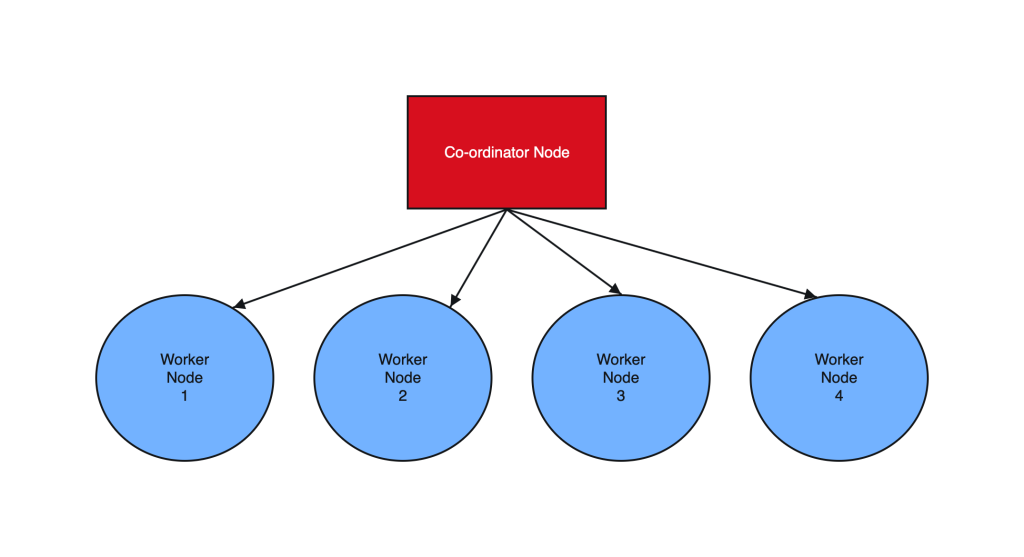
Postgres sharding with Citus is designed to horizontally scale PostgreSQL across multiple nodes. Citus extends PostgreSQL by adding the ability to distribute tables and queries across a cluster of servers.

Tables are horizontally partitioned into smaller, manageable shards that reside on different nodes. Each node contains a subset of the data and Citus intelligently routes queries to the appropriate nodes.

Sharding architecture enhances both read and write scalability, makes it well-suited for applications with growing data volumes and demanding workloads.

________________________ Step by Step Instructions to Setup Postgres Sharding ______________________________

  1. Create OL8 or RHEL8 Instance and Run the below commands on all Nodes :

a. SSH into all the Instances and configure it as below :

sudo dnf module list postgresql

sudo yum -y install gnupg2 wget vim tar zlib openssl

sudo dnf install https://download.postgresql.org/pub/repos/yum/reporpms/EL-8-x86_64/pgdg-redhat-repo-latest.noarch.rpm

sudo yum -qy module disable postgresql

sudo yum install postgresql14-server -y

sudo yum install postgresql14-contrib -y

## Due to policies for Red Hat family distributions, the PostgreSQL installation will not be enabled for automatic start or have the database initialized automatically

sudo systemctl enable postgresql-14

sudo postgresql-14-setup initdb

sudo systemctl start postgresql-14

sudo systemctl status postgresql-14 

b. Enable Postgres user and set Super user password

sudo -iu postgres

psql -c "ALTER USER postgres WITH PASSWORD 'RAbbithole1234#_';"

exit

c. Install Citus community edition binary and Create the Extension

# Add Citus repository for package manager

curl https://install.citusdata.com/community/rpm.sh | sudo bash

sudo yum install -y citus121_14
#Preload Citus and pg_stat_statements extensions on all Nodes

sudo -iu postgres

psql -U postgres -c 'SHOW config_file'

              config_file
----------------------------------------
 /var/lib/pgsql/14/data/postgresql.conf
(1 row)

vim /var/lib/pgsql/14/data/postgresql.conf

## Add below entry and uncomment 'shared_preload_libraries'

shared_preload_libraries = 'citus,pg_stat_statements'

## Note that “citus” has to be the first extension in the list. Otherwise, the server won’t start.

exit

sudo systemctl restart postgresql-14

sudo systemctl status postgresql-14


# Enable auto-start of Postgres 14 server when the server reboots

sudo chkconfig postgresql-14 on

sudo -i -u postgres psql -c "CREATE EXTENSION citus;"
sudo -i -u postgres psql -c "CREATE EXTENSION pg_stat_statements;"

d. Configure connection and authentication

sudo -iu postgres

vim /var/lib/pgsql/14/data/postgresql.conf

# Uncomment listen_addresses and set it as below
listen_addresses = '*'

# Uncomment and change wal_level = 'logical'
wal_level = 'logical'
vim /var/lib/pgsql/14/data/pg_hba.conf

# Change this line to allow all hosts 10.180.2.0/24 with trust
## Important Note : 10.180.2.0/24 is the subnet in which the instances reside. The subnet should have egress and ingress for the Postgres port. Alternately instead of doing a password-less setup, you can also use pgpass file to store the password on all nodes and use the normal authentication method. ##

# IPv4 local connections:
host    all             all             10.180.2.0/24           trust

exit

sudo systemctl restart postgresql-14

sudo systemctl status postgresql-14

## Whitelist Postgres Port##

sudo firewall-cmd --list-ports
sudo firewall-cmd --zone=public --permanent --add-port=5432/tcp
sudo firewall-cmd --reload
sudo firewall-cmd --list-ports

I’ve created a small automation script to perform the above steps. Save it as a .sh file, change the parameters according to your Postgres, citus version and simply execute on all the nodes:

#!/bin/bash

# Function to print commands and exit on failure
function run_command() {
    echo "$ $1"
    eval $1
    if [ $? -ne 0 ]; then
        echo "Error executing command. Exiting."
        exit 1
    fi
}

# Step 1: Install Postgres 14 Server on all Nodes
run_command "sudo dnf module list postgresql"
run_command "sudo yum -y install gnupg2 wget vim tar zlib openssl"
run_command "sudo dnf install -y https://download.postgresql.org/pub/repos/yum/reporpms/EL-8-x86_64/pgdg-redhat-repo-latest.noarch.rpm"
run_command "sudo yum -qy module disable postgresql"
run_command "sudo yum install postgresql14-server -y"
run_command "sudo yum install postgresql14-contrib -y"
run_command "sudo systemctl enable postgresql-14"

# Check if the data directory is empty
if [ -z "$(sudo -i -u postgres ls -A /var/lib/pgsql/14/data)" ]; then
    run_command "sudo postgresql-14-setup initdb"
else
    echo "Data directory is not empty. Skipping initialization."
fi

run_command "sudo systemctl start postgresql-14"
run_command "sudo chkconfig postgresql-14 on"

# Step 2: Enable Postgres user on all Nodes and set superuser password
run_command "sudo -i -u postgres psql -c \"ALTER USER postgres WITH PASSWORD 'YOurPassword1234#_';\""

# Step 3: Install Citus on all Nodes
run_command "curl https://install.citusdata.com/community/rpm.sh | sudo bash"
run_command "sudo yum install -y citus121_14"

# Step 4: Preload Citus and pg_stat_statements extensions on all Nodes
run_command "sudo -i -u postgres psql -U postgres -c 'SHOW config_file'"
run_command "sudo -i -u postgres sed -i -E 's/^#?(listen_addresses[ \t]*=[ \t]*).*/\1'\''*'\''/' /var/lib/pgsql/14/data/postgresql.conf"
run_command "sudo -i -u postgres sed -i -E 's/^#?(shared_preload_libraries[ \t]*=[ \t]*).*/\1'\''citus,pg_stat_statements'\''/' /var/lib/pgsql/14/data/postgresql.conf"
run_command "sudo -i -u postgres sed -i -E 's/^#?(wal_level[ \t]*=[ \t]*).*/\1'\''logical'\''/' /var/lib/pgsql/14/data/postgresql.conf"
run_command "sudo -i -u postgres sed -i -E '/^# IPv4 local connections:/ { n; s/^(host[ \t]*all[ \t]*all[ \t]*)127.0.0.1\/32[ \t]*scram-sha-256$/\10.0.0.0\/0           trust/ }' /var/lib/pgsql/14/data/pg_hba.conf"

# Step 5: Configure connection and authentication on all Nodes
run_command "sudo systemctl restart postgresql-14"
run_command "sudo firewall-cmd --list-ports"
run_command "sudo firewall-cmd --zone=public --permanent --add-port=5432/tcp"
run_command "sudo firewall-cmd --reload"
run_command "sudo firewall-cmd --list-ports"

# Step 6: Create Citus extension on all Nodes
run_command "sudo -i -u postgres psql -c \"CREATE EXTENSION citus;\""
run_command "sudo -i -u postgres psql -c \"CREATE EXTENSION pg_stat_statements;\""

echo "Script execution completed successfully."


2. Create Co-ordinator and Worker nodes

We have now prepared 3 instances for sharding in total. Step 1 should have been performed on all the below instances :

IP        HOSTNAME             ROLE
10.180.2.45     Postgres-Citus-Coordinator    Worker Node

10.180.2.198     Postgres-Citus-Worker-Node-1  Worker Node

10.180.2.86     Postgres-Citus-Worker-Node-2   Worker Node

Execute the below from the Co-ordinator node and run the below commands on the same node

ssh opc@10.180.2.222

# Add co-ordinator node
sudo -i -u postgres psql -c "SELECT citus_set_coordinator_host('10.180.2.45', 5432);"
 
# Add Worker Nodes
sudo -i -u postgres psql -c "SELECT * from citus_add_node('10.180.2.198', 5432);"
sudo -i -u postgres psql -c "SELECT * from citus_add_node('10.180.2.86', 5432);"


# Check Active Worker Nodes 
sudo -i -u postgres psql -c "SELECT * FROM citus_get_active_worker_nodes();"

  node_name   | node_port
--------------+-----------
 10.180.2.198 |      5432
 10.180.2.86  |      5432


3. Create a Distributed table

All steps below to be executed from Co-ordinator node :

CREATE TABLE orders (
order_id    bigserial, 
shard_key   int PRIMARY KEY, 
n           int, 
description char(100) DEFAULT 'x');

# Create Index to further optimize the SQL performance 
CREATE UNIQUE INDEX shard_key_idx on orders (shard_key);

# Add Distributed table
SELECT create_distributed_table('orders', 'shard_key');

\timing

# Generate 5 Million rows
INSERT INTO orders (shard_key, n, description)
SELECT 
    id AS shard_key,
    (random() * 1000000)::int AS n,
    'x' AS description
FROM generate_series(1, 5000000) AS id
ON CONFLICT DO NOTHING;


#Check the Size of the table using the Citus Table and not Standard Postgres comman
\x
SELECT * FROM citus_tables ;

# Check Explain plan of Query
\x
explain (analyze, buffers, timing) SELECT count(*) from orders;
explain (analyze, buffers, timing) SELECT count(*) from orders where shard_key=2 ;

4. Add another node by performing all commands in Step 1. and add it to the cluster

IP : 10.180.2.17

Run from the Co-ordinator node

sudo -i -u postgres psql -c "SELECT * from citus_add_node('10.180.2.17', 5432);"

sudo -i -u postgres psql -c "SELECT * FROM citus_get_active_worker_nodes();"

  node_name   | node_port
--------------+-----------
 10.180.2.198 |      5432
 10.180.2.86  |      5432
 10.180.2.17  |      5432
(3 rows)

# Add .pgpass file on co-ordinator node and add the DB details >> hostname:port:database:username:password
vim /var/lib/pgsql/.pgpass

localhost:5432:postgres:postgres:YOurPassword1234#_

chmod 600 .pgpass

# Re-balance the shards without downtime
psql -U postgres -h localhost

ALTER SYSTEM SET citus.max_background_task_executors_per_node = 2;
SELECT pg_reload_conf();
SELECT citus_rebalance_start();

NOTICE:  Scheduled 10 moves as job 1
DETAIL:  Rebalance scheduled as background job
HINT:  To monitor progress, run: SELECT * FROM citus_rebalance_status();
 citus_rebalance_start
-----------------------
                     1

#Check Status of rebalancing
SELECT * FROM citus_rebalance_status();

      1 | running | rebalance | Rebalance all colocation groups | 2023-12-24 09:44:16.813663+00 |             | {"t
asks": [{"LSN": {"lag": null, "source": "0/371A5128", "target": null}, "size": {"source": "29 MB", "target": "26 MB
"}, "hosts": {"source": "10.180.2.198:5432", "target": "10.180.2.17:5432"}, "phase": "Catching Up", "state": "runni
ng", "command": "SELECT pg_catalog.citus_move_shard_placement(102012,2,4,'auto')", "message": "", "retried": 0, "ta
sk_id": 4}], "task_state_counts": {"done": 3, "blocked": 6, "running": 1}}
(1 row)

#Once completed the output will be as below :

SELECT * FROM citus_rebalance_status();

 job_id |  state   | job_type  |           description           |          started_at           |          finishe
d_at          |                     details
--------+----------+-----------+---------------------------------+-------------------------------+-----------------
--------------+--------------------------------------------------
      1 | finished | rebalance | Rebalance all colocation groups | 2023-12-24 09:44:16.813663+00 | 2023-12-24 10:18
:24.886163+00 | {"tasks": [], "task_state_counts": {"done": 10}}

# Check the Shard views
SELECT * from pg_dist_shard;
SELECT * FROM citus_shards;

#Misc rebalancing SQL queries
select get_rebalance_table_shards_plan();
SELECT citus_set_default_rebalance_strategy('by_disk_size');
SELECT * from citus_remote_connection_stats();


Enable pg_stat_statements extension on Postgres 14


postgres=# SELECT * FROM pg_stat_statements;


postgres=# select * From pg_available_extensions where name ilike 'pg_stat_statements';

        name        | default_version | installed_version |                                comment

--------------------+-----------------+-------------------+--------------------------------------------------------
----------------
 pg_stat_statements | 1.9             |                   | track planning and execution statistics of all SQL stat
ements executed
(1 row)

    
postgres=# SHOW shared_preload_libraries;

shared_preload_libraries
--------------------------

(1 row)


postgres=# CREATE EXTENSION pg_stat_statements;
CREATE EXTENSION


postgres=# \d pg_stat_statements


postgres=# SELECT *
	 			FROM pg_available_extensions
	 		WHERE
	    		 name = 'pg_stat_statements' and
	   		  installed_version is not null;
	   		  
	   		  
        name        | default_version | installed_version |                                comment

--------------------+-----------------+-------------------+--------------------------------------------------------
----------------
 pg_stat_statements | 1.9             | 1.9               | track planning and execution statistics of all SQL stat
ements executed
(1 row)


postgres=# alter system set shared_preload_libraries='pg_stat_statements';
ALTER SYSTEM


postgres=# select * from pg_file_Settings where name='shared_preload_libraries';


                 sourcefile                  | sourceline | seqno |           name           |      setting       |
 applied |            error
---------------------------------------------+------------+-------+--------------------------+--------------------+
---------+------------------------------
 /var/lib/pgsql/14/data/postgresql.auto.conf |          3 |    30 | shared_preload_libraries | pg_stat_statements |
 f       | setting could not be applied
(1 row)


postgres=# exit

##Restart the Instance

sudo systemctl restart postgresql-14

sudo -iu postgres
 
 
psql -h localhost -p 5432 -U postgres -d postgres


postgres=# SELECT * FROM pg_stat_statements;

 userid | dbid | toplevel | queryid | query | plans | total_plan_time | min_plan_time | max_plan_time | mean_plan_t
ime | stddev_plan_time | calls | total_exec_time | min_exec_time | max_exec_time | mean_exec_time | stddev_exec_tim
e | rows | shared_blks_hit | shared_blks_read | shared_blks_dirtied | shared_blks_written | local_blks_hit | local_
blks_read | local_blks_dirtied | local_blks_written | temp_blks_read | temp_blks_written | blk_read_time | blk_writ
e_time | wal_records | wal_fpi | wal_bytes
--------+------+----------+---------+-------+-------+-----------------+---------------+---------------+------------
----+------------------+-------+-----------------+---------------+---------------+----------------+----------------
--+------+-----------------+------------------+---------------------+---------------------+----------------+-------
----------+--------------------+--------------------+----------------+-------------------+---------------+---------
-------+-------------+---------+-----------
(0 rows)

PostgreSQL 14 Streaming Replication on Oracle Cloud Infrastructure (OCI) VM

Introduction

PostgreSQL 14 is a powerful and feature-rich open-source relational database management system.

In this guide, we’ll walk through the process of installing and configuring PostgreSQL 14 on Oracle Cloud Infrastructure (OCI) with Oracle Linux 8. The setup includes one master node and two slave nodes, forming a streaming replication setup.

Note : The word slave and replica is used interchangeably in this article when referring to anything which is not a master node

OS– Oracle Linux 8

PostgreSQL Version – 14.10

1 Master Node – IP- 10.180.2.102

2 Slave Nodes – IPs- 10.180.2.152, 10.180.2.58

3 Node PostgreSQL 14 Cluster on OCI

You can create a DR architecture using streaming replication. Put 1 replica in the same region and 2 additional replicas in another OCI region.The VCN’s in both OCI regions have to be remotely peered using a DRG and all routes should permit the traffic over the different subnets and allow communication over port 5432. You can refer to this articleo n how to configure VCN remote peering on OCI: https://docs.oracle.com/en-us/iaas/Content/Network/Tasks/scenario_e.htm

4-Node Cross-Region PostgreSQL 14 Cluster on OCI

Step 1: Installing PostgreSQL 14 on Master and Slave Nodes

Start by updating the system and installing necessary dependencies on both the master and slave nodes:

sudo dnf update -y

sudo dnf module list postgresql

sudo yum -y install gnupg2 wget vim tar zlib openssl

sudo dnf install https://download.postgresql.org/pub/repos/yum/reporpms/EL-8-x86_64/pgdg-redhat-repo-latest.noarch.rpm

sudo yum -qy module disable postgresql

sudo yum install postgresql14-server -y

sudo yum install postgresql14-contrib -y

sudo systemctl enable postgresql-14

sudo postgresql-14-setup initdb

sudo systemctl start postgresql-14

sudo systemctl status postgresql-14

Step 2: Enabling Postgres User and Streaming Replication

Enable the Postgres user and configure streaming replication on both the master and slave nodes:

sudo -iu postgres

psql -c "ALTER USER postgres WITH PASSWORD 'RAbbithole1234#_';"

tree -L 1 /var/lib/pgsql/14/data

psql -U postgres -c 'SHOW config_file'

              config_file
----------------------------------------
 /var/lib/pgsql/14/data/postgresql.conf
(1 row)

Step 3: Configuring pg_hba.conf and Firewall Settings

Update the pg_hba.conf file on both the master and slave nodes to allow connections and adjust firewall settings:

sudo -iu postgres

vim /var/lib/pgsql/14/data/pg_hba.conf

# If ident is available in file then replace 'ident' with 'md5' or 'scram-sha-256'

# Change this line to allow all hosts 0.0.0.0/0 

# IPv4 local connections:
host    all             all             0.0.0.0/0               scram-sha-256

exit

sudo systemctl restart postgresql-14

#Whitelist Ports on Instance

sudo firewall-cmd --list-ports

sudo firewall-cmd --zone=public --permanent --add-port=5432/tcp

sudo firewall-cmd --reload

sudo firewall-cmd --list-ports

Step 4: Configuring Master Node for Streaming Replication

On the master node (10.180.2.102), configure streaming replication:

sudo -iu postgres

mkdir -p /var/lib/pgsql/14/data/archive

vim /var/lib/pgsql/14/data/postgresql.conf

## Uncomment and set below parameters
listen_addresses = '*'
archive_mode = on    # enables archiving; off, on, or always
archive_command = 'cp %p /var/lib/pgsql/14/data/archive/%f' 
max_wal_senders = 10            # max number of walsender processes
max_replication_slots = 10      # max number of replication slots
wal_keep_size = 50000           # Size of WAL in megabytes; 0 disables
wal_level = replica             # minimal, replica, or logical
wal_log_hints = on               # also do full page writes of non-critical updates

## Only set below if you want to create synchronous replication##
synchronous_commit = remote_apply
synchronous_standby_names = '*'

exit

sudo systemctl restart postgresql-14

netstat -an | grep 5432

Update pg_hba.conf on the master node:

sudo -iu postgres

vim /var/lib/pgsql/14/data/pg_hba.conf

#Add below entry to end of file

host    replication     all             10.180.2.152/32         scram-sha-256
host    replication     all             10.180.2.58/32         scram-sha-256

exit

sudo systemctl restart postgresql-14

Step 5: Configuring Slave Nodes for Streaming Replication

On the slave nodes (10.180.2.152 and 10.180.2.58), configure streaming replication:

sudo -iu postgres

mkdir -p /var/lib/pgsql/14/data/backup

vim /var/lib/pgsql/14/data/pg_hba.conf

exit

sudo systemctl restart postgresql-14

sudo chmod 0700 /var/lib/pgsql/14/data/backup

sudo -iu postgres

#Backup and Clone Database from Slave Node using IP of Master Node

pg_basebackup -D /var/lib/pgsql/14/data/backup -X fetch -p 5432 -U postgres -h 10.180.2.102 -R

cd /var/lib/pgsql/14/data/backup

cat postgresql.auto.conf

#Stop the Instance and Restart using Data in New location

/usr/pgsql-14/bin/pg_ctl stop

/usr/pgsql-14/bin/pg_ctl start -D /var/lib/pgsql/14/data/backup

waiting for server to start....2023-11-27 03:36:48.205 GMT [169621] LOG:  redirecting log output to logging collector process
2023-11-27 03:36:48.205 GMT [169621] HINT:  Future log output will appear in directory "log".
 done
server started

Step 6: Checking Replication Status from Slave Nodes

Check the status of streaming replication from slave nodes using psql:

psql -h localhost -p 5432 -U postgres -d postgres

postgres# select pg_is_wal_replay_paused();

 pg_is_wal_replay_paused
-------------------------
 f
(1 row)

Note - f means , recovery is running fine. t means it is stopped.


postgres# select * from pg_stat_wal_receiver;

-[ RECORD 1 ]---------+-------------------------------------------------------------------------------------------------------------------------------------------------------------------------------------------------------------------------------------------------------------------------------------
pid                   | 414090
status                | streaming
receive_start_lsn     | 0/A000000
receive_start_tli     | 1
written_lsn           | 0/A002240
flushed_lsn           | 0/A002240
received_tli          | 1
last_msg_send_time    | 2023-12-04 11:40:51.853918+00
last_msg_receipt_time | 2023-12-04 11:40:51.853988+00
latest_end_lsn        | 0/A002240
latest_end_time       | 2023-11-30 08:16:43.217865+00
slot_name             |
sender_host           | 10.180.2.102
sender_port           | 5432
conninfo              | user=postgres password=******** channel_binding=prefer dbname=replication host=10.180.2.102 port=5432 fallback_application_name=walreceiver sslmode=prefer sslcompression=0 sslsni=1 ssl_min_protocol_version=TLSv1.2 gssencmode=prefer krbsrvname=postgres target_session_attrs=any

Step 7: Checking Replication Status from Master Node

On the master node, check the status of replication:

psql -h localhost -p 5432 -U postgres -d postgres:

postgres# select * from pg_stat_replication;

-[ RECORD 1 ]----+------------------------------
pid              | 382513
usesysid         | 10
usename          | postgres
application_name | walreceiver
client_addr      | 10.180.2.152
client_hostname  |
client_port      | 47312
backend_start    | 2023-11-30 08:11:42.536364+00
backend_xmin     |
state            | streaming
sent_lsn         | 0/A002240
write_lsn        | 0/A002240
flush_lsn        | 0/A002240
replay_lsn       | 0/A002240
write_lag        |
flush_lag        |
replay_lag       |
sync_priority    | 0
sync_state       | async
reply_time       | 2023-12-04 11:43:12.033364+00

-[ RECORD 2 ]----+------------------------------
pid              | 382514
usesysid         | 10
usename          | postgres
application_name | walreceiver
client_addr      | 10.180.2.58
client_hostname  |
client_port      | 35294
backend_start    | 2023-11-30 08:11:42.542539+00
backend_xmin     |
state            | streaming
sent_lsn         | 0/A002240
write_lsn        | 0/A002240
flush_lsn        | 0/A002240
replay_lsn       | 0/A002240
write_lag        |
flush_lag        |
replay_lag       |
sync_priority    | 0
sync_state       | async
reply_time       | 2023-12-04 11:43:10.113253+00

Step 8: Additional Notes and References

To restart slave nodes, use the following commands:

/usr/pgsql-14/bin/pg_ctl stop

sudo rm -rf /var/lib/pgsql/14/data/backup/postmaster.pid

/usr/pgsql-14/bin/pg_ctl start -D /var/lib/pgsql/14/data/backup

  1. DBA Class
  2. Narasimman Tech
  3. PostgreSQL Continuous Archiving Documentation
  4. Stack Overflow
  5. Girders
  6. Kinsta

Follow this comprehensive guide to set up PostgreSQL 14 streaming replication on Oracle Cloud Infrastructure with Oracle Linux 8. Ensure high availability and robust backup capabilities for your PostgreSQL database

Tracking Changes in Your PostgreSQL Tables: Implementing a Custom Change Data Capture (CDC)

Introduction:
Change Data Capture (CDC) is a technique used to track changes in a database, such as inserts, updates, and deletes. In this blog post, we will show you how to implement a custom CDC in PostgreSQL to track changes in your database. By using a custom CDC, you can keep a record of changes in your database and use that information in your applications, such as to provide a history of changes, track auditing information, or trigger updates in other systems

Implementing a Custom CDC in PostgreSQL:
To implement a custom CDC in PostgreSQL, you will need to create a new table to store the change information, create a trigger function that will be executed whenever a change is made in the target table, and create a trigger that will call the trigger function. The trigger function will insert a new row into the change table with the relevant information, such as the old and new values of the record, the time of the change, and any other relevant information.

To demonstrate this, we will show you an example of a custom CDC for a table called “employee”. The change table will be called “employee_cdc” and will contain columns for the timestamp, employee ID, old values, and new values of the employee record. The trigger function will be executed after an update on the “employee” table and will insert a new row into the “employee_cdc” table with the relevant information. Finally, we will show you how to query the “employee_cdc” table to retrieve a list of all changes that have occurred in the “employee” table since a certain timestamp.

  1. Create the Employee and CDC table

    To store the CDC information, you need to create a new table in your PostgreSQL database. In this example, we will create a table called “employee”, “employee_cdc”, “employee_audit” with the following columns:

CREATE TABLE employee (
id SERIAL PRIMARY KEY,
name VARCHAR(100) NOT NULL,
department VARCHAR(50) NOT NULL,
salary NUMERIC(10,2) NOT NULL,
hire_date DATE NOT NULL
);

CREATE TABLE employee_cdc (
timestamp TIMESTAMP DEFAULT now(),
employee_id INTEGER,
old_values JSONB,
new_values JSONB
);

In this table, “id” is an auto-incremented primary key, “timestamp” is a timestamp with time zone to store the time of the change, “employee_id” is the primary key of the employee record that was changed, and “old_values” and “new_values” are text columns to store the old and new values of the employee record, respectively.

2. Create the Audit table

CREATE TABLE employee_audit (
audit_timestamp TIMESTAMP DEFAULT now(),
employee_id INTEGER,
old_values JSONB,
new_values JSONB
);

3. Create the trigger function

To capture the changes in the employee table, you will need to create a trigger function that will be executed whenever a record is inserted, updated, or deleted in the table. The trigger function will insert a new row into the “employee_cdc” table with the relevant information. Here is an example trigger function:

CREATE OR REPLACE FUNCTION employee_cdc() RETURNS TRIGGER AS $$
BEGIN
IF (TG_OP = 'UPDATE') THEN
INSERT INTO employee_cdc (timestamp, employee_id, old_values, new_values)
VALUES (now(), NEW.id, row_to_json(OLD), row_to_json(NEW));
INSERT INTO employee_audit (employee_id, old_values, new_values)
VALUES (NEW.id, row_to_json(OLD), row_to_json(NEW));
END IF;
RETURN NULL;
END;
$$ LANGUAGE plpgsql;

This trigger function uses the “row_to_json” function to convert the old and new values of the employee record into JSON strings, which are then stored in the “old_values” and “new_values” columns of the “employee_cdc” table. The “NOW()” function is used to get the current timestamp.

4. Create the trigger

Now that the trigger function has been created, you need to create the trigger on the “employee” table that will call the function whenever a record is updated. You can create the trigger with the following command:

CREATE TRIGGER employee_cdc_trigger
AFTER UPDATE ON employee
FOR EACH ROW
EXECUTE FUNCTION employee_cdc();

4. Query the CDC table

In your application code, you can query the “employee_cdc” table to get a list of all changes that have occurred since a certain timestamp. For example, to get all changes since January 1st, 2023, you can use the following SQL query:

SELECT * FROM employee_cdc
WHERE timestamp >= '2023-01-01 00:00:00';

You can then process these changes as needed in your application code.

Conclusion:
In this blog post, we have shown you how to implement a custom Change Data Capture (CDC) in PostgreSQL to track changes in your database. By using a custom CDC, you can keep a record of changes in your database and use that information in your applications. Whether you are tracking changes for auditing purposes, providing a history of changes, or triggering updates in other systems, a custom CDC is a useful tool to have in your PostgreSQL toolkit.

Backup and Restore PostgreSQL with Few Easy Shell Scripts

PostgreSQL is the most popular Open source database and there is a lot of information available when it comes to backing up and restoring PgSQL I have used these scripts to backup production databases and restored them to new Postgres Servers. So here it goes

Backup PostgreSQL Database – Backup_Pgsql.sh

#!/bin/bash
hostname=`hostname`
# Dump DBs
  date=`date +"%Y%m%d_%H%M%N"`
  backupdir='/home/opc'
  dbname='demo'
  filename="$backupdir/${hostname}_${dbname}_${date}"
 pg_dump -U postgres --encoding utf8 -F c -f $filename.dump $dbname

Restore PostgreSQL Database – Restore_Pgsql.sh

#!/bin/bash
# Restore DB
filename='/home/opc/pgimportmaster-demo-20211129_1013.dump'
  pg_restore -U postgres -d demo -c < ./$1
exit 0

Usage for Restore

$ ./Restore_Pgsql.sh pgimportmaster-demo-20211129_1013.dump

Federated Query from Redshift to Aurora PostgreSQL

Create Public Accessible Redshift Cluster and Aurora PostgreSQL/ RDS PostgreSQL cluster. The RDS PostgreSQL or Aurora PostgreSQL must be in the same VPC as your Amazon Redshift cluster. If the instance is publicly accessible, configure its security group’s inbound rule to: Type: PostgreSQL, Protocol: TCP, Port Range: 5432, Source: 0.0.0.0/0. Otherwise, if the instance is not publicly accessible, you don’t need to configure an inbound rule.

  1. Go to AWS Console > Secrets Manager > Create Secret Managers for RDS Database and Select your PostgreSQL database
  2. Create IAM policy with ARN of above Secrets manager
{
"Version": "2012-10-17",
"Statement": [
{
"Sid": "AccessSecret",
"Effect": "Allow",
"Action": [
"secretsmanager:GetResourcePolicy",
"secretsmanager:GetSecretValue",
"secretsmanager:DescribeSecret",
"secretsmanager:ListSecretVersionIds"
],
"Resource": "arn:aws:secretsmanager:us-east-1:111111111111:secret:federated-query-L9EBau"
},
{
"Sid": "VisualEditor1",
"Effect": "Allow",
"Action": [
"secretsmanager:GetRandomPassword",
"secretsmanager:ListSecrets"
],
"Resource": "*"
}
]
}
  1. Create IAM Redshift customizable role and attach the Above Policy to it.
  2. Attach the Role to your Redshift Cluster
  3. Create External Schema in Redshift
CREATE EXTERNAL SCHEMA IF NOT EXISTS myRedshiftSchema
FROM POSTGRES
DATABASE 'testdb' SCHEMA 'aurora_schema'
URI 'federated-cluster-instance-1.c2txxxxupg1.us-east-1.rds.amazonaws.com' PORT 5432
OPTIONS 'application_name=psql'
IAM_ROLE 'arn:aws:iam::1111111111111:role/federated-query-role'
SECRET_ARN 'arn:aws:secretsmanager:us-east-1:11111111111111:secret:federated-query-L9EBau';
  1. In RDS Aurora PostgreSQL create the schema which will hold the objects for federated query access
testdb=> create schema aurora_schema;
CREATE SCHEMA
testdb=> create table aurora_schema.federatedtable (id int8, name varchar(50), log_txn_date timestamp);
CREATE TABLE
testdb=> insert into aurora_schema.federatedtable values(1,'shadab','2019-12-26 00:00:00');
INSERT 0 1
testdb=> select * from aurora_schema.federatedtable;
id | name | log_txn_date
----+--------+---------------------
1 | shadab | 2019-12-26 00:00:00
(1 row)
  1. Login to your Redshift cluster and Run the Federated Query from Redshift to PostgreSQL —
testdb=# select * from myredshiftschema.federatedtable;
id | name | log_txn_date
----+--------+---------------------
1 | shadab | 2019-12-26 00:00:00
(1 row)
-- Trying out CTAS from Redshift to PostgreSQL --
testdb=# create table test as select * from myredshiftschema.federatedtable;
SELECT
testdb=# select * from test;
id | name | log_txn_date
----+--------+---------------------
1 | shadab | 2019-12-26 00:00:00
testdb=# select pg_last_query_id();
         1251

(1 row)

select * from svl_s3query_summary where query='1251';
-[ RECORD 1 ]-----------+---------------------------
userid | 100
query | 1251
xid | 7338
pid | 11655
segment | 0
step | 0
starttime | 2019-12-27 06:17:30.800652
endtime | 2019-12-27 06:17:30.947853
elapsed | 147201
aborted | 0
external_table_name | PG Subquery
file_format | Text
.
.
.

References:

[1]
Federated Query in Amazon Redshift (Preview) – https://docs.aws.amazon.com/redshift/latest/dg/federated-overview.html
[2]
CREATE EXTERNAL SCHEMA – https://docs.aws.amazon.com/redshift/latest/dg/federated-external-schema.html
[3]
Create a Secret and an IAM Role for Federated Query – https://docs.aws.amazon.com/redshift/latest/dg/federated-create-secret-iam-role.html

Python Script to Copy-Unload Data to Redshift from S3

import psycopg2
import time
import sys
import datetime
from datetime import date
datetime_object = datetime.datetime.now()
print ("Start TimeStamp")
print ("---------------")
print(datetime_object)
print("")

#Progress Bar Function
def progressbar(it, prefix="", size=60, file=sys.stdout):
    count = len(it)
    def show(j):
        x = int(size*j/count)
        file.write("%s[%s%s] %i/%i\r" % (prefix, "#"*x, "."*(size-x), j, count))
        file.flush()
    show(0)
    for i, item in enumerate(it):
        yield item
        show(i+1)
    file.write("\n")
    file.flush()

#Obtaining the connection to RedShift
con=psycopg2.connect(dbname= 'dev', host='redshift.amazonaws.com',
port= '5439', user= 'awsuser', password= '*****')

#Copy Command as Variable
copy_command="copy users from 's3://redshift-test-bucket/allusers_pipe.txt' credentials 'aws_iam_role=arn:aws:iam::775088:role/REDSHIFTROLE' delimiter '|' region 'ap-southeast-2';"

#Unload Command as Variable
unload_command="unload ('select * from users') to 's3://redshift-test-bucket/users_"+str(datetime.datetime.now())+".csv' credentials 'aws_iam_role=arn:aws:iam::7755088:role/REDSHIFTROLE' delimiter '|' region 'ap-southeast-2';"

#Opening a cursor and run copy query
cur = con.cursor()
cur.execute("truncate table users;")
cur.execute(copy_command)
con.commit()

#Display Progress Bar and Put a sleep condition in seconds to make the program wait
for i in progressbar(range(100), "Copying Data into Redshift: ", 10):
    time.sleep(0.1) # any calculation you need

print("")

#Display Progress Bar and Put a sleep condition in seconds to make the program wait
for i in progressbar(range(600), "Unloading Data from Redshift to S3: ", 60):
    time.sleep(0.1) # any calculation you need

print("")

#Opening a cursor and run unload query
cur.execute(unload_command)

#Close the cursor and the connection
cur.close()
con.close()

datetime_object_2 = datetime.datetime.now()
print ("End TimeStamp")
print ("-------------")
print(datetime_object_2)
print("")