Amazon just launched the new Distributed SQ> Aurora Database today.
Aurora DSQL is already available as Public Preview in the US Regions. In this article I want to give you the first preview on creating a cluster and connecting to it with psql client.
Go to this link to get started : https://console.aws.amazon.com/dsql/

1.Create the DSQL Cluster
We will create a Multi-Region with a Linked region and a Witness region.
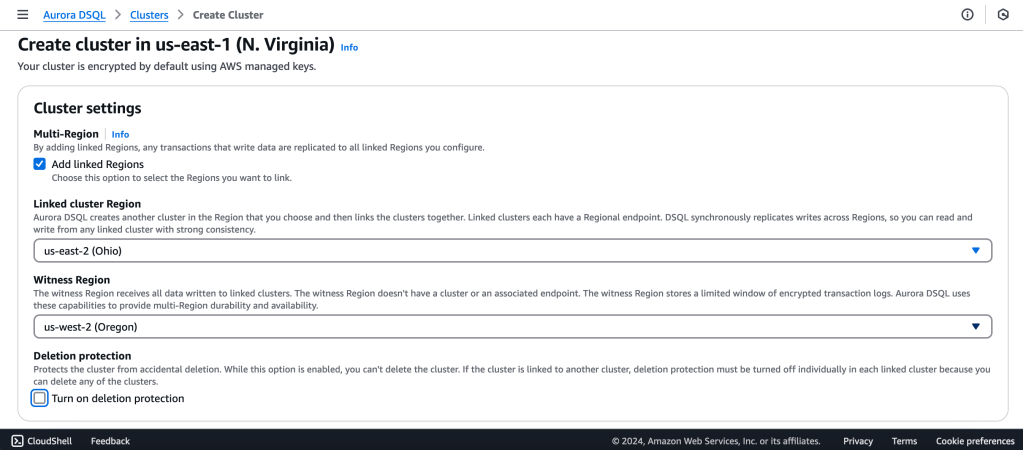
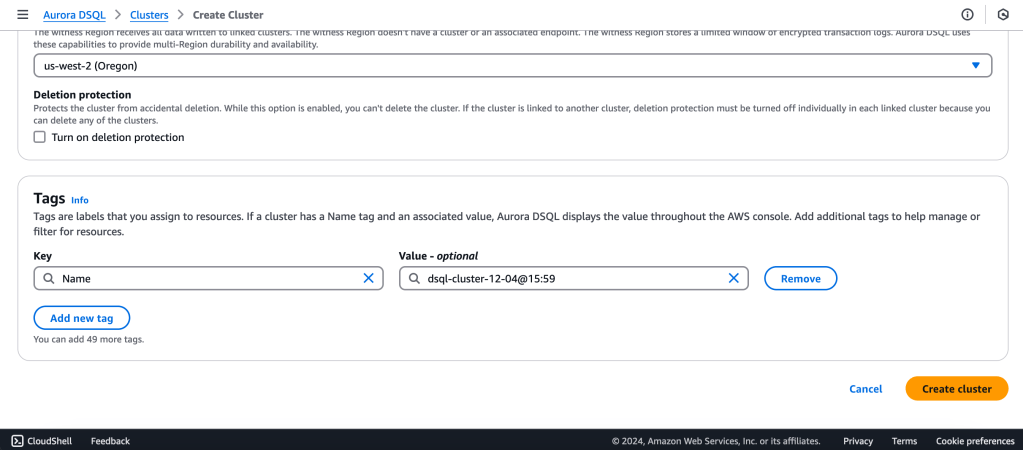
us-east-1 (N Virginia) -> Writer
us-east-2 (Ohio) -> Writer
us-west-2 (Oregon) -> Quorum
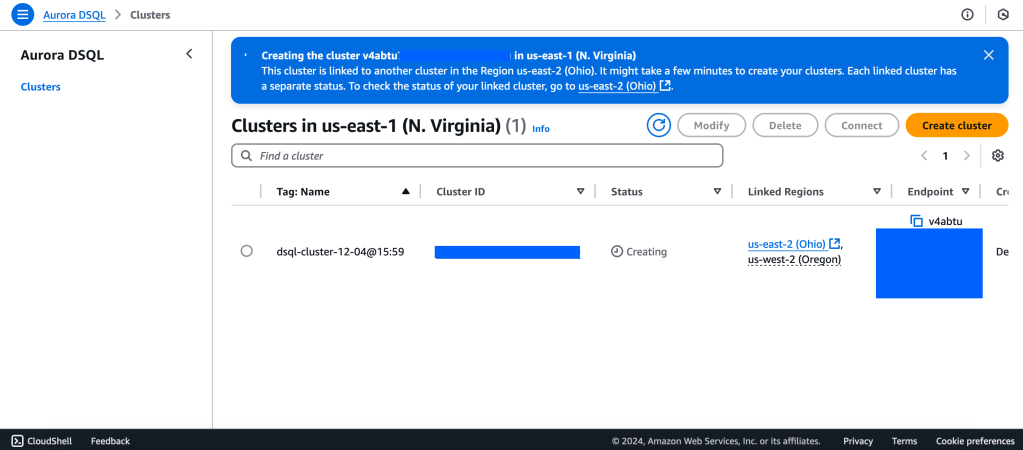
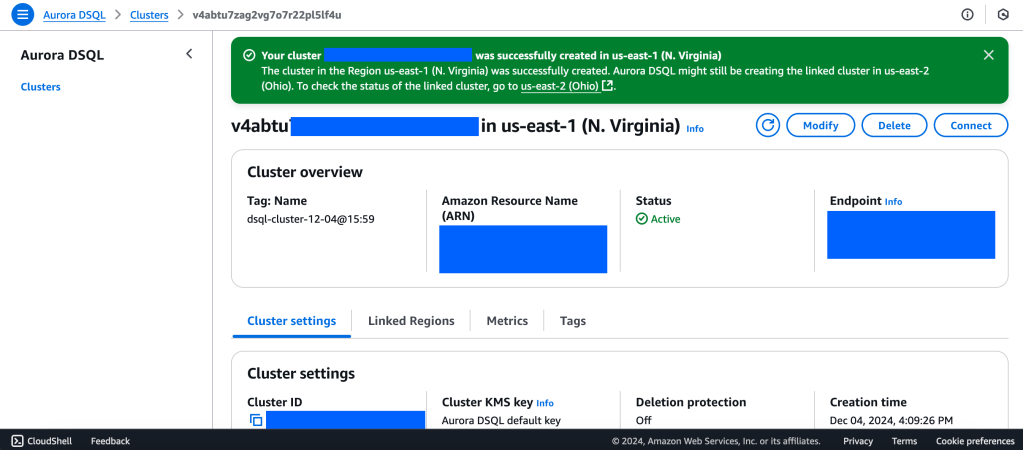
2. Wait for Cluster Creation to complete to get the Endpoint
3. Generate Auth token to login into Aurora DSQL
https://docs.aws.amazon.com/aurora-dsql/latest/userguide/authentication-token-cli.html
aws dsql generate-db-connect-admin-auth-token \
–expires-in 3600 \
–region us-east-1 \
–hostname <dsql-cluster-endpoint>
The full output will be the password, like below :
v4********4u.dsql.us-east-1.on.aws/?Action=DbConnectAdmin&X-Amz-Algorithm=AWS4-HMAC-SHA256&X-Amz-Credential=AK*****04%2Fus-east-1%2Fdsql%2Faws4_request&X-Amz-Date=202**X-Amz-Expires=3600&X-Amz-SignedHeaders=host&X-Amz-Signature=41e15*****ddfc49
4. Connect with PSQL
PGSSLMODE=require \
psql –dbname postgres \
–username admin \
–host v4*******u.dsql.us-east-1.on.aws
Password for user admin: <paste-full-string-of-auth-token-output>
psql (17.2, server 16.5)
SSL connection (protocol: TLSv1.3, cipher: TLS_AES_128_GCM_SHA256, compression: off, ALPN: none)
Type “help” for help.
postgres=>
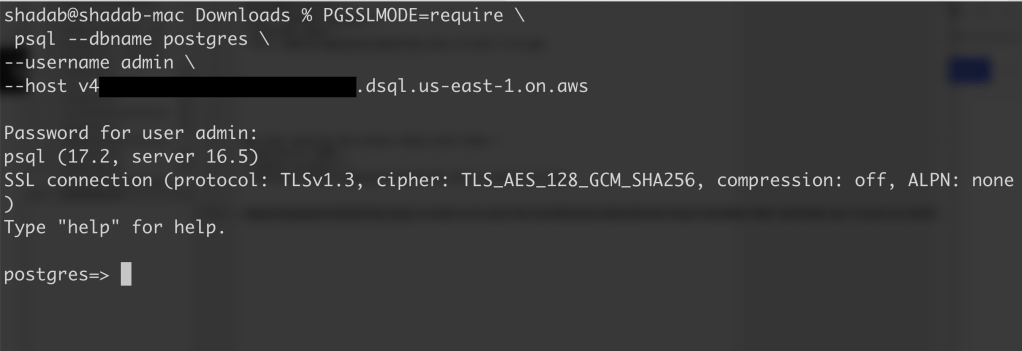
We can connect with a Standard PSQL client!!
5. Create some test objects
CREATE SCHEMA app;
CREATE TABLE app.orders (
order_id UUID PRIMARY KEY DEFAULT gen_random_uuid(),
customer_id INTEGER,
product_id INTEGER,
product_description VARCHAR(500),
order_delivery_address VARCHAR(500),
order_date_taken DATE,
order_misc_notes VARCHAR(500)
);
Sample CSV File to Load Data to Orders Table :
\COPY app.orders (order_id,customer_id,product_id,product_description,order_delivery_address,order_date_taken,order_misc_notes) FROM ‘/Users/shadab/Downloads/sample_orders.csv’ DELIMITER ‘,’ CSV HEADER;
/* Try to wrap the command in a single-line */
6. Run SQL Query
[a] Query to Find the Top 5 Customers by Total Orders Within the Last 6 Months
WITH recent_orders AS (
SELECT
customer_id,
product_id,
COUNT(*) AS order_count
FROM
app.orders
WHERE
order_date_taken >= CURRENT_DATE – INTERVAL ‘6 months’
GROUP BY
customer_id, product_id
)
SELECT
customer_id,
SUM(order_count) AS total_orders,
STRING_AGG(DISTINCT product_id::TEXT, ‘, ‘) AS ordered_products
FROM
recent_orders
GROUP BY
customer_id
ORDER BY
total_orders DESC
LIMIT 5;
[b] Query to Find the Most Common Delivery Address Patterns
SELECT
LEFT(order_delivery_address, POSITION(‘,’ IN order_delivery_address) – 1) AS address_prefix,
COUNT(*) AS order_count
FROM
app.orders
GROUP BY
address_prefix
ORDER BY
order_count DESC
LIMIT 10;
[c] Query to Calculate Monthly Order Trends by Product
SELECT
TO_CHAR(order_date_taken, ‘YYYY-MM’) AS order_month,
product_id,
COUNT(*) AS total_orders,
AVG(LENGTH(order_misc_notes)) AS avg_note_length — Example of additional insight
FROM
app.orders
GROUP BY
order_month, product_id
ORDER BY
order_month DESC, total_orders DESC;
7. Check Latency
You can check latency from AWS Cloud Shell using traceroute to your Aurora DSQL endpoints from different regions
us-east-1 (N Virginia)
$ traceroute v*****u.dsql.us-east-1.on.aws
traceroute to v****u.dsql.us-east-1.on.aws (44.223.172.242), 30 hops max, 60 byte packets
1 * * 216.182.237.241 (216.182.237.241) 1.566 ms
ap-southeast-2 (Sydney)
$ traceroute v*****u.dsql.us-east-1.on.aws
traceroute to v********u.dsql.us-east-1.on.aws (44.223.172.242), 30 hops max, 60 byte packets
1 244.5.0.119 (244.5.0.119) 1.224 ms * 244.5.0.115 (244.5.0.115) 5.922 ms
2 100.65.22.0 (100.65.22.0) 4.048 ms 100.65.23.112 (100.65.23.112) 5.203 ms 100.65.22.224 (100.65.22.224) 3.309 ms
3 100.66.9.110 (100.66.9.110) 25.430 ms 100.66.9.176 (100.66.9.176) 7.950 ms 100.66.9.178 (100.66.9.178) 3.966 ms
4 100.66.10.32 (100.66.10.32) 0.842 ms 100.66.11.36 (100.66.11.36) 2.745 ms 100.66.11.96 (100.66.11.96) 3.638 ms
5 240.1.192.3 (240.1.192.3) 0.263 ms 240.1.192.1 (240.1.192.1) 0.278 ms 240.1.192.3 (240.1.192.3) 0.244 ms
6 240.0.236.32 (240.0.236.32) 197.174 ms 240.0.184.33 (240.0.184.33) 197.206 ms 240.0.236.13 (240.0.236.13) 199.076 ms
7 242.3.84.161 (242.3.84.161) 200.891 ms 242.2.212.161 (242.2.212.161) 202.113 ms 242.2.212.33 (242.2.212.33) 197.571 ms
8 240.0.32.47 (240.0.32.47) 196.768 ms 240.0.52.96 (240.0.52.96) 196.935 ms 240.3.16.65 (240.3.16.65) 197.235 ms
9 242.7.128.1 (242.7.128.1) 234.734 ms 242.2.168.185 (242.2.168.185) 203.477 ms 242.0.208.5 (242.0.208.5) 204.263 ms
10 * 100.66.10.209 (100.66.10.209) 292.168 ms *
References:
[1] Aurora DSQL : https://aws.amazon.com/rds/aurora/dsql/features/
[2] Aurora DSQL User Guide : https://docs.aws.amazon.com/aurora-dsql/latest/userguide/getting-started.html#getting-started-create-cluster
[3] Use the AWS CLI to generate a token in Aurora DSQL : https://docs.aws.amazon.com/aurora-dsql/latest/userguide/authentication-token-cli.html
[4] DSQL Vignette: Aurora DSQL, and A Personal Story : https://brooker.co.za/blog/2024/12/03/aurora-dsql.html
——————————————————————————————–
 AWS CLOUD DBA