Check Redshift Table and Send SMS Programmatically using Amazon SNS

Requirement : Check if an UPDATE was run on a Redshift Table and Send SMS Programmatically using Amazon SNS. This script can be used in a variety of different scenarios, for eg: you can use the same logic to check for load errors on you cluster or check for INSERTS or DELETE commands.

Check if an UPDATE has occurred on a Table and send an SMS everytime the table is updated

Pre-requisites :

1. BOTO3 Python SDK installed for Python3.7

2. AWS CLI installed

3. Pscyopg2 package installed for Python3.7

4. Redshift Cluster

5. Amazon SNS configured to send SMS

6. Basic understanding of Python scripting, BOTO3 and Redshift.

Environment:

EC2 Instance Running CENTOS

Python3.7 Installed

AWS CLI installed and Configured Account credentials

Solution:

We will create a Python script to check svl_statementtext for update statements on a table ‘TEST’. The script can be configured to run in crontab every minute and if it an UPDATE occurs it dispatches an SMS using SNS.

1. Create the TEST table in your Redshift cluster and Insert some data into it

testdb=# create table test (id int8, name varchar(20));
CREATE TABLE
testdb=# insert into test values(1,’John’);
INSERT 0 1
testdb=# insert into test values(2,’Matt’);
INSERT 0 1
testdb=# insert into test values(3,’Chris’);

2. Run an UPDATE statement on the table and check svl_statementtext

testdb=# select * from test;
 id | name
—-+——-
  1 | John
  2 | Matt
  3 | Chris
(3 rows)

testdb=# update test set name=’Tim’ where id=1;
UPDATE 1


testdb=# select * from svl_statementtext where text ilike ‘update%test%’ and starttime > date_trunc(‘minute’, sysdate);
 userid |  xid   |  pid  |             label              |         starttime
       |          endtime           | sequence | type  |
                                                                           text
    100 | 506858 | 20017 | default                        | 2019-05-25 14:44:41.
657139 | 2019-05-25 14:44:49.955101 |        0 | QUERY | update test set name=’T
im’ where id=1;


(1 row)

As you can see the table logs the update command and displays it. Now we will run another update command and check the same table but using count(*)

testdb=# update test set name=’John’ where id=1;
UPDATE 1


testdb=# select count(*) from svl_statementtext where text ilike ‘update%test%’ and starttime > date_trunc(‘minute’, sysdate);
 count
——-
     1
(1 row)

So it correctly display that 1 row was updated in the last minute on table ‘TEST’. Using this logic we can poll the table every minute to see if a transaction hit the table svl_statementtext. And if it did we will send an SMS via SNS

3. Python Script (#Attached svl_statementtext_1min.py) to Check for UPDATE statements in last one minute and if COUNT is not ‘0’ then send an SMS

import boto3
import psycopg2

#Obtaining the connection to RedShift
con=psycopg2.connect(dbname= ‘testdb’, host=’redshift-dc2-test.ctzrqaulg0u6.us-east-1.redshift.amazonaws.com’,
port= ‘5439’, user= ‘awsuser’, password= ‘********’)


#Opening a cursor and run sql query
cur = con.cursor()
cur.execute(“select count(*) from svl_statementtext where text ilike ‘update%test%’ and starttime > date_trunc(‘minute’, sysdate);”)
data = str(cur.fetchone())
print(data)
con.commit()

#Close the cursor and the connection
cur.close()
con.close()

# Compare data variable for threshold
if  data == ‘(0,)’:
    print(“NO UPDATES IN LAST 1 MINUTE ON TABLE TEST”)

else:
    print(“UPDATES IN LAST 1 MINUTE ON TABLE TEST”)
    # Create an SNS client
    client = boto3.client(
    “sns”,”us-east-1″
    )
    # Create the topic if it doesn’t exist
    topic = client.create_topic(Name=”invites-for-push-notifications”)
    topic_arn = topic[‘TopicArn’]  # get its Amazon Resource Name
    # Get List of Contacts
    list_of_contacts = [“+6144*********”] # <– You can add a list of mutiple mobile numbers here
    # Add SMS Subscribers
    for number in list_of_contacts:
        client.subscribe(
        TopicArn=topic_arn,
        Protocol=’sms’,
        Endpoint=number  # <– numbers who’ll receive an SMS message.
        )
    # Publish a message.
    client.publish(Message=”Hello World!”, TopicArn=topic_arn, MessageAttributes={
    ‘AWS.SNS.SMS.SenderID’: {
    ‘DataType’: ‘String’,
    ‘StringValue’: ‘EASYORADBA’ # <– Name of Sender, Not Available in USA
    },’AWS.SNS.SMS.SMSType’: {‘DataType’: ‘String’, ‘StringValue’: ‘Transactional’}})

Open 2 sessions and from one session run an UPDATE command on table ‘TEST’ and from another session execute the Python script. If you configured every properly, you will get an SMS from Sender ‘EASYORADBA’ wuth message text “Hello World”

4. Save Script & Schedule to run every minute in Crontab

* * * * * /usr/local/bin/python3.7 svl_statementtext_1min.py

This script can be used in a variety of different scenarios to dispatch SMS based on some count logic. Another scenario is to schedule this script to check load errors on your Redshift cluster. Example run this script in your Data loading window and check for errors in STL_LOAD_ERRORS table. If there was a data loading issue then the Data Engineering team can be notified via SMS. I am attaching the script (stl_load_errors.py)  to check for data loading errors. You can change the granuliarity of time in which it should check for load errors by simply changing the time intervsl in date_trunc function.

SQL : select count(*) from stl_load_errors where starttime > date_trunc(‘minute’, sysdate);

Redshift IAM role for Copy Unload to S3

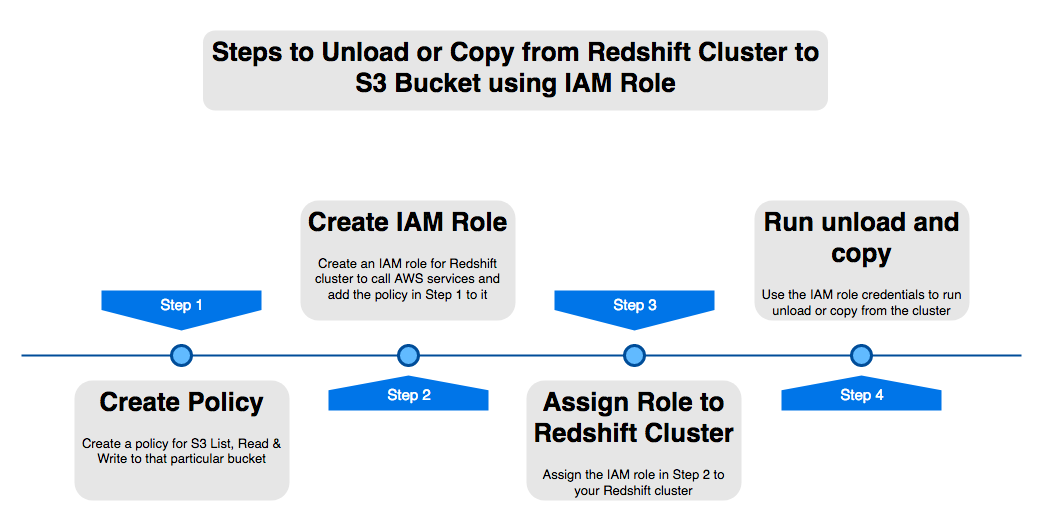
Creating IAM Policies and Roles & Associating the Role to the Redshift Cluster

———————————————————————————————————

In order to perform operations such as “COPY” and “UNLOAD” to/from a Redshift cluster, the user must provide security credentials that authorize the Amazon Redshift cluster to read data from or write data to your target destination, in this case an Amazon S3 bucket.

Step 1: Creating the policy to allow access on S3

  • On the Services menu, chose IAM  (Under security, Identity & Compliance)
  • On the left side of the IAM Console, go to “Policies” 
  • Select “Create Policy” on the top of the page
  • Select  JSON tab, and paste below in JSON. Replace ‘redshift-testing-bucket-shadmha’ with your bucket name which you are using for unload and copy

 {

   “Version”:”2012-10-17″,

   “Statement”:[

      {

         “Effect”:”Allow”,

         “Action”:[

            “s3:PutObject”,

            “s3:DeleteObject”

         ],

         “Resource”:[

            “arn:aws:s3:::redshift-testing-bucket-shadmha*”

         ]

      },

      {

         “Effect”:”Allow”,

         “Action”:[

            “s3:ListBucket”

         ],

         “Resource”:[

            “arn:aws:s3:::redshift-testing-bucket-shadmha*”

         ]

      }

   ]

  • Click on “Review Policy” and provide “Name” and “Description” for the policy
  • Click “Create Policy” and keep this name handy we will need the name of this policy to add to the IAM role in next step

Step 2: Creating the IAM Role such that the Redshift Service can request it

  • On the left menu of your IAM Console, select “Roles”
  • Select “Create Role” on the top of the page
  • Select type of trusted entity as “AWS Service” > Select the service which will be used for this role as “Amazon Redshift”
  • Select your use case as “Redshift – Customizable Allows Redshift clusters to call AWS services on your behalf.” and click “Permissions”
  • Search the policy that was previously created, select it and click on “Next”
  • Specify a “Role name”
  • Select “Create Role”

Step 3: Associating the created Role to a Redshift Cluster

  • On your AWS Console, on the Services menu, choose “Redshift”
  • On the AWS Redshift console, select the cluster in question and click on “Manage IAM roles”
  • On the pop-up screen, click on the drop box “Available roles” and select the Role created in the previous step
  • Select “Apply changes”

Considerations

——————–

As soon as the “Status” for the IAM role on the “Manage IAM roles” shows as “in-sync”, you can try “COPY” or “UNLOAD” using as CREDENTIALS the created role ARN.

Example:

Note: Modify the details such as schema and table_name, the bucket_name, and “<arn>” to the role ARN (example: “arn:aws:iam::586945000000:role/role_name”), to suit your case scenario.

Below is the example from my test cluster, Role name ‘REDSHIFTNEWROLE’ is one created in Step 2 and S3 bucket ‘redshift-testing-bucket-shadmha’ is the one we assigned policy to in Step 1.

eg:

unload (‘select * from test_char’)

to ‘s3://redshift-testing-bucket-shadmha/test_char.csv’

credentials ‘aws_iam_role=arn:aws:iam::775867435088:role/REDSHIFTNEWROLE’

delimiter ‘|’ region ‘ap-southeast-2’

parallel off:

Most common error associated when trying to copy or unload data from Redshift:

ERROR: S3ServiceException:Access Denied,Status 403,Error AccessDenied

Python Script to Create a Data Pipeline Loading Data From RDS Aurora MySQL To Redshift

In this tutorial we will create a Python script which will build a data pipeline to load data from Aurora MySQL RDS to an S3 bucket and copy that data to a Redshift cluster.

One of the assumptions is you have basic understanding of AWS, RDS, MySQL, S3, Python and Redshift. Even if you don’t it’s alright I will explain briefly about each of them to the non-cloud DBA’s

AWS- Amazon Web Services. It is the cloud infrastructure platform from Amazon which can be used to build and host anything from a static website to a globally scalable service like Netflix

RDS – Relational Database Service or RDS or short is Amazons managed relational database service for databases like it’s own Aurora, MySQL, Postgres, Oracle and SQL Server

S3- Simple Storage Service is AWS’s distributed storage which can scale almost infinitely. Data in S3 is stored in Buckets. Think of buckets as Directories but DNS name compliant and cloud hosted

Python – A programming language which is now the defacto standard for data science and engineering

Redshift- AWS’s Petabyte scale Data warehouse which is binary compatible to PostgreSQL but uses a columnar storage engine

The source in this tutorial is a RDS Aurora MySQL database and target is a Redshift cluster. The data is staged in an S3 bucket. With Aurora MySQL you can unload data directly to a S3 bucket but in my script I will offload the table to a local filesystem and then copy it to the S3 bucket. This will give you flexibility in-case you are not using Aurora but a standard MySQL or Maria DB

Environment:

  1. Python 3.7.2 with pip
  2. Ec2 instance with the Python 3.7 installed along with all the Python packages
  3. Source DB- RDS Aurora MySQL 5.6 compatible
  4. Destination DB – Redshift Cluster
  5. Database : Dev , Table : employee in both databases which will be used for the data transfer
  6. S3 bucket for staging the data
  7. AWS Python SDK Boto3

Make sure both the RDS Aurora MySQL and Redshift cluster has security groups which have have IP of the Ec2 instance for inbound connections (Host and Port)

  1. Create the table ’employee’ in both the Aurora and Redshift Clusters

Aurora MySQL 5.6

CREATE TABLE `employee` (
  `id` int(11) NOT NULL,
  `first_name` varchar(45) DEFAULT NULL,
  `last_name` varchar(45) DEFAULT NULL,
  `phone_number` varchar(45) DEFAULT NULL,
  `address` varchar(200) DEFAULT NULL,
  PRIMARY KEY (`id`)
) ENGINE=InnoDB DEFAULT CHARSET=latin1;

Redshift

DROP TABLE IF EXISTS employee CASCADE;

CREATE TABLE employee
(
   id            bigint         NOT NULL,
   first_name    varchar(45),
   last_name     varchar(45),
   phone_number  bigint,
   address       varchar(200)
);

ALTER TABLE employee
   ADD CONSTRAINT employee_pkey
   PRIMARY KEY (id);

COMMIT;

2. Install Python 3.7.2 and install all the packages needed by the script

sudo /usr/local/bin/python3.7 -m pip install boto3
sudo /usr/local/bin/python3.7 -m pip install psycopg2-binary
sudo /usr/local/bin/python3.7 -m pip install pymysql
sudo /usr/local/bin/python3.7 -m pip install json
sudo /usr/local/bin/python3.7 -m pip install pymongo

3. Insert sample data into the source RDS Aurora DB

$ mysql -u awsuser -h shadmha-cls-aurora.ap-southeast-2.rds.amazonaws.com -p dev

INSERT INTO `employee` VALUES (1,'shadab','mohammad','04447910733','Randwick'),(2,'kris','joy','07761288888','Liverpool'),(3,'trish','harris','07766166166','Freshwater'),(4,'john','doe','08282828282','Newtown'),(5,'mary','jane','02535533737','St. Leonards'),(6,'sam','rockwell','06625255252','Manchester');

SELECT * FROM employee;

4. Download and Configure AWS command line interface

The AWS Python SDK boto3 requires AWS CLI for the credentials to connect to your AWS account. Also for uploading the file to S3 we need boto3 functions. Install AWS CLI on Linux and configure it.

$ aws configure
AWS Access Key ID [****************YGDA]:
AWS Secret Access Key [****************hgma]:
Default region name [ap-southeast-2]:
Default output format [json]:

5. Python Script to execute the Data Pipeline (datapipeline.py)

import boto3
import psycopg2
import pymysql
import csv
import time
import sys
import os
import datetime
from datetime import date
datetime_object = datetime.datetime.now()
print ("###### Data Pipeline from Aurora MySQL to S3 to Redshift ######")
print ("")
print ("Start TimeStamp")
print ("---------------")
print(datetime_object)
print ("")


# Connect to MySQL Aurora and Download Table as CSV File
db_opts = {
    'user': 'awsuser',
    'password': '******',
    'host': 'shadmha-cls-aurora.ap-southeast-2.rds.amazonaws.com',
    'database': 'dev'
}

db = pymysql.connect(**db_opts)
cur = db.cursor()

sql = 'SELECT * from employee'
csv_file_path = '/home/centos/my_csv_file.csv'

try:
    cur.execute(sql)
    rows = cur.fetchall()
finally:
    db.close()

# Continue only if there are rows returned.
if rows:
    # New empty list called 'result'. This will be written to a file.
    result = list()

    # The row name is the first entry for each entity in the description tuple.
    column_names = list()
    for i in cur.description:
        column_names.append(i[0])

    result.append(column_names)
    for row in rows:
        result.append(row)

    # Write result to file.
    with open(csv_file_path, 'w', newline='') as csvfile:
        csvwriter = csv.writer(csvfile, delimiter='|', quotechar='"', quoting=csv.QUOTE_MINIMAL)
        for row in result:
            csvwriter.writerow(row)
else:
    sys.exit("No rows found for query: {}".format(sql))


# Upload Generated CSV File to S3 Bucket
s3 = boto3.resource('s3')
bucket = s3.Bucket('mybucket-shadmha')
s3.Object('mybucket-shadmha', 'my_csv_file.csv').put(Body=open('/home/centos/my_csv_file.csv', 'rb'))


#Obtaining the connection to RedShift
con=psycopg2.connect(dbname= 'dev', host='redshift-cluster-1.ap-southeast-2.redshift.amazonaws.com',
port= '5439', user= 'awsuser', password= '*********')

#Copy Command as Variable
copy_command="copy employee from 's3://mybucket-shadmha/my_csv_file.csv' credentials 'aws_iam_role=arn:aws:iam::775888:role/REDSHIFT' delimiter '|' region 'ap-southeast-2' ignoreheader 1 removequotes ;"

#Opening a cursor and run copy query
cur = con.cursor()
cur.execute("truncate table employee;")
cur.execute(copy_command)
con.commit()

#Close the cursor and the connection
cur.close()
con.close()

# Remove the S3 bucket file and also the local file
DelLocalFile = 'aws s3 rm s3://mybucket-shadmha/my_csv_file.csv --quiet'
DelS3File = 'rm /home/centos/my_csv_file.csv'
os.system(DelLocalFile)
os.system(DelS3File)


datetime_object_2 = datetime.datetime.now()
print ("End TimeStamp")
print ("-------------")
print (datetime_object_2)
print ("")

6. Run the Script or Schedule in Crontab as a Job

$ python3.7 datapipeline.py

Crontab to execute Job daily at 10:30 am

30 10 * * * /usr/local/bin/python3.7 /home/centos/datapipeline.py &>> /tmp/datapipeline.log

7. Check the table in destination Redshift Cluster and all the records should be visible their

SELECT * FROM employee;


This tutorial was done using a small table and very minimum data. But with S3’s distributed nature and massive scale and Redshift as a Data warehouse you can build data pipelines for very large datasets. Redhsift being an OLAP database and Aurora OLTP, many real-life scenarios requires offloading data from your OLTP apps to data warehouses or data marts to perform Analytics on it.

AWS also has an excellent managed solution called Data Pipelines which can automate the movement and transform of Data. But many a times for developing customized solutions Python is the best tool for the job.

Enjoy this script and please let me know in your comments or on Twitter (@easyoradba) if you have any issues or what else would you like me to post for data engineering.

Python Script to Copy-Unload Data to Redshift from S3

import psycopg2
import time
import sys
import datetime
from datetime import date
datetime_object = datetime.datetime.now()
print ("Start TimeStamp")
print ("---------------")
print(datetime_object)
print("")

#Progress Bar Function
def progressbar(it, prefix="", size=60, file=sys.stdout):
    count = len(it)
    def show(j):
        x = int(size*j/count)
        file.write("%s[%s%s] %i/%i\r" % (prefix, "#"*x, "."*(size-x), j, count))
        file.flush()
    show(0)
    for i, item in enumerate(it):
        yield item
        show(i+1)
    file.write("\n")
    file.flush()

#Obtaining the connection to RedShift
con=psycopg2.connect(dbname= 'dev', host='redshift.amazonaws.com',
port= '5439', user= 'awsuser', password= '*****')

#Copy Command as Variable
copy_command="copy users from 's3://redshift-test-bucket/allusers_pipe.txt' credentials 'aws_iam_role=arn:aws:iam::775088:role/REDSHIFTROLE' delimiter '|' region 'ap-southeast-2';"

#Unload Command as Variable
unload_command="unload ('select * from users') to 's3://redshift-test-bucket/users_"+str(datetime.datetime.now())+".csv' credentials 'aws_iam_role=arn:aws:iam::7755088:role/REDSHIFTROLE' delimiter '|' region 'ap-southeast-2';"

#Opening a cursor and run copy query
cur = con.cursor()
cur.execute("truncate table users;")
cur.execute(copy_command)
con.commit()

#Display Progress Bar and Put a sleep condition in seconds to make the program wait
for i in progressbar(range(100), "Copying Data into Redshift: ", 10):
    time.sleep(0.1) # any calculation you need

print("")

#Display Progress Bar and Put a sleep condition in seconds to make the program wait
for i in progressbar(range(600), "Unloading Data from Redshift to S3: ", 60):
    time.sleep(0.1) # any calculation you need

print("")

#Opening a cursor and run unload query
cur.execute(unload_command)

#Close the cursor and the connection
cur.close()
con.close()

datetime_object_2 = datetime.datetime.now()
print ("End TimeStamp")
print ("-------------")
print(datetime_object_2)
print("")

Simple Script to Connect & Query AWS Redshift from Python 3.7

Pre-requisite

You need psycopg2 adapter for Python which is compatible with any PostgreSQL database

To install psycopg2

$ sudo python3.7 -m pip install psycopg2

Sometimes it gives an error when you install from the source, in that case you can install from the binary

$ sudo python3.7 -m pip install psycopg2-binary

import psycopg2

#Obtaining the connection to RedShift
con=psycopg2.connect(dbname= 'dev', host='your-redshift-cluster.redshift.amazonaws.com',
port= '5439', user= 'YourUser', password= 'YourPassword')

#Opening a cursor and running a query
cur = con.cursor()
cur.execute("SELECT SYSDATE;")
#Printing the output
print(cur.fetchall())
cur.close()
con.close()

Output:

[(datetime.datetime(2019, 4, 18, 23, 57, 0, 289196),)]

AWS Reshift Insert into Table without S3

To generate random data into a table without using S3 for doing some quick tests

drop table if exists seed;

create table seed ( n int8 );

insert into seed (
SELECT
p0.n
+ p1.n*2
+ p2.n * POWER(2,2)
+ p3.n * POWER(2,3)
+ p4.n * POWER(2,4)
+ p5.n * POWER(2,5)
+ p6.n * POWER(2,6)
+ p7.n * POWER(2,7)
as number
FROM
(SELECT 0 as n UNION SELECT 1) p0,
(SELECT 0 as n UNION SELECT 1) p1,
(SELECT 0 as n UNION SELECT 1) p2,
(SELECT 0 as n UNION SELECT 1) p3,
(SELECT 0 as n UNION SELECT 1) p4,
(SELECT 0 as n UNION SELECT 1) p5,
(SELECT 0 as n UNION SELECT 1) p6,
(SELECT 0 as n UNION SELECT 1) p7
Order by 1
);

commit;

drop table if exists test_table;

create table test_table(
ingest_time timestamp encode zstd,
doi date encode zstd,
id int encode bytedict,
value float encode zstd,
data_sig varchar(32) encode zstd
) DISTKEY(id) SORTKEY(ingest_time);

commit;

insert into test_table (
select dateadd(‘msec’, – 10n , getdate() ) as ingest_time, trunc(dateadd(‘msec’, – 10n , getdate() )) as doi,id,
n::float / 1000000 as value, ‘sig-‘ || to_hex(n % 16) as data_sig
FROM (select (a.n + b.n + c.n + d.n) as n, (random() * 1000)::int as id from seed a cross join (select n256 as n from seed) b cross join (select n65536 as n from seed) c
cross join (select n*16777216 as n from ( select distinct (n/16)::int as n from seed ) ) d)
) order by ingest_time;

commit;

analyze test_table;

select count(*) from test_table;

–Consecutive run on of above insert query will 268 million rows for each execution–

You can create a table with about 1 billion rows in 8 minutes on a ds2.xlarge cluster

Move Oracle Database 12c from On-Premise to AWS RDS Oracle Instance using SQL Developer

Amazon Web Services has been gaining popularity in the last few years since cloud computing has been in the spotlight. Slowly the Traditional Enterprises are making the journey to the cloud. Oracle is considered one of the most mission critical application in the Enterprise. Moving Oracle Database to cloud can bring its own benefits both from an operational and financial perspective.

In this exercise we will move an on-premise Oracle DB schema to an AWS RDS Instance running Oracle 12cR1

Pre-requisites :

1. You already have a source Oracle database installed

2. You know how to provision an AWS RDS Oracle Instance

3. You have access to both instances

4. You have basic understanding of AWS S3 and AWS console

5. You have the latest version of SQL Developer installed on your machine

Source DB:

Oracle 12cR1 (12.1.0.2) running on CentOS 7.1

Destination DB:

Oracle 12cR1 running on AWS RDS Instance

High Level Steps to Migrate:

1. Create the destination Oracle 12CR1 instance on AWS. It is one of the easiest things to provision an Oracle DB on AWS RDS

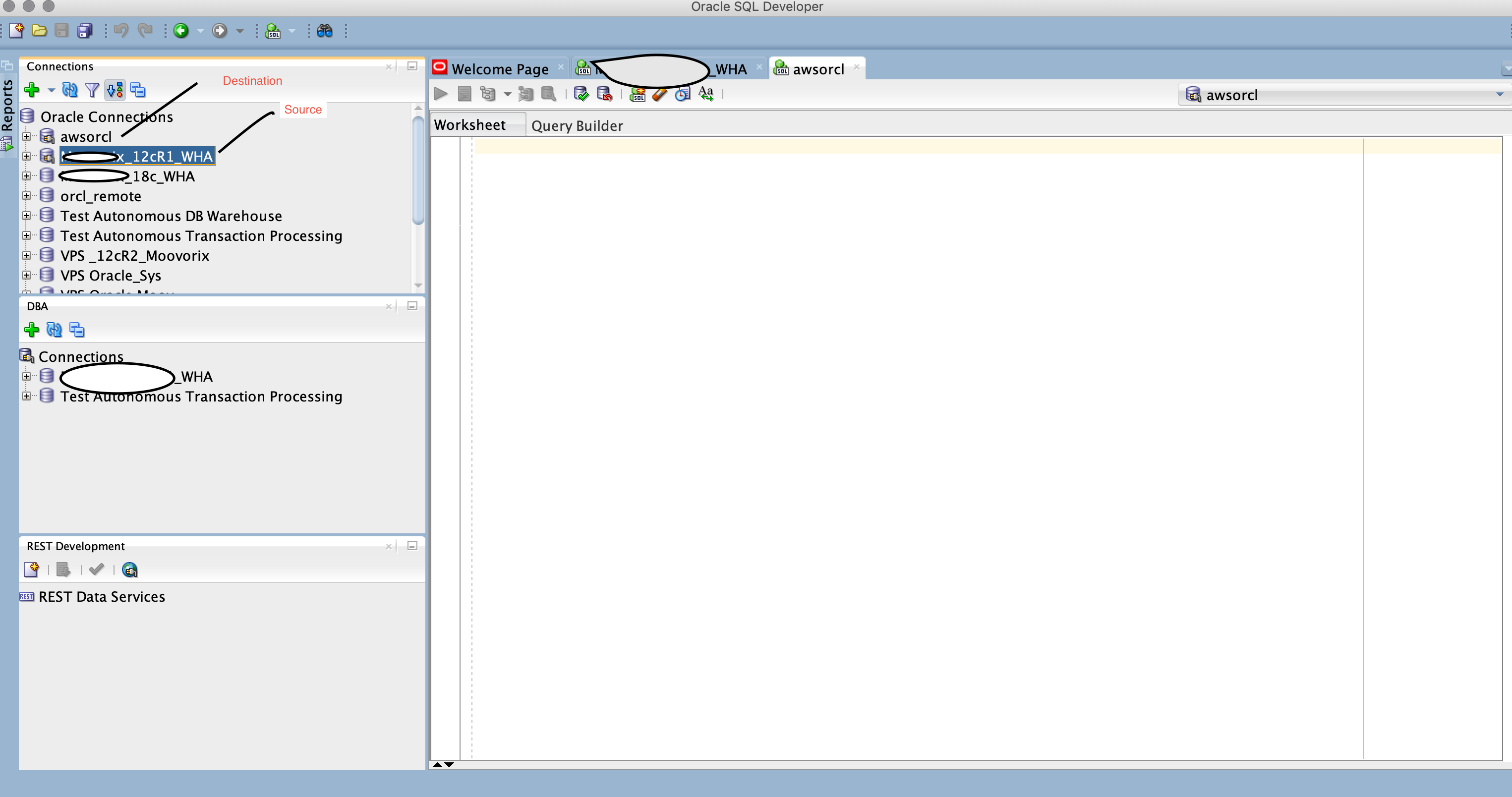
2.  Connect to Both Source(on-Prem) and Destination(AWS) Database from SQL Developer

3. Go to Tools > Database Copy and Select Source and Destination Databases

I prefer to do Tablespace Copy since most of the Apps i work reside in a single tablespace. But this depends on your choice. You can either chose Objects, Schemas or even entire Tablespaces to be copied across.

IMPORTANT : Make sure you have created the source schema in destination database before proceeding to next step else you will get an error “User does not exist”

In Destination AWS RDS run below commands

SQL> create user <source-schema-name> identified by <password123>;

SQL> grant dba to <source-schema-name>;

4. Start the Database Copy

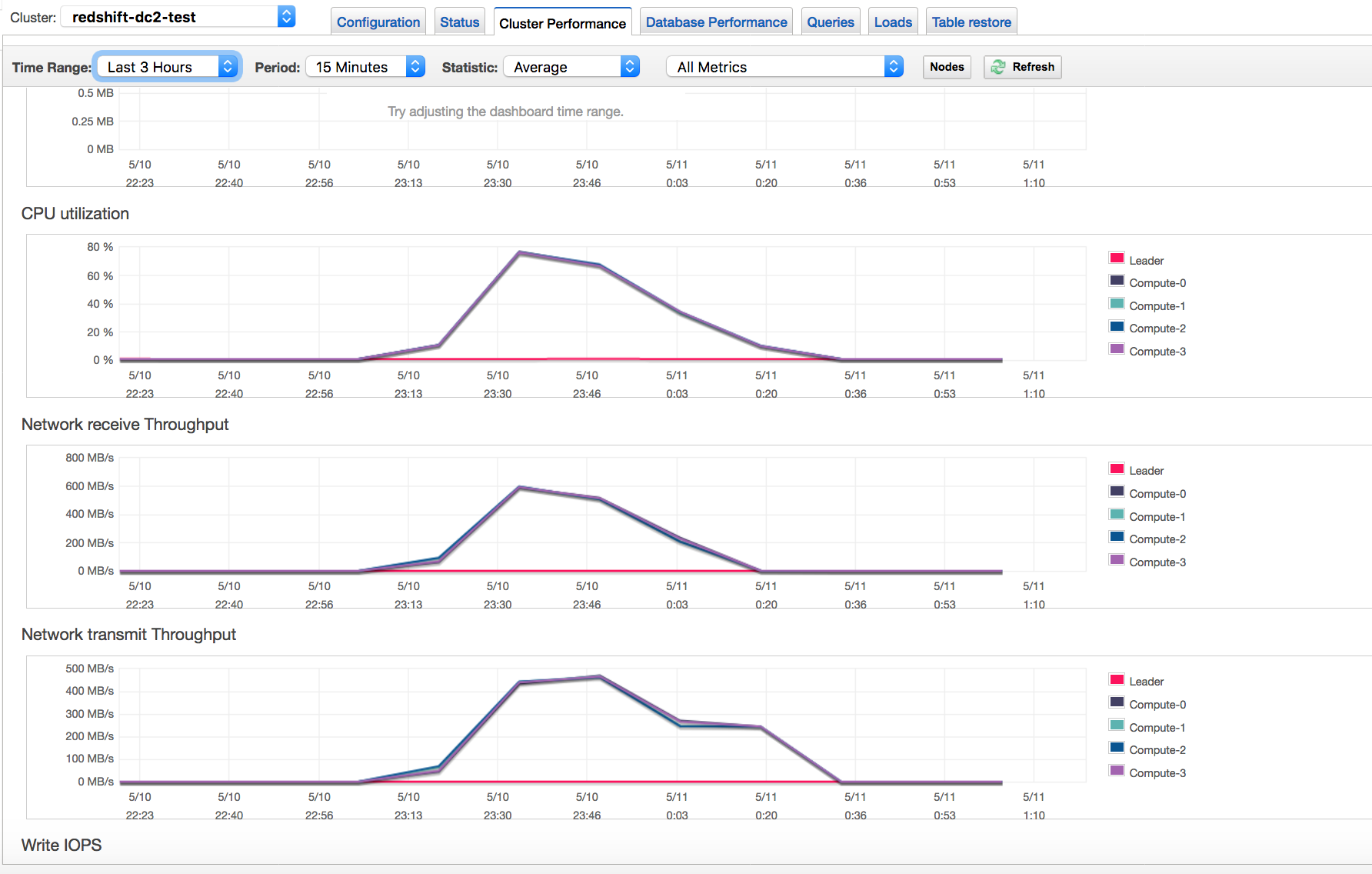
5. Check from Performance Insights Console to Check whats happening in the background

6. Query the Destination Database to See if the Objects are valid and have arrived

SQL> select * from user_tables;

SQL> select * from dba_objects where status=’INVALID’;